Advanced Custom Fields (ACF) and Elementor are a powerful combination, but many WordPress users run into the same frustrating problem.
ACF fields work perfectly in the WordPress editor. They display correctly in PHP templates.
But when you try to use ACF shortcodes inside Elementor, nothing shows up.
Sometimes the shortcode prints as plain text.
Sometimes it returns empty output.
Sometimes it works in one widget but not in another.
There are multiple reliable ways to make ACF shortcodes work correctly in Elementor.
Why ACF Shortcodes Often Fail in Elementor
ACF shortcodes are processed by WordPress using the do_shortcode() function. Elementor, however, does not process shortcodes the same way across all widgets and contexts.
- WordPress expects shortcodes to be parsed during
the_content - Elementor renders content using its own rendering engine
- Some Elementor widgets bypass standard shortcode parsing
Because of this mismatch, shortcodes that work in posts or templates may fail inside Elementor.
How ACF Shortcodes Work
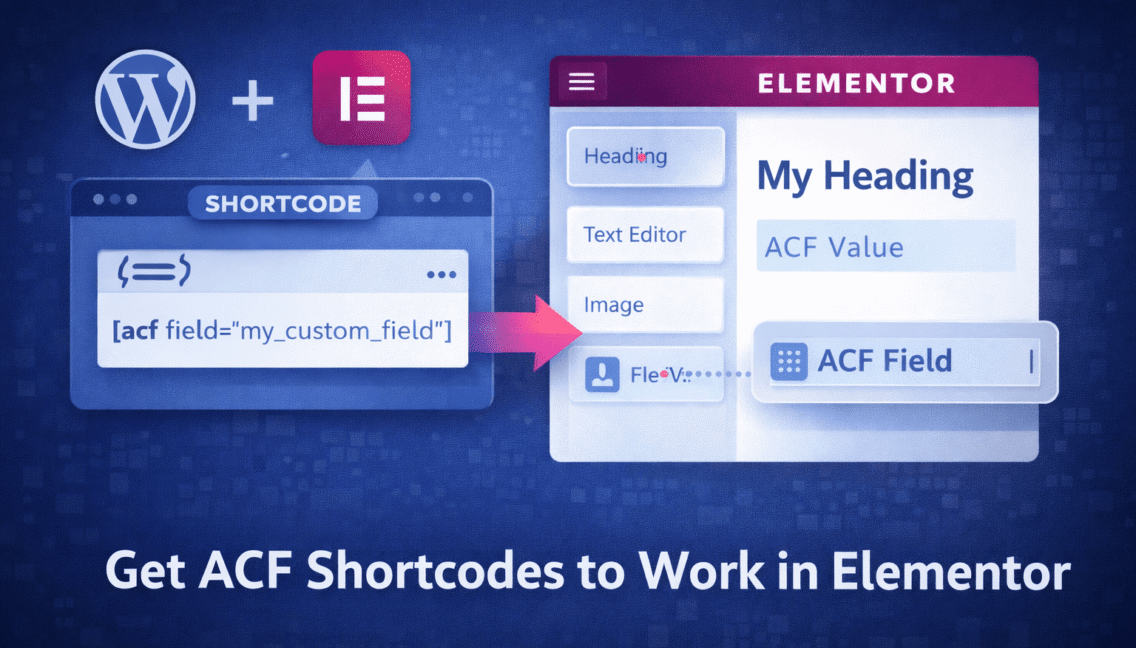
ACF allows you to output field values using a shortcode like this:
[acf field="my_custom_field"]
This shortcode pulls the value of a specific ACF field and displays it on the page.
However, this only works if:
- The shortcode is executed
- The correct post or context is available
- The output is not stripped or escaped
Elementor sometimes breaks one or more of these conditions.
ACF Shortcodes Not Working in Elementor?
If ACF fields show empty output or shortcodes don’t render inside Elementor widgets, a Codeable expert can identify the cause and fix it without breaking your layout.
Common Scenarios Where ACF Shortcodes Do Not Work
Most Elementor users experience problems in these situations:
- Using ACF shortcodes inside a Text Editor widget
- Using ACF shortcodes inside a Heading widget
- Using ACF shortcodes inside a Dynamic Template
- Using ACF shortcodes on archive or loop templates
- Using ACF shortcodes with relationship or repeater fields
Method 1: Use Elementor’s Dynamic Tags (Recommended)
In most cases, you do not need shortcodes at all.
Elementor has built-in support for ACF via Dynamic Tags.
How to Use Dynamic Tags with ACF
- Edit the page with Elementor
- Click on a widget that supports dynamic content (Heading, Text, Image, etc.)
- Click the Dynamic Tags icon
- Choose ACF Field
- Select your ACF field from the list
This method is:
- Faster
- More reliable
- Fully supported by Elementor
- Better for performance
When Dynamic Tags Are Not Enough
Dynamic Tags work well for simple fields, but they have limitations:
- Limited formatting options
- Poor handling of complex HTML
- Not ideal for repeater or relationship fields
When you hit those limits, shortcodes may still be needed.
Method 2: Enable Shortcodes in Elementor Text Widgets
Elementor does not always execute shortcodes inside text widgets by default.
You can force shortcode execution using a filter.
Add This Code to functions.php
add_filter( 'elementor/text-editor/shortcode', 'do_shortcode' );
This tells Elementor to process shortcodes inside the Text Editor widget.
Important Notes
- This affects all Elementor text widgets
- Test carefully on live sites
- Some shortcodes may output unexpected HTML
This method works well for simple ACF shortcodes.
Method 3: Create a Custom Shortcode for ACF Fields
If the default ACF shortcode does not behave correctly, creating your own shortcode gives you full control.
Example: Custom ACF Shortcode
function my_acf_shortcode( $atts ) {
    $atts = shortcode_atts(
        array(
            'field' => '',
        ),
        $atts
    );

    if ( empty( $atts['field'] ) ) {
        return '';
    }

    return get_field( $atts['field'] );
}
add_shortcode( 'my_acf', 'my_acf_shortcode' );
You can now use:
[my_acf field="my_custom_field"]
This approach:
- Bypasses Elementor limitations
- Gives you full control over output
- Works consistently across widgets
Method 4: Use PHP Rendering Instead of Shortcodes
For complex layouts, PHP rendering is often the cleanest solution.
This is especially true for:
- Repeater fields
- Relationship fields
- Flexible content fields
Example: Rendering an ACF Field in PHP
$value = get_field( 'my_custom_field' );
if ( $value ) {
    echo esc_html( $value );
}
You can place this code in:
- A custom Elementor template
- A child theme template
- A custom plugin
This avoids shortcodes entirely and gives you full reliability.
Method 5: ACF Shortcodes in Elementor Loop Templates
Loop and archive templates are a special case.
ACF shortcodes often fail here because:
- The global post object is different
- Elementor renders loops differently
Solution
Always ensure the correct post ID is passed.
Example:
[acf field="my_custom_field" post_id="%post_id%"]
Or use PHP-based rendering inside a loop-aware template.
Common Mistakes to Avoid
Many issues come from small mistakes. Avoid these common problems:
- Using shortcodes in widgets that do not support them
- Forgetting post context
- Expecting shortcodes to work inside dynamic HTML attributes
- Mixing ACF shortcodes and Elementor Dynamic Tags incorrectly
- Using outdated versions of Elementor or ACF
Keeping plugins updated solves more issues than most people expect.
Performance and Security Considerations
Shortcodes are convenient, but overusing them can hurt performance.
Best practices:
- Prefer Dynamic Tags when possible
- Avoid nested shortcodes
- Do not run shortcodes inside loops unnecessarily
- Escape output properly when using PHP
Clean output is safer and faster.
Recommended Approach Summary
Here is a decision table guide:
| Use Case | Best Solution |
|---|---|
| Simple text fields | Elementor Dynamic Tags |
| Simple shortcode output | Enable shortcodes in Text Editor |
| Complex formatting | Custom shortcode |
| Repeater or relationship fields | PHP rendering |
| Archive or loop templates | PHP or post-aware shortcode |
Choosing the right method upfront saves time and frustration. ACF shortcodes can work in Elementor, but only when used in the right context.
In many cases, shortcodes are not the best solution, even if they seem convenient at first. Elementor’s Dynamic Tags or PHP rendering are often more reliable and easier to maintain.
When shortcodes are necessary, controlling how and where they are executed is the key to success.
Need Help Getting ACF Working Properly in Elementor?
If ACF fields or shortcodes are not rendering correctly in Elementor layouts,
Codeable WordPress experts can diagnose the issue and implement a clean, reliable solution.
FAQ: Advanced Custom Fields Shortcodes in Elementor
Why do ACF shortcodes not work in Elementor?
ACF shortcodes often do not work in Elementor because Elementor does not process shortcodes the same way WordPress does. Some Elementor widgets bypass the standard do_shortcode() function, which causes shortcodes to render as plain text or return empty output.
Should I use ACF shortcodes or Elementor Dynamic Tags?
In most cases, Elementor Dynamic Tags are the better option. They are faster, more reliable, and officially supported by Elementor. ACF shortcodes should only be used when Dynamic Tags cannot handle the required layout or formatting.
How can I enable shortcodes inside Elementor text widgets?
You can enable shortcode execution inside Elementor Text Editor widgets by adding a filter to your theme’s functions.php file. This forces Elementor to process shortcodes, including ACF shortcodes, inside text-based widgets.
Do ACF shortcodes work with repeater or relationship fields?
ACF shortcodes are not ideal for repeater or relationship fields. These field types usually require custom PHP rendering to loop through values correctly. Using shortcodes for complex field structures often leads to incomplete or broken output.
Why do ACF shortcodes fail in Elementor loop or archive templates?
ACF shortcodes often fail in loop and archive templates because the correct post context is missing. Elementor renders loops differently, so the shortcode may not know which post ID to use. In these cases, PHP rendering or explicitly passing the post ID is the most reliable solution.