How to Disable the Elementor Pro Templates Library
Elementor Pro includes a Elementor Pro Templates Library that allows users to insert pre-designed layouts directly into the editor. These templates can speed up page building, especially on simple websites or early project stages.
However, there are many situations where the templates library becomes unnecessary or even disruptive. On custom-built websites, long-term client projects, or tightly controlled design systems, allowing access to ready-made templates can cause confusion, inconsistency, and unwanted layout changes.
What the Templates Library Actually Includes
The first thing to clarify is that Elementor uses the word “templates” for different features.
When people talk about disabling the templates library, they usually mean Elementor’s cloud templates, not everything related to Elementor Pro Templates Library.
Elementor has three different template types:
- Cloud templates – layouts downloaded from Elementor’s servers
- Saved templates (“My Templates”) – templates you create and save inside your own site
- Theme Builder templates – headers, footers, single posts, archives, and other structural layouts
Disabling the templates library only affects cloud templates.
Your existing pages, saved templates, and Theme Builder layouts remain untouched.
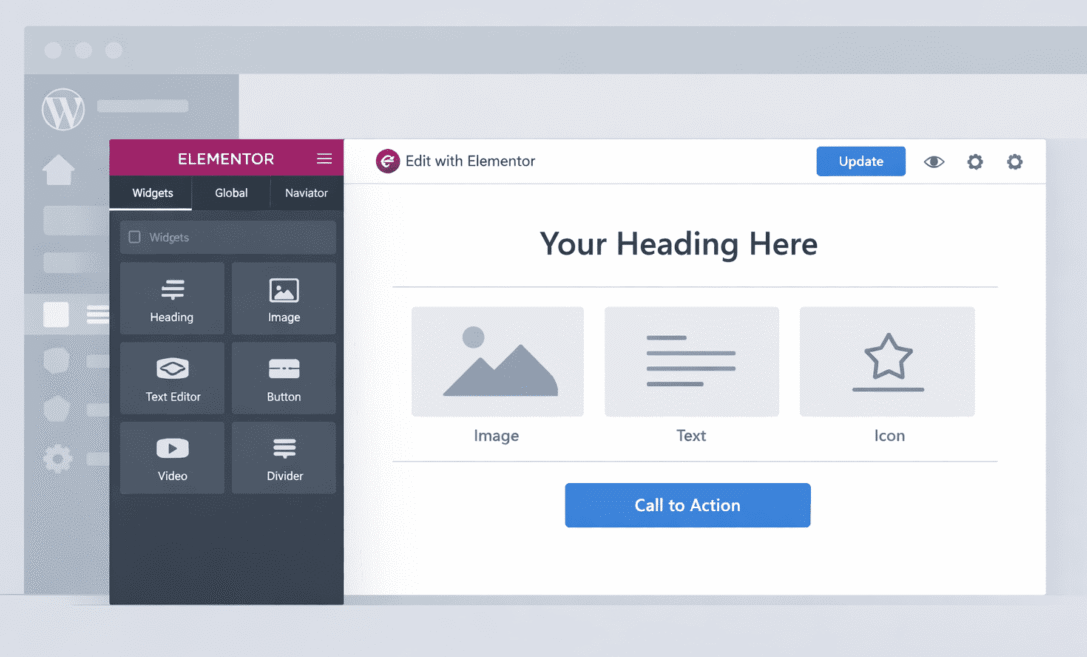
Why Some Websites Don’t Need the Elementor Templates Library
On many websites, especially client sites, the templates library causes more problems than it solves.
A common situation looks like this:
An editor opens Elementor, clicks “Insert Template,” chooses a full-page layout, and overwrites an existing design. Fonts change, spacing breaks, and sections appear that were never planned.
Even when no damage is done, imported templates often bring:
- different spacing rules,
- extra widgets,
- inconsistent structure,
- layouts that don’t match the rest of the site.
For websites built with a clear design system, reusable sections, and predefined layouts, the templates library simply does not fit.
In these cases, disabling it creates a cleaner and safer editing environment.
Need Help Configuring Elementor the Right Way?
If you want Elementor set up cleanly without breaking existing layouts, working with an experienced Elementor developer can save time and avoid mistakes.
Will Disabling the Templates Library Break Anything?
No.
Disabling the templates library does not:
- remove content from existing pages,
- affect layouts already built with Elementor,
- delete saved templates,
- break Theme Builder headers or footers.
It only prevents users from importing new cloud templates.
This makes it a low-risk change, especially on established websites.
How Elementor Loads Templates in the Editor
When the Elementor editor opens, it checks whether the templates panel should be shown.
If enabled, Elementor then sends requests to its servers to fetch available templates.
This means there are two places where the feature can be controlled:
- the editor interface (what the user sees),
- the remote source (where templates come from).
Most reliable setups block both.
Hiding the Templates Library in the Elementor Editor
The simplest way to remove the templates library from the editor is to hide the templates panel entirely.
Add the following code to your site:
add_filter( 'elementor/editor/show_templates', '__return_false' );
Once applied, the Templates Library button no longer appears inside Elementor.
This alone is enough for many websites.
Completely Blocking Elementor Cloud Templates
If you want to make sure Elementor does not fetch any remote templates at all, you can disable the remote source.
add_filter( 'elementor/template_library/sources/remote', '__return_empty_array' );
With this in place, Elementor behaves as if no cloud templates exist.
This approach is useful when you want full control and no dependency on external template sources.
Disabling the Templates Library Only for Non-Admins
A common setup on client sites is to allow full access for administrators while restricting editors and authors.
This prevents accidental layout changes while keeping flexibility for developers.
add_filter( 'elementor/editor/show_templates', function( $show ) {
	if ( current_user_can( 'manage_options' ) ) {
		return $show;
	}
	return false;
});
Admins continue to see the templates library.
Other roles do not.
Blocking Template Data Without Changing the Interface
In some cases, developers prefer to block template data instead of hiding the interface.
The following filters prevent Elementor from returning template data from its API:
add_filter( 'elementor/api/get_templates', '__return_empty_array' );
add_filter( 'elementor/api/get_template', '__return_empty_array' );
Depending on the Elementor version, these filters may or may not be used internally, but when they are, they provide an additional layer of protection.
Keeping “My Templates” Available
Disabling the templates library does not remove access to saved templates.
Your locally created templates remain available under “My Templates” as long as you only disable the remote source.
This allows you to:
- create your own reusable sections,
- save page layouts,
- reuse design elements safely.
Many developers prefer this approach over importing external layouts.
Where to Add the Code Safely
There are several safe places to add these snippets:
- a custom plugin,
- a code snippets plugin,
- a child theme’s
functions.phpfile.
For long-term projects, a small custom plugin is often the cleanest option, especially if themes may change in the future.
How to Verify That the Templates Library Is Disabled
After applying the changes:
- open a page in Elementor,
- check that the Templates Library button is gone or empty,
- test with different user roles,
- clear cache if needed.
Elementor can cache editor data, so refreshing alone is not always enough.
Working Without the Templates Library
Disabling the templates library does not mean slower development.
Instead of cloud templates, many websites rely on:
- reusable sections,
- global widgets,
- predefined page layouts,
- consistent spacing and typography rules.
This approach keeps the site clean and predictable over time.
Not Sure Which Elementor Features to Disable?
If you want a clean setup without trial and error, an experienced Elementor developer can handle it quickly and safely.
You can read more about Codeable here
Re-Enabling the Templates Library
If you ever need to restore the templates library, simply remove the code snippets and clear cache.
Nothing else needs to be rebuilt or restored.
The Elementor Pro templates library is a useful feature, but it is not necessary for every website.
On custom builds and client projects, disabling it often leads to fewer mistakes, cleaner layouts, and a more controlled editing experience.
With the right setup, you can keep Elementor flexible while removing features that don’t serve your project.
Frequently Asked Questions
1. Does disabling the Elementor Pro templates library affect existing pages?
No, existing pages will not be affected in any way. Pages that were already built using Elementor will keep their layout, content, and styling exactly as they are. Disabling the templates library only prevents importing new templates from Elementor’s cloud.
2. Will my saved templates still be available after disabling the library?
Yes, your saved templates under “My Templates” will remain fully available. These templates are stored locally in your WordPress database and do not depend on Elementor’s cloud library. You can continue reusing them normally.
3. Can I disable the templates library only for editors or clients?
Yes, the templates library can be disabled for specific user roles. This is commonly done on client websites to prevent accidental layout changes while keeping full access for administrators. It creates a safer editing environment without limiting development flexibility.
4. Is it safe to disable the Elementor Pro templates library on a live website?
Disabling the templates library is generally safe on live websites. The change does not modify existing content or layouts and does not remove any data. It only affects the ability to import new cloud templates going forward.
5. Can I re-enable the Elementor Pro templates library later?
Yes, the templates library can be re-enabled at any time. You simply remove the code snippet or restriction that was added and clear the site cache if needed. No content needs to be rebuilt or restored.
6. Will disabling the templates library slow down or speed up my site?
Disabling the templates library does not cause noticeable changes to page loading speed for visitors. It mainly affects the Elementor editor environment and how templates are loaded in the background. Any performance impact is usually small but helps keep things simpler and cleaner.
7. Does disabling templates remove Elementor kits or blocks?
Disabling the templates library only affects cloud-based templates. It does not remove widgets, blocks, or features already included in Elementor Pro. Kits that were previously imported will also remain on the site.
8. Where is the safest place to add the code snippets?
The safest options are a small custom plugin, a code snippets plugin, or a child theme’s functions.php file. Using a custom plugin is often preferred for long-term projects because it works independently of the active theme. This approach makes future theme changes easier.
9. What happens if Elementor updates in the future?
In most cases, the templates library remains disabled after Elementor updates. However, it is always a good idea to quickly test the editor after major updates. If anything changes, the code snippets can usually be adjusted easily.
10. Is disabling the templates library recommended for every Elementor website?
No, it is not recommended for every website. Some projects benefit from fast layout building using ready-made templates. Disabling the library makes the most sense on custom builds, client websites, and projects with a controlled design system.
Need Help With Elementor Configuration?
If you’re managing a client site or a custom Elementor build, working with a certified Elementor expert can help you avoid layout issues and keep everything clean and controlled.