Migrating a LearnDash LMS site is one of the most complex WordPress migrations you can do. Moving pages and posts is easy. Moving courses is harder. Moving user progress correctly is the real challenge.
Many site owners discover this the hard way.
Courses appear on the new site, but user progress is broken. Some users are marked as completed when they are not. Others lose all progress. After multiple test imports, duplicate courses appear and everything becomes misaligned.
Why LearnDash Migrations Often Fail
LearnDash does not store progress in a simple or portable way. Progress is tightly linked to internal WordPress IDs. When those IDs change, progress data no longer points to the correct lessons, topics, or quizzes.
This creates a silent failure. The import looks successful, but progress is wrong.
Key Reasons Progress Does Not Carry Over
LearnDash progress issues usually happen because of the following reasons.
First, course, lesson, topic, and quiz IDs change during import. Even if the content looks identical, WordPress assigns new IDs.
Second, LearnDash stores progress in user meta and custom database tables that reference those IDs directly.
Third, repeated imports create duplicate courses. Progress may point to the old version, while users are viewing the new one.
Fourth, partial imports cause mismatches. Some lessons exist, others do not, breaking completion logic.
Because of this, LearnDash migrations cannot be treated like normal content migrations.
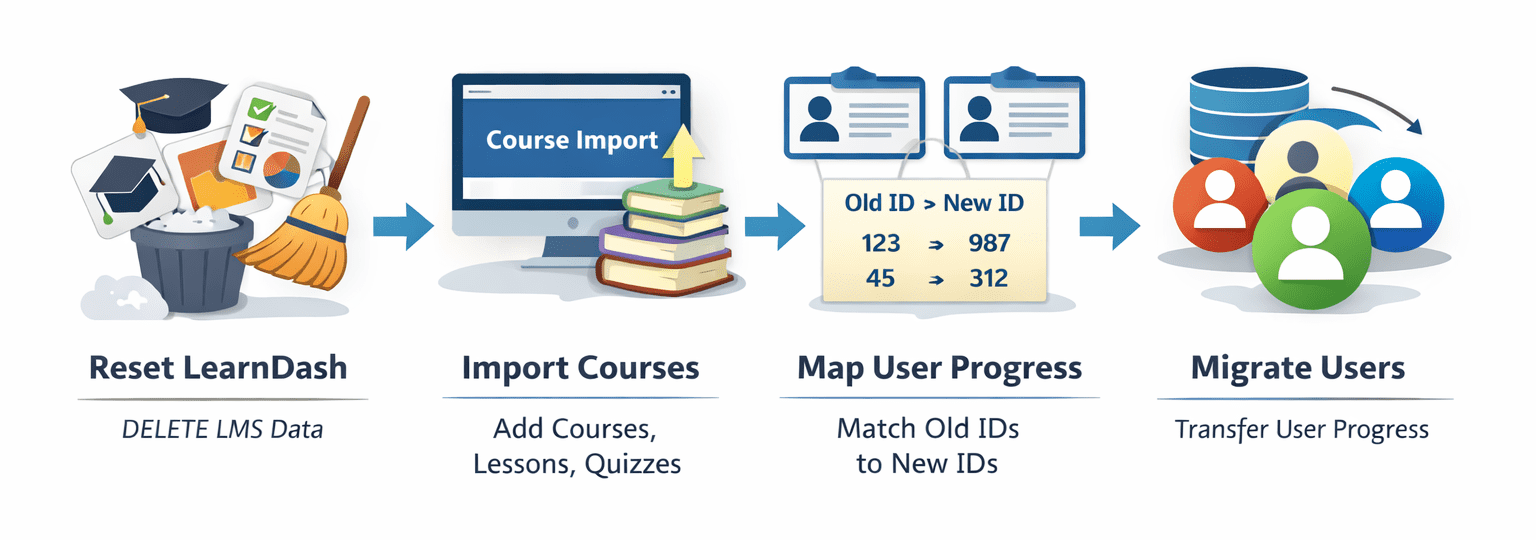
How LearnDash Stores Course and User Progress Data
To migrate correctly, you need to understand where the data lives.
LearnDash uses a combination of post types, user meta, and custom database tables.
Main LearnDash Data Locations
LearnDash relies on these core components.
Courses, lessons, topics, and quizzes are stored as WordPress custom post types.
User progress is stored in the wp_usermeta table, mainly under the meta key _sfwd-course_progress.
Quiz attempts and statistics are stored in custom LearnDash tables such as wp_ld_quiz_statistics.
Lesson and topic completion status references internal post IDs directly.
This means progress data is not portable unless IDs match.
Why ID Matching Is Critical
Every progress entry looks something like this conceptually.
User X completed lesson ID 123 in course ID 45.
If lesson ID 123 becomes lesson ID 987 on the new site, the progress entry is now invalid.
LearnDash does not automatically remap IDs during imports.
This is the core reason progress breaks.
Symptoms of a Broken LearnDash Migration
Most sites show the same warning signs after a failed migration.
- Courses appear multiple times in the admin area
- Users report missing or incorrect progress
- Lessons appear completed but topics inside are not
- Quizzes show attempts but do not unlock lessons
- Course completion certificates do not trigger
These issues usually get worse with each test import. At this point, continuing to import data will only make things harder to fix.
Running Into LearnDash Migration Issues?
If your courses imported but user progress is broken or duplicated, Codeable experts can help reset LearnDash safely, remap IDs, and migrate user progress without risking live data.
Why You Must Reset LearnDash Before Re-Migrating
If you already attempted multiple imports, the safest approach is not to patch the data.
The correct solution is a clean reset.
Trying to manually fix mismatched IDs after the fact is extremely time consuming and error prone.
A reset allows you to start with a known, clean state and migrate correctly from the beginning.
What Resetting LearnDash Means
Resetting LearnDash does not mean deleting WordPress.
It means removing LearnDash related content and progress data so that new imports do not conflict with old data.
A proper reset removes:
- All LearnDash courses, lessons, topics, and quizzes
- All LearnDash user progress metadata
- All LearnDash quiz statistics
This gives you a clean base to work from.
Safe LearnDash Reset Checklist
Before resetting anything, preparation is critical. A reset without preparation often causes more problems than it solves.
Never reset without backups.
Step 1: Full Backup
Create a full database and files backup. This ensures you can restore the site if something goes wrong or if data needs to be recovered later.
Step 2: Export the Old Site Data
On the old site, export all LearnDash related data before starting the reset process.
This should include:
- Courses, lessons, topics, and quizzes
- Users and user roles
- User progress data if available
- Quiz attempts if required for compliance or reporting
This exported data will be used later for a controlled and accurate migration.
How to Reset LearnDash on the New Site (Properly and Safely)
If your LearnDash migration already created duplicate courses or broken user progress, the safest solution is a full LearnDash reset on the new site.
This does not reset WordPress itself. It resets only LearnDash related content and data.
The goal is to remove all LearnDash objects and progress records so you can start a clean migration without ID conflicts.
Before starting, always create a full database backup. This step is not optional.
Step 1: Delete All LearnDash Content (Courses, Lessons, Quizzes)
LearnDash stores its content as WordPress custom post types. If these remain in the database, new imports will create duplicates and ID conflicts.
You must remove all LearnDash related post types completely.
What to delete in WordPress admin
Go to the WordPress dashboard and permanently delete the following post types:
- Course
- Lessons
- Topics
- Quizzes
- Certificates
Delete them from their respective admin menus, not from the media library or standard pages.
Important detail: Empty the Trash
After deleting the items, go to the Trash and permanently delete them.
If LearnDash content remains in the trash, WordPress keeps their IDs reserved. This can cause unexpected conflicts during re-import.
At the end of this step, the new site should contain zero LearnDash courses or lessons.
Step 2: Remove LearnDash User Progress Data
Deleting courses alone is not enough.
LearnDash stores user progress separately in the WordPress user meta table. If this data remains, it will continue pointing to old course IDs that no longer exist.
This step removes all stored LearnDash progress for all users.
What this step does
It deletes:
- Course completion status
- Lesson and topic completion data
- Progress percentages
It does not delete users, user roles, or non LearnDash data.
SQL query to remove LearnDash progress
Run the following query using phpMyAdmin, Adminer, or a similar database tool.
Always run this on a backup first.
DELETE FROM wp_usermeta
WHERE meta_key LIKE '%_sfwd-course_progress%';
Why this is necessary
LearnDash progress is stored as structured arrays under this meta key. If you import new courses with new IDs, old progress data becomes invalid and causes broken completion states.
After this step, all users will appear as having no course progress, which is exactly what you want before a clean migration.
Step 3: Clean LearnDash Quiz Data
Quiz attempts and statistics are not stored in standard WordPress tables. LearnDash uses its own custom database tables for this data.
If these tables are not cleared, quiz attempts may still exist but no longer match the new quizzes.
Common LearnDash quiz tables
Most LearnDash installations use these tables:
wp_ld_quiz_statistics
wp_ld_quiz_statistics_ref
Depending on your table prefix, they may appear differently. Always confirm the correct table names before running queries.
How to reset quiz data safely
Instead of deleting the tables, truncate them. This keeps the table structure intact while removing all stored data.
TRUNCATE TABLE wp_ld_quiz_statistics;
TRUNCATE TABLE wp_ld_quiz_statistics_ref;
What this removes
- All quiz attempts
- All quiz statistics
- All historical quiz results
This does not affect course structure or users.
What You Should Have After the Reset
Once all three steps are completed, your LearnDash setup should be in a clean state.
You should see:
- No courses, lessons, topics, or quizzes in admin
- No user progress data
- No quiz attempts or statistics
At this point, LearnDash behaves like a fresh installation, without reinstalling the plugin.
This is the correct and safest starting point for a proper migration.
Correct Migration Strategy for LearnDash
Now that you have a clean site, you can migrate properly.
The most important rule is simple.
Course structure must be imported before user progress.
Recommended Migration Order
- Import courses, lessons, topics, and quizzes
- Verify course structure and hierarchy
- Lock course IDs
- Import users
- Remap and import user progress
Skipping or reordering these steps will cause issues.
Mapping Old IDs to New IDs
This is the most critical step.
You need a mapping table that links old site IDs to new site IDs.
| Old Site ID | New Site ID | Post Type |
|---|---|---|
| 45 | 312 | Course |
| 123 | 987 | Lesson |
| 456 | 654 | Topic |
| 789 | 321 | Quiz |
This table allows you to translate old progress references to new ones.
Without this mapping, progress cannot be restored reliably.
Sample PHP Code for Progress Remapping
Below is a simplified example of updating progress using mapped IDs.
$user_id = 25;

$progress = get_user_meta($user_id, '_sfwd-course_progress', true);

foreach ($progress as $old_course_id => $course_data) {
    $new_course_id = $course_map[$old_course_id];
    $new_progress[$new_course_id] = array();

    foreach ($course_data['lessons'] as $old_lesson_id => $lesson_data) {
        $new_lesson_id = $lesson_map[$old_lesson_id];
        $new_progress[$new_course_id]['lessons'][$new_lesson_id] = $lesson_data;
    }
}

update_user_meta($user_id, '_sfwd-course_progress', $new_progress);
This logic must be adapted to your real data structure, but the concept remains the same.
Validating the Migration
After importing progress, validation is essential.
What to Test
Log in as test users.
Check lesson completion status.
Check topic progression.
Check quiz unlock behavior.
Check certificates and course completion.
Compare results against the old site.
If something is wrong, stop and fix it before continuing.
Common Mistakes to Avoid
Many LearnDash migrations fail because of avoidable mistakes.
Running imports multiple times on the same database.
Importing users before courses.
Ignoring ID mismatches.
Trying to manually fix progress in the admin UI.
Not testing with real users.
Each of these can cause silent data corruption.
When a Full Progress Migration Is Not Worth It
In some cases, restoring full progress is not practical.
For very old sites with inconsistent data, it may be better to reset progress intentionally, grant manual course completions, or offer users a restart or partial credit.
This decision should be based on business impact, not just technical feasibility.
SEO Considerations During LearnDash Migration
A broken LMS can also hurt SEO.
Ensure that:
Course URLs remain consistent or are redirected.
No duplicate courses are indexed.
Old course URLs redirect to new ones.
Sitemaps are regenerated.
Search engines should see one clean version of each course.
LearnDash migrations fail when they are treated like standard WordPress imports.
They succeed when they are treated like data migrations.
If your LMS is a core business asset, investing time in doing this correctly will save weeks of support issues later.
A clean migration is not about speed. It is about accuracy.
Need Help Resetting and Migrating LearnDash Correctly?
On Codeable, you can explain your LearnDash migration problem, discuss it with experienced WordPress LMS experts, and receive a free, no-obligation estimate before moving forward.