How to Send Different Email Templates in Contact Form 7 Based on Country

Many WordPress websites serve users from multiple countries. When that happens, email communication often needs to change depending on where the user is located.

A very common requirement looks like this:

  1. If a user selects China in a Contact Form 7 form, the site should send one email template.
  2. If the user selects any other country, the site should send a different template.

This sounds simple, but Contact Form 7 does not support country-based email templates by default. There is no built-in setting for conditional email content, and there is no visual toggle to switch templates based on user input.

Still, this problem can be solved cleanly, safely, and in a way that is easy to maintain long-term.

Why you should use Country Based Email Templates

On international websites, email content is rarely one-size-fits-all. Country-based email templates are often required for legal, operational, or communication reasons.

In practice, this requirement appears on many types of websites.

Some businesses need different wording for certain regions. Others must include extra notices or disclaimers depending on country. In some cases, emails need to be routed to different internal teams based on geography.

Below are the most common real-world reasons developers implement country-based email templates.

Before listing them, it’s important to understand that these needs usually appear after a site starts growing internationally. That’s why this problem shows up frequently in mature projects.

Common reasons include:

  • Different legal or compliance text by country
  • Local sales or support teams handling different regions
  • Language or cultural tone differences
  • Special handling for specific markets (for example, China)
  • Internal workflows that depend on user location

After implementing country-based logic once, it often becomes reusable across many forms and projects.


Why Contact Form 7 Cannot Do This by Default

Contact Form 7 is designed to be minimal. It focuses on form submission, validation, and email delivery, but avoids complex conditional logic in the interface.

Out of the box, Contact Form 7 allows:

  • One main email template
  • One optional secondary email (Mail 2)
  • Static subject and body fields
  • No conditions inside email content

Even though there is a “Mail (2)” option, Contact Form 7 does not let you decide dynamically which email template should be used based on a submitted value like country.

This is why developers rely on WordPress hooks.

Hooks allow you to modify data while it is being processed. In this case, we modify the email content right before it is sent.

Contact Form 7 Based on Country

The Best Hook for Country Based Email Logic

Contact Form 7 provides several hooks, but only one is ideal for this task.

The correct hook is:

wpcf7_mail_components

This hook runs after the form is submitted and validated, but before the email is sent. At that moment, all submitted data is available, and the email content is already prepared.

This allows us to:

  • Read the selected country
  • Decide which template should be used
  • Replace the subject and body dynamically

This approach does not interfere with form validation, spam protection, or submission tracking.

How the Country-Based Email Logic Works

Before going into code, it helps to understand the logic in plain language.

When a user submits a form:

  1. The form sends all field values to WordPress.
  2. Contact Form 7 prepares the email using the template from the Mail tab.
  3. Before sending the email, WordPress runs the wpcf7_mail_components filter.
  4. Our code checks the selected country.
  5. If the country matches a specific value (for example, China), the email content is replaced.
  6. If not, the default email remains unchanged.

This means:

You still have one form.
You still edit templates in one place.
The logic is invisible to the user.


Step 1: Make Sure Your Form Has a Country Field

The first requirement is simple. Your Contact Form 7 form must include a country field.

The field can be a dropdown, a text input, or any other supported type. What matters most is the field name.

Here is a common example using a dropdown:

[select* country "China" "United States" "Canada" "Germany" "France" "Other"]

In this example, the field name is country.

That name will be used later in the code. If your field uses a different name, such as your-country, the code must be adjusted accordingly.

After adding or confirming the country field, you should test the form normally to make sure submissions work as expected.


Step 2: Decide Where Email Templates Should Live

Before writing any code, you need to decide where your email templates will be stored.

This decision affects maintainability and client usability.

There are multiple technical options, but not all are equally practical.

Below is an overview of common approaches, followed by an explanation of which one is recommended.

Possible storage options include:

  • Hardcoding templates directly in PHP
  • Storing templates inside Contact Form 7 Mail settings
  • Loading templates from theme files
  • Saving templates in WordPress options or custom fields

While all of these work technically, only one is truly client-friendly.

The recommended approach is to store the default email template inside Contact Form 7, and let the code override it only when a specific country is selected.

This allows non-developers to edit email content without touching PHP.

Step 3: Set Up the Default Email Template (All Countries)

Start by configuring the standard email template in the Contact Form 7 Mail tab.

This template will be used for all countries except China.

Use clear, neutral wording that works globally.

Example subject:

Thank you for contacting us

Example body:

Hello,

Thank you for reaching out.
Our team has received your message and will respond shortly.

Best regards,
Company Name

This email becomes the fallback template. If no country-specific condition is matched, this is the email that will be sent.

Step 4: Add Country-Based Logic with wpcf7_mail_components

Now comes the technical part. This code only needs to be written once.

It should be added to:

  • a custom plugin, or
  • the theme’s functions.php file

Using a custom plugin is recommended for long-term projects.

Here is a clean, production-safe example:

add_filter( 'wpcf7_mail_components', 'cf7_country_based_email_template', 10, 3 );

function cf7_country_based_email_template( $components, $contact_form, $instance ) {

    $submission = WPCF7_Submission::get_instance();
    if ( ! $submission ) {
        return $components;
    }

    $posted_data = $submission->get_posted_data();

    if ( empty( $posted_data['country'] ) ) {
        return $components;
    }

    $country = strtolower( trim( $posted_data['country'] ) );

    if ( $country === 'china' ) {

        $components['subject'] = 'Thank you for contacting our China team';

        $components['body'] =
            "Hello,\n\n" .
            "Thank you for contacting us from China.\n" .
            "Your message has been forwarded to our regional team.\n\n" .
            "Best regards,\n" .
            "Company Name";
    }

    return $components;
}

What This Code Actually Does

Even if you are not a developer, it helps to understand what is happening.

  1. First, the code waits until Contact Form 7 prepares the email.
  2. Then it reads the submitted form data.
  3. Next, it looks specifically for the country field.
  4. If the value equals “China”, the subject and body are replaced.
  5. If not, the email stays exactly as defined in the Mail tab.

Nothing else is changed.

Attachments, headers, sender address, and recipients remain untouched.


Expanding the Logic for More Countries

Once this logic exists, expanding it is easy.

You can support multiple countries with one condition.
You can also group countries by region.

For example, China-related regions:

$china_group = array( 'china', 'hong kong', 'macau' );

if ( in_array( $country, $china_group, true ) ) {
    // China template
}

This approach keeps the logic readable and easy to maintain.


Why This Approach Is Better Than Multiple Forms

Many site owners try to solve this problem by duplicating forms.

That usually creates more problems than it solves.

Before listing the issues, it’s important to note that form duplication also hurts SEO and maintainability.

Problems caused by multiple forms include:

  • Harder updates when content changes
  • Inconsistent email formatting
  • Higher chance of configuration errors
  • More testing required
  • Worse editorial control

Using one form with country-based logic avoids all of these issues.

Common Mistakes to Avoid

This solution is reliable, but there are common mistakes that can cause issues if not avoided.

First, email logic must always run on the server. Client-side JavaScript cannot control email delivery.

Second, country values must be normalized. Differences in capitalization or spacing can break comparisons.

Third, logic should be kept simple. Over-engineering email templates leads to fragile systems.

Keeping the code short and clear improves long-term stability.

Contact Form 7 does not support country-based email templates by default, but WordPress hooks make it possible.

But with a small amount of code, you can:

  • Send different emails based on country
  • Keep one clean form
  • Let clients edit templates safely
  • Avoid unnecessary plugins
  • Build a scalable solution

Once implemented, this logic rarely needs changes.


Need Help Implementing This Safely?

If you want this set up correctly on a live site, or if you need:

  • more complex country rules
  • multilingual email content
  • CRM or automation integration
  • a future-proof implementation

You can post your request on Codeable and receive a free estimate with no obligation to proceed with project

Need Help Setting Up Country-Based Email Templates in Contact Form 7?

Hire a certified WordPress expert from Codeable to implement country-based email logic in Contact Form 7 safely and professionally.

Get a Free Estimate

CF7: Redirect, Email Issues, Submissions, and Multi-Step Forms

1. How to Redirect After Form Submission in CF7

Redirecting users to another page after they submit a form can be a great way to confirm the submission or guide users to a thank-you page. Here’s how you can achieve this:

Step-by-Step Guide to Redirect After Form Submission

  1. Edit the Form in Contact Form 7:
    • Go to Contact > Contact Forms in your WordPress dashboard.
    • Select the form you want to edit or create a new one.
  2. Add JavaScript for Redirection:
    • In the form’s Additional Settings section, add the following JavaScript code:
    on_sent_ok: "location.replace('https://your-redirect-url.com');"
    

    Replace https://your-redirect-url.com with your desired redirection URL.

  3. Save the Form:
    • Click Save to store your form settings.

Alternative Method: Using a Plugin

If you prefer not to use JavaScript, you can install a plugin like Contact Form 7 Redirection, which provides an easy way to set up redirects after submission without custom code.


2. Troubleshooting: CF7 Not Receiving Emails

Sometimes, emails sent via Contact Form 7 don’t reach your inbox. This can be caused by hosting configurations, spam filters, or incorrect settings. Here’s how to fix this:

Step 1: Check the Email Settings

  1. Go to Contact Form 7 > Contact Forms and select the form.
  2. Open the Mail tab.
  3. Ensure the To field contains your correct email address.
  4. Check the From field format:
    [plaintext]
    From: [your-name] <wordpress@yourdomain.com>
    [/plaintext]

    Using a valid sender email address can reduce spam-related issues.

Step 2: Verify Hosting Email Configuration

Some hosting providers block PHP-based email sending. Contact your host to ensure the mail() function is enabled. If blocked, use an SMTP plugin like WP Mail SMTP to configure reliable email delivery.

Step 3: Test Email Delivery

  1. Test sending emails directly from your hosting server.
  2. If unsuccessful, it’s likely a hosting issue. If successful, the problem lies with Contact Form 7 or its settings.

Step 4: Configure an SMTP Plugin

  1. Install WP Mail SMTP.
  2. Configure the plugin with your email provider’s SMTP settings (e.g., Gmail or SendGrid).
  3. Send a test email to confirm everything is working correctly.

3. How to View and Manage CF7 Submissions

Contact Form 7 does not store form submissions by default, but you can use the Flamingo plugin to save and manage submissions in your WordPress dashboard.

Step 1: Install Flamingo

  1. Go to Plugins > Add New and search for Flamingo.
  2. Click Install Now and activate the plugin.

Step 2: View Submissions

  1. Navigate to Flamingo > Inbound Messages.
  2. You’ll see all stored form submissions, with options to filter by date or form name.

Step 3: Export Submissions

  1. Select the submissions you want to export.
  2. Click Export to download them as a CSV file for offline analysis.

4. Creating Multi-Step Forms with CF7

Multi-step forms can enhance user experience by breaking complex forms into manageable sections. While Contact Form 7 doesn’t support multi-step forms out of the box, you can achieve this using plugins or custom scripts.

Step 1: Use a Plugin

  1. Install and activate the Contact Form 7 Multi-Step Forms plugin.
  2. Configure your form into steps using the plugin settings.

Step 2: Custom HTML and JavaScript Method

  1. Divide the form into <div> containers for each step and use CSS to hide them.
  2. Add JavaScript to toggle between steps based on user actions.

Example:

<div class="step step-1">
 <label>Name</label>
  [text* your-name]
  <button class="next-step>Next</button>
</div>

<div class="step step-2">
 <label>Email</label>
  [email* your-email]
  <button class="prev-step">Previous</button>
  [submit "Submit"]
</div>

JavaScript:

document.querySelector('.next-step').addEventListener('click', function() {
  document.querySelector('.step-1').style.display = 'none';
  document.querySelector('.step-2').style.display = 'block';
});

document.querySelector('.prev-step').addEventListener('click', function() {
  document.querySelector('.step-2').style.display = 'none';
  document.querySelector('.step-1').style.display = 'block';
});

CSS:

.step {
  display: none;
}

.step.step-1 {
  display: block;
}


Need Help Customizing Your Contact Form 7?

Hire a certified WordPress expert from Codeable to help you set up and troubleshoot your Contact Form 7 forms.

Get a Free Estimate

How to Create a Quiz with Contact Form 7


Why Use Contact Form 7 for Quizzes?

Although Contact Form 7 is typically used for contact forms, it can also be an excellent tool for creating quizzes for the following reasons:

  • Ease of Use: Contact Form 7 is user-friendly and integrates seamlessly with WordPress.
  • Customizability: You can tailor the design and functionality of your quiz according to your needs.
  • Flexibility: Collect user responses and even send results via email or store them for future analysis.
  • Free Plugin: Contact Form 7 is free, which is a great benefit for those on a budget.

Step 1: Install Contact Form 7

Before we start creating the quiz, make sure you have Contact Form 7 installed and activated on your WordPress site:

  1. From your WordPress dashboard, go to Plugins > Add New.
  2. Search for Contact Form 7 and click Install Now.
  3. After installation, click Activate.

Once the plugin is activated, you’ll be able to create and customize your forms, including quizzes.


Step 2: Create the Quiz Form

Creating a quiz form in Contact Form 7 is similar to creating a regular form, but with a few modifications for quiz-style questions.

Step 2.1: Add Quiz Questions

  1. Go to Contact > Contact Forms and click Add New to create a new form.
  2. Enter a title for your quiz form, e.g., “General Knowledge Quiz”.
  3. Add the quiz questions as form fields. For example, you can use multiple-choice options or a simple text field for short-answer questions.

Here’s an example of a multiple-choice question:

<label for="q1">What is the capital of France?</label><br />
[radio* q1 use_label_element "Paris" "London" "Berlin" "Madrid"]

Explanation:

  • [radio* q1]: This creates a required radio button field. The * ensures that the user must select an answer.
  • use_label_element: Ensures that the options are displayed in a more user-friendly way.

Step 2.2: Add More Questions

Add more quiz questions, each with radio buttons, checkboxes, or text fields, depending on the type of questions you want to ask.

Here’s an example of a true/false question:

<label for="q2">The Earth is flat.</label><br />
[radio* q2 use_label_element "True" "False"]

For a short-answer question, use the following:

<label for="q3">What is 5 + 7?</label><br />
[text* q3 id:q3]

This will create a basic text input where users can type in their answer.

Step 2.3: Submit Button

Don’t forget to add a submit button at the end of the form:

[submit "Submit Quiz"]

Step 2.4: Save the Form

Once you’ve added all your questions, click Save to store your quiz form.


Step 3: Add Scoring and Results Calculation

To create a fully functional quiz, you need to score the answers and display the results. By default, Contact Form 7 doesn’t have built-in scoring functionality, but we can achieve this by using a combination of custom JavaScript and PHP.

Step 3.1: Use JavaScript for Scoring

To calculate the score, you can use JavaScript to compare the user’s responses with the correct answers. Here’s a simple example of how to do that:

  1. In the Additional Settings section of your Contact Form 7 form, add the following JavaScript code:
document.addEventListener('wpcf7submit', function(event) {
  var correctAnswers = {
    q1: 'Paris',
    q2: 'False',
    q3: '12'
  };

  var score = 0;
  var formData = event.detail.inputs;

  formData.forEach(function(input) {
    if (input.name in correctAnswers && input.value === correctAnswers[input.name]) {
      score++;
    }
  });

  alert('Your score is: ' + score + '/' + Object.keys(correctAnswers).length);
}, false);

This script listens for the form submission event, checks the answers, and displays a score based on the user’s responses.

Step 3.2: Display the Results

The JavaScript above will show the results in an alert box after the user submits the quiz. If you want to display the results within the form itself, you can use AJAX to dynamically insert the score into the page after submission.


Step 4: Customize the Quiz Design

To make your quiz visually appealing, you can customize the appearance of the quiz using custom CSS. For example, you can style the radio buttons, text inputs, and submit button to match your website’s theme.

label {
  font-size: 16px;
  font-weight: bold;
}

input[type="radio"], input[type="text"] {
  margin: 10px;
}

button[type="submit"] {
  background-color: #0073e6;
  color: white;
  padding: 10px 20px;
  border-radius: 5px;
  font-size: 16px;
}

button[type="submit"]:hover {
  background-color: #005bb5;
}

Step 5: Embed the Quiz Form on Your Website

Once you’ve created your quiz form, it’s time to embed it on a page or post:

  1. Copy the shortcode of your quiz form from the Contact Form 7 page.
  2. Go to the page or post where you want to display the quiz.
  3. Paste the shortcode where you want the quiz to appear.

The shortcode will look something like this:

[contact-form-7 id="123" title="General Knowledge Quiz"]

FAQ: Common Questions About Creating Quizzes with Contact Form 7

1. Can I create a quiz with multiple types of questions?

Yes! Contact Form 7 allows you to use different types of questions such as multiple choice (radio buttons), checkboxes, dropdowns, and text input fields, giving you a lot of flexibility in how you design your quiz.

2. How can I show the quiz results without using JavaScript?

If you prefer not to use JavaScript, you can use a WordPress plugin like Formidable Forms or WPForms that provides built-in quiz and survey features, including automatic scoring and result displays.

3. Can I store quiz results in the WordPress database?

Yes, you can store quiz results in the database using custom PHP code. This can be done by hooking into the form submission process and saving the results in a custom table or a WordPress custom post type.

4. Can I send the quiz results to the user by email?

Yes, Contact Form 7 allows you to customize the email body, so you can send the quiz results to the user upon submission. You can include the score or individual answers in the email template.

5. How do I prevent users from cheating on the quiz?

While Contact Form 7 does not provide a built-in way to prevent cheating, you can implement features like time limits, IP tracking, or CAPTCHA to reduce the chances of users submitting multiple answers or trying to bypass the system.


Conclusion

Creating a quiz with Contact Form 7 is a simple and effective way to engage users and gather information on your website. By using a combination of radio buttons, checkboxes, and custom JavaScript, you can easily create an interactive quiz that scores answers and displays results to the user.

Whether you’re creating a fun quiz, a survey, or a lead generation tool, Contact Form 7 gives you the flexibility to tailor your quiz to meet your needs.


Need Expert Help with Contact Form 7 Quizzes?

Hire a certified WordPress expert from Codeable to help you customize your Contact Form 7 quizzes and improve your user engagement.

Get a Free Estimate

Phone Number Field in Contact Form 7

Why Add a Phone Number Field to Your Contact Form?

A phone number field in your contact form offers several advantages:

  • Improve Communication: Allowing visitors to submit their phone numbers helps you reach out to potential leads quickly and personally.
  • Better Lead Conversion: Collecting phone numbers enables faster follow-ups, improving your chances of converting visitors into customers.
  • Enhance Customer Support: If you offer customer support, having a phone number in the form can help resolve issues faster by allowing you to call the customer directly.

Step 1: Add a Basic Phone Number Field in Contact Form 7

Adding a phone number field to your form is simple. Here’s how to do it:

Step 1.1: Open Your Contact Form in Contact Form 7

  1. From your WordPress dashboard, go to Contact > Contact Forms.
  2. Select the form you want to edit, or create a new form by clicking Add New.

Step 1.2: Add the Phone Number Field

  1. In the form editor, place the following code where you want the phone number field to appear:
<label for="phone">Phone Number</label>
[tel* phone id:phone]

Here’s what each part of the code means:

  • [tel* phone]: This shortcode creates a required phone number field. The * makes the field mandatory, meaning the user must fill it out before submitting the form.
  • id:phone: This gives the phone number field a unique ID, which can be useful for styling and other purposes.
  • label for="phone": This ensures that the label is associated with the phone number field for better accessibility.

Step 1.3: Save the Form

Once you’ve added the phone number field, click Save to store the changes.


Step 2: Customize the Phone Number Field

If you want to customize the phone number field further, there are several options you can use to improve the user experience and the validation process.

Step 2.1: Add Placeholder Text

To make it clear to users what format the phone number should be in, you can add placeholder text in the input field.

<label for="phone">Phone Number</label>
[tel* phone id:phone placeholder "Enter your phone number"]

This will display the text “Enter your phone number” inside the phone number field, giving users a hint of what to type.

Step 2.2: Format the Phone Number Field

To make sure the phone number is entered in the correct format, you can use a regular expression (regex) to validate the field.

<label for="phone">Phone Number</label>
[tel* phone id:phone placeholder "Enter your phone number" pattern="^[\+]?[0-9]{1,4}?[0-9]{7,10}$"]

This regex allows for phone numbers that may optionally start with a “+” (international code) and ensures that the number entered is between 7 to 10 digits long.

Step 2.3: Use JavaScript to Mask the Phone Number

For a more user-friendly approach, you can use a JavaScript library like Inputmask to create a mask for phone number entry. This can help format the number as the user types it, making it easier to collect consistent data.

<img src="data:image/gif;base64,R0lGODlhAQABAIAAAAAAAP///yH5BAEAAAAALAAAAAABAAEAAAIBRAA7" data-wp-preserve="%3Cscript%20src%3D%22https%3A%2F%2Fcdnjs.cloudflare.com%2Fajax%2Flibs%2Finputmask%2F5.0.6-beta.28%2Finputmask.min.js%22%3E%3C%2Fscript%3E" data-mce-resize="false" data-mce-placeholder="1" class="mce-object" width="20" height="20" alt="&lt;script&gt;" title="&lt;script&gt;" />


document.getElementById('phone').inputmask('(999) 999-9999'); // Example mask

This script will display the phone number in the format (123) 456-7890 as the user types it.


Step 3: Add Validation for the Phone Number Field

To ensure the phone number is entered correctly, it’s important to validate the input. Contact Form 7 provides built-in validation for the required fields, but you can add custom validation to check for a valid phone number.

Step 3.1: Use JavaScript for Phone Number Validation

If you want more advanced validation (for example, to ensure the phone number contains only numbers or follows a specific format), you can use JavaScript to check the value before submitting the form.

document.addEventListener('wpcf7submit', function(event) {
  var phoneNumber = document.getElementById('phone').value;
  var phoneRegex = /^[\+]?[0-9]{1,4}?[0-9]{7,10}$/;

  if (!phoneRegex.test(phoneNumber)) {
    alert('Please enter a valid phone number.');
    event.preventDefault(); // Prevent form submission
  }
}, false);

This script listens for the form submission event and checks the phone number against the specified regex pattern. If the phone number doesn’t match, the form submission is prevented, and an error message is shown.


Step 4: Style the Phone Number Field

You can style the phone number field to match the design of your site using custom CSS. Here’s an example of styling the phone number input field:

#phone {
  font-size: 16px;
  padding: 10px;
  width: 100%;
  border: 2px solid #ccc;
  border-radius: 5px;
  box-sizing: border-box;
}

#phone:focus {
  border-color: #0073e6;
}

FAQ: Common Questions About the Phone Number Field in Contact Form 7

1. Can I make the phone number field optional?

Yes! Simply remove the * from the [tel* phone] shortcode to make it optional:

<label for="phone">Phone Number</label>
[tel phone id:phone placeholder "Enter your phone number"]

2. How do I add country codes to the phone number field?

To allow users to enter their country code, you can add a dropdown field with country codes and then combine it with the phone number field. Here’s an example:

<label for="country-code">Country Code</label>
[select country-code "US +1" "CA +1" "UK +44" "IN +91"]

<label for="phone">Phone Number</label>
[tel* phone id:phone placeholder "Enter your phone number"]

You can then use JavaScript to combine the selected country code with the phone number value.

3. Can I use a phone number field in multiple forms?

Yes! The phone number field can be used in any form created with Contact Form 7. Simply add the same [tel* phone] shortcode to other forms where you need to collect phone numbers.

4. How can I validate international phone numbers?

For international phone number validation, you can use a more advanced regex pattern that allows for varying phone number formats based on the country. You can also use third-party libraries like libphonenumber to validate and format international numbers.

5. Can I use a phone number field in the Contact Form 7 email?

Yes! You can include the phone number field in the email body by using the corresponding form tag, for example:

Phone Number: [phone]

Adding a phone number field to your Contact Form 7 form is a simple but powerful way to collect contact information from your website visitors. Whether you’re collecting phone numbers for customer support, sales, or general inquiries, the customization options available in Contact Form 7 ensure you can tailor the phone number field to fit your needs.

From basic phone fields to advanced validation and styling, you now have all the tools you need to create effective phone number fields in Contact Form 7.


Need Help with Customizing Contact Form 7?

Hire a certified WordPress expert from Codeable to help you customize your Contact Form 7 fields and enhance your form functionality.

Get a Free Estimate

How to Integrate Contact Form 7 with HubSpot

Contact Form 7 is one of the most popular WordPress plugins for creating forms, while HubSpot is a leading CRM platform that helps businesses manage relationships with their leads and customers. Integrating Contact Form 7 with HubSpot can help streamline your lead capture process by automatically sending form submissions to your HubSpot account. This integration ensures that all your leads are managed effectively in one place, enabling better communication and follow-ups.


Why Integrate Contact Form 7 with HubSpot?

Integrating Contact Form 7 with HubSpot offers several benefits:

  • Automated Lead Management: Automatically send form submissions to your HubSpot CRM, saving time and reducing the risk of manual data entry errors.
  • Better Communication: Keep track of all leads and follow-ups within HubSpot, ensuring you can provide better customer service.
  • Segmentation: Use HubSpot’s advanced segmentation and marketing tools to nurture leads based on the data submitted through your forms.
  • Streamlined Marketing: Integrate form data directly into HubSpot’s email campaigns, workflows, and other marketing automation tools.

Method 1: Using the HubSpot for WordPress Plugin

The easiest way to integrate Contact Form 7 with HubSpot is by using the HubSpot for WordPress plugin. This plugin connects your WordPress site with HubSpot, enabling seamless integration between your forms and the HubSpot CRM.

Step 1: Install and Activate the HubSpot for WordPress Plugin

  1. Go to your WordPress dashboard.
  2. Navigate to Plugins > Add New.
  3. Search for HubSpot and click Install Now.
  4. After installation, click Activate.

Step 2: Connect HubSpot to Your WordPress Site

  1. Once activated, go to HubSpot > Settings in your WordPress dashboard.
  2. You’ll be prompted to log into your HubSpot account or create one if you don’t already have an account.
  3. Follow the on-screen instructions to connect your WordPress site to your HubSpot CRM.

Step 3: Enable Form Tracking

The HubSpot for WordPress plugin allows you to track all forms on your website, including those created with Contact Form 7.

  1. Go to HubSpot > Settings.
  2. Click on the Tracking & Analytics tab and enable form tracking.
  3. HubSpot will now automatically capture submissions from all forms, including Contact Form 7.

Step 4: Map Contact Form 7 Fields to HubSpot Properties

  1. Go to HubSpot > Forms in your HubSpot account.
  2. Choose the form you want to map or create a new one.
  3. In the form editor, you can map the form fields to HubSpot properties (e.g., Name, Email, Phone Number, etc.).
  4. Save your settings.

Now, whenever someone submits a form on your website, their information will automatically be sent to HubSpot.


Method 2: Using a Third-Party Plugin (e.g., WPForms or Contact Form 7 HubSpot Integration Plugin)

If you prefer more advanced control over the integration or need a more specific feature, you can use a third-party plugin designed to integrate Contact Form 7 with HubSpot. One such plugin is the Contact Form 7 HubSpot Integration plugin.

Step 1: Install and Activate the Contact Form 7 HubSpot Integration Plugin

  1. Go to Plugins > Add New in your WordPress dashboard.
  2. Search for Contact Form 7 HubSpot Integration and click Install Now.
  3. After installation, click Activate.

Step 2: Configure the Plugin

  1. Once activated, go to Settings > HubSpot Integration.
  2. You’ll need to enter your HubSpot API key to establish the connection. You can get this key from your HubSpot account:
    • In HubSpot, go to Account Settings > Integrations > API Key.
    • Click Create Key to generate a new API key and copy it.
  3. Paste the API key into the plugin settings in WordPress.

Step 3: Map Contact Form 7 Fields to HubSpot Fields

  1. After connecting the plugin to HubSpot, go to the settings for each Contact Form 7 form.
  2. Under the form settings, you will see an option to map your form fields to HubSpot properties.
  3. Map fields like Name, Email, Message, and any custom fields to their corresponding properties in HubSpot.
  4. Save your settings.

Now, when someone submits a form, the data will be automatically sent to your HubSpot account, allowing you to manage it within the CRM.


Method 3: Manually Sending Form Data to HubSpot Using Webhooks

If you prefer not to use plugins, you can manually send data from Contact Form 7 to HubSpot using a webhook. This requires more technical knowledge but offers full control over the data sent to HubSpot.

Step 1: Create a Webhook in HubSpot

  1. In your HubSpot account, go to Account Settings > Integrations > API Key to generate an API key if you don’t already have one.
  2. Go to Automation > Workflows in HubSpot and create a new workflow for form submissions.
  3. In the workflow, use the Webhook action to send form data to HubSpot.

Step 2: Add the Webhook to Your Contact Form 7

  1. Go to the form editor in Contact Form 7 and open the form you want to integrate.
  2. In the Additional Settings section, you’ll need to add the following code to send the form data to the HubSpot webhook:
on_sent_ok: "location.href = 'https://api.hubapi.com/your-webhook-url?email=[your-email]&firstname=[your-name]&message=[your-message]';"

Make sure to replace the placeholder URL (your-webhook-url) with the actual webhook URL from HubSpot. Also, replace the form field names (your-email, your-name, your-message) with the actual field names used in your Contact Form 7 form.

Step 3: Test the Webhook

Once the webhook is set up, test the form by submitting data. Check your HubSpot account to see if the form data is successfully captured and stored.


FAQ: Common Questions About HubSpot and Contact Form 7 Integration

How can I map custom form fields to HubSpot properties?

In both plugin methods, you can map custom form fields to HubSpot properties by creating custom fields in HubSpot and then linking them with the corresponding fields in Contact Form 7. This is particularly useful if you’re capturing data such as job titles, product interests, or other unique information.

Can I automate email marketing using HubSpot with Contact Form 7?

Yes! Once form submissions are captured in HubSpot, you can use HubSpot’s marketing tools to automate email campaigns. You can set up workflows that trigger welcome emails, promotional messages, or follow-up emails based on the data submitted through your Contact Form 7 forms.

Does the integration work with multiple forms on the same website?

Yes, the integration will work with multiple Contact Form 7 forms on the same website. Simply map each form’s fields to the corresponding HubSpot properties, and the data will be sent accordingly.

How secure is sending form data to HubSpot?

Sending data to HubSpot is secure, as long as you are using SSL (HTTPS) for your website and the data is being sent via the HubSpot API. HubSpot uses encryption and secure APIs to protect your data.

Can I integrate Contact Form 7 with other CRMs besides HubSpot?

Yes, Contact Form 7 can be integrated with a wide range of CRMs and marketing tools, including Salesforce, Mailchimp, and Zoho CRM, using plugins or custom code. The integration process for each CRM is similar, typically requiring an API key or third-party plugin.


Conclusion

Integrating Contact Form 7 with HubSpot is a great way to streamline your lead generation and customer relationship management. Whether you prefer using a plugin like HubSpot for WordPress, a dedicated Contact Form 7 HubSpot Integration plugin, or a custom webhook, you can automate the flow of data from your forms directly into your HubSpot CRM.

By following the steps outlined in this guide, you’ll ensure that your leads are captured efficiently and that your CRM is always up to date, enabling better marketing and customer service.


Need Expert Help with HubSpot Integration?

If you need help setting up HubSpot integration with Contact Form 7 or customizing your forms, our certified WordPress experts are here to help.

Need Expert Help with HubSpot Integration?

Hire a certified WordPress expert from Codeable to integrate Contact Form 7 with HubSpot and automate your lead management process.

Get a Free Estimate

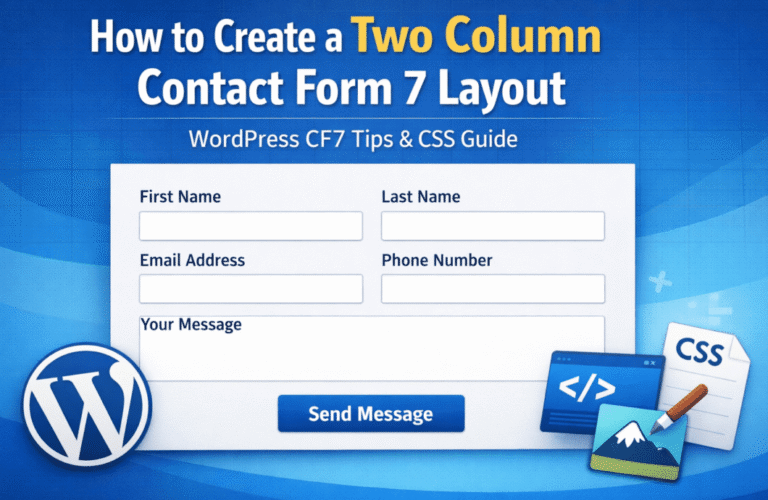
How to Create a Two Column Layout for Contact Form 7

Using a Two Column Layout for Contact Form 7 Forms

Two column layout offers several advantages:

  • Enhanced User Experience: Displaying more fields on the screen at once improves the user experience by making the form appear less overwhelming.
  • Improved Design and Structure: A 2-column layout helps achieve a neat, modern design that looks professional and visually balanced.
  • Space Efficiency: This layout allows you to use the space on your page more efficiently without making your form appear too long or cluttered.
  • Mobile-Friendly: A responsive layout ensures that your form adjusts to different screen sizes, maintaining an optimal user experience across devices.

Step 1: Setting Up Your Contact Form 7

Before applying any custom styling, create your form or modify an existing one in Contact Form 7:

  1. Go to Contact > Contact Forms in your WordPress dashboard.
  2. You can either click on an existing form to edit it or click Add New to create a new form.
  3. For this example, let’s create a simple form with the following fields:
<label for="name">Name</label>
[text* name id:name]

<label for="email">Email</label>
[email* email id:email]

<label for="message">Message</label>
[textarea* message id:message]

Once your form is ready, we will move on to styling it with CSS.


Step 2: Customizing the Form with a 2-Column Layout Using CSS

The next step is to make your form fields appear in a 2-column layout. This can be easily achieved by adding some custom CSS. Follow these steps:

  1. Navigate to Appearance > Customize in your WordPress admin panel.
  2. Go to the Additional CSS section and add the following CSS code:
/* 2-column layout for Contact Form 7 */
.wpcf7-form .form-row {
    display: flex;
    flex-wrap: wrap;
    gap: 20px; /* Adds space between columns */
}

/* Style for form labels and fields */
.wpcf7-form .form-row label,
.wpcf7-form .form-row input,
.wpcf7-form .form-row textarea {
    width: 48%; /* Each form element will take up 48% of the container's width */
}

/* Full-width style for the textarea */
.wpcf7-form .form-row textarea {
    width: 100%;
}

/* Optional: Add some spacing between form rows */
.wpcf7-form p {
    margin-bottom: 20px;
}

Step 3: Organizing Form Fields into Rows

For the CSS above to work, you’ll need to wrap each group of fields you want to appear in the same row with a <div> tag and the class form-row. Here’s how to structure your form:

<div class="form-row">
    <label for="name">Name</label>
    [text* name id:name]
</div>

<div class="form-row">
    <label for="email">Email</label>
    [email* email id:email]
</div>

<div class="form-row">
    <label for="message">Message</label>
    [textarea* message id:message]
</div>

This ensures that each form field within a .form-row is displayed in the same row. The fields will be split into two columns according to the CSS.


Step 4: Preview and Test Your Form Layout

Once you’ve added the CSS and adjusted your form structure, it’s time to check how the form looks on your site:

  1. Open the page where the form is embedded.
  2. Refresh the page to view the updated 2-column layout.

Your form fields should now be neatly organized in two columns, providing a more efficient use of space and improving the overall look of your form.

Make Sure It’s Responsive on Mobile Devices

Responsive design is crucial for ensuring that your form looks great on all devices, especially smartphones and tablets. Fortunately, you can easily make the 2-column layout adapt to smaller screens by adding a media query to your CSS:

@media (max-width: 768px) {
    .wpcf7-form .form-row label,
    .wpcf7-form .form-row input,
    .wpcf7-form .form-row textarea {
        width: 100%; /* Stacks form fields vertically on smaller screens */
    }
}

This CSS rule ensures that when the screen size is smaller than 768px (which covers most smartphones), the form fields will stack vertically and take up the full width of the screen, making the form more user-friendly on mobile devices.


Need Help Customizing Your Contact Form 7 Layout?

Hire a certified WordPress expert from Codeable to help you create custom Contact Form 7 layouts tailored to your site’s needs.

Get a Free Estimate