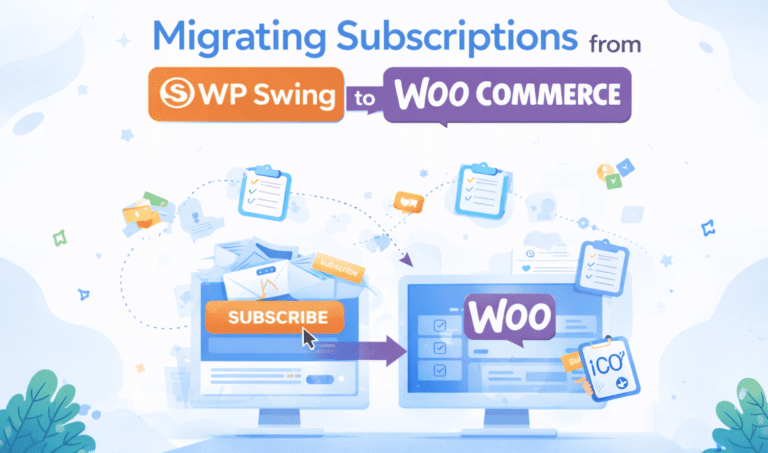
Migrating Subscriptions from WP Swing to WooCommerce

If your store is using WP Swing Subscriptions and you want to switch to WooCommerce Subscriptions, this guide explains everything in clear and simple English. You will learn how migration works, what steps to follow, what problems you should avoid, and what to check before you go live. This article is written for regular store owners, not developers, but it also includes sample code and advanced tips for those who need them.

The goal is to help you move your subscribers in a safe and clean way without losing revenue or breaking renewal payments.

Reason to move away from WP Swing

WP Swing Subscriptions is a cheaper solution, but it has several limits when a store starts to grow. WooCommerce Subscriptions is more stable, has better support, and works with more plugins and gateways.

Below are the most common reasons store owners decide to migrate.

Main reasons to switch

  • More stable renewals
  • Better support and updates
  • Works better with Stripe and PayPal
  • Easier to customize
  • Fewer errors with scheduled payments
  • Better integration with memberships and LMS plugins

Most of the problems store owners report with WP Swing Subscriptions are related to failed renewals, wrong next payment dates, and customer complaints. When money is involved, you want a stable and safe system.

How Migration Works

Migrating subscriptions is not the same as moving normal products. Subscriptions have start dates, renewal dates, unpaid orders, payment tokens, and links to customers. Because of this, the migration process needs to be very careful.

Here is the basic outline of how migration is done.

  1. Export all subscription data from WP Swing
  2. Clean and correct the data
  3. Map the fields to WooCommerce Subscriptions
  4. Import the data using a special importer or a custom script
  5. Test renewals
  6. Disable WP Swing and activate WooCommerce Subscriptions
  7. Watch renewals for a few days

Now we go deeper into each step.


Step 1: Export Data From WP Swing

WP Swing allows subscription export to CSV. You will need these fields:

Field nameWhy it is needed
user IDTo match the subscription with the customer
product IDTo know what product the customer is subscribed to
start dateNeeded for correct billing history
next payment dateNeeded so WooCommerce can create the next renewal
billing cycleMonth, week, year
subscription statusActive, canceled, paused
order IDsUseful for history but not always required
payment methodNeeded for renewals

Make sure to check that all exported rows have valid dates and correct user IDs.


Step 2: Clean the Exported File

Most stores need some cleanup before importing the data into WooCommerce Subscriptions. Common issues include:

  • Invalid dates
  • Missing user accounts
  • Old or deleted product IDs
  • Wrong status values
  • Incomplete payment method information

You can fix most of these issues using Google Sheets or Excel.
For example, if some start dates are empty, you can set a default date like the date of the first parent order.


Step 3: Map WP Swing Fields to WooCommerce Fields

WooCommerce Subscriptions stores data differently.
You need to match the WP Swing fields to WooCommerce meta fields.

Here is a useful mapping table:

WP Swing fieldWooCommerce Subscriptions field
subscription_idpost_id (created by importer)
start_date_schedule_start
next_payment_date_schedule_next_payment
billing_period_billing_period
billing_interval_billing_interval
statuspost_status
user_id_customer_user
product_idorder line item

If you do not map fields correctly, the subscription may import but renewals will break.


Step 4: Importing the Subscriptions

There are two ways to import:

1. Using a prepared CSV importer

Works only for basic cases. Good for small stores.

2. Using a custom script

This is the safest way for large stores or stores with many legacy subscriptions.

Here is a simple example code snippet that creates a subscription programmatically:

$subscription = wcs_create_subscription( array(
    'customer_id' => $customer_id,
    'start_date'  => $start_date,
    'next_payment' => $next_payment,
) );

$subscription->add_product( $product, 1, array(
    'total' => $price,
) );

$subscription->update_status( 'active' );

Below is an example of adding item meta:

$items = $subscription->get_items();

foreach ( $items as $item_id => $item ) {
    wc_add_order_item_meta( $item_id, '_billing_period', $period );
    wc_add_order_item_meta( $item_id, '_billing_interval', $interval );
}

This code needs to be customized for each store depending on the exported data.

Need Help Migrating Subscriptions from WP Swings to WooCommerce?

Hire a certified WordPress expert from Codeable to migrate your subscription data from WP Swings to WooCommerce smoothly while preserving billing and customer history.

Get a Free Estimate

Step 5: Testing Renewals

Testing renewals is the most important part. Here is what you should test before going live.

Test checklist

  • Does the subscription show the correct next payment date
  • Can Stripe or PayPal renew it
  • Is the customer charged correctly
  • Do renewal emails work
  • Does the subscription change status after renewal

To test Stripe renewals, you can use:

Test card: 4242 4242 4242 4242
Expiration: Any future date
CVC: Any 3 digits

Step 6: Switching From WP Swing to WooCommerce Subscriptions

Once you are sure all subscriptions have been imported correctly:

  1. Disable WP Swing Subscriptions
  2. Enable WooCommerce Subscriptions
  3. Check your cron events
  4. Refresh permalinks

You do not want both plugins active at the same time because they may conflict.


Step 7: Monitoring After Migration

For the first 7 days, watch renewal logs.
WooCommerce Subscriptions logs can be found in:

WooCommerce → Status → Logs → subscription logs

If you see errors like:

Renewal payment failed due to missing token

this means that some payment methods need manual update from the customer.

You can send them a simple message:

“Please log in and update your card details so your subscription continues without interruption.”

Common Problems During Migration

Here are the issues most stores run into.

Missing payment tokens

Stripe stores card data as tokens. These are usually not migrated and customers must update their cards.

Wrong timezones

If the timezone is wrong, the renewal date may shift by one day.

Old or deleted products

If a product no longer exists, you must create a new one and map it.

Duplicate subscriptions

If you import twice, you may have duplicates. You can write a script to detect duplicates by email address.

Example:

$subs = wcs_get_users_subscriptions( $user_id );

if ( count( $subs ) > 1 ) {
    // handle duplicates
}

Need Help Migrating Subscriptions from WP Swings to WooCommerce?

Hire a certified WooCommerce expert from Codeable to migrate your subscriptions safely, with all recurring billing, customer data, and payment gateways intact.

Get a Free Estimate

FAQ Section


1. What is the safest way to migrate subscriptions from WP Swing to WooCommerce Subscriptions?

The safest way to move subscriptions from WP Swing to WooCommerce Subscriptions is a slow and controlled process where you check every step before importing anything into your live store. Most problems happen when people rush and try to import everything at once without testing.

A safe process looks like this. First, export all subscription data from WP Swing into a clean CSV file. Second, open that file in Google Sheets or Excel and fix everything that looks wrong, such as missing dates, wrong periods, or user accounts that no longer exist. Third, map every field from the CSV to the fields used by WooCommerce Subscriptions. They do not use the same structure, so this step is very important.

Once the data is ready, try importing only a few subscriptions on a test site. Turn on WooCommerce Subscriptions and renew one or two orders to see if the dates and payments work. When you confirm that renewals run correctly, import the rest of the subscriptions. Finally, monitor renewal logs for several days to make sure nothing breaks.

This slower approach may take longer, but it keeps your revenue safe and prevents failed payments or angry customers.


2. Do customers lose their saved payment methods during migration?

In most cases, yes, customers will lose their saved card details because payment gateways store these details as secure tokens that belong to the original plugin. These payment tokens usually cannot be copied from WP Swing to WooCommerce Subscriptions because they were created with a different data structure and a different plugin key.

This means Stripe or PayPal will not recognize those tokens after the migration. As a result, when the next renewal date arrives, WooCommerce Subscriptions will try to charge the customer but will fail because the card token is missing.

The easiest way to handle this is to notify customers in advance. You can tell them that your store is upgrading to a safer subscription system and that they will need to update their payment method once. When they log in, they can enter their card again, and WooCommerce Subscriptions will save a fresh token that works for future renewals.

Usually, over 90 percent of customers update their card within two or three days if you send a polite reminder. It is a normal part of any subscription system migration.


3. Can I migrate subscriptions without losing any revenue?

Yes, you can migrate subscriptions without losing money, but only if you plan the process carefully and test everything before you switch systems. The most important part is making sure that your next payment dates and billing intervals are correct. If these dates are wrong, customers might be charged too early, too late, or not at all.

To protect your revenue, follow these steps. First, make sure every subscription in your CSV has the correct next payment date. This date tells WooCommerce when to generate the next renewal order. Second, run a test migration on a staging site and trigger a renewal manually. See if the order is created and paid correctly. Third, once you import everything into your live site, check the subscription logs for at least one week. If you see any errors, correct them right away.

If you do this, the migration will be smooth and no customers will miss a payment cycle. The only exception is if payment tokens cannot be transferred, in which case you should remind customers to update their card.


4. Can I migrate expired or canceled subscriptions, or should I skip them?

You can migrate expired, canceled, or even paused subscriptions. In fact, it is useful to migrate them because they create a full and correct history inside WooCommerce Subscriptions. This history helps you understand customer lifetime value, churn rate, and past billing patterns.

Expired subscriptions also help identify customers who might want to resubscribe later. If customers see their old subscription in their account, they can renew it with a single click.

If you skip these older subscriptions, your reports may look incomplete. Also, WooCommerce Subscriptions may treat returning customers as new subscribers, which can lead to confusion.

Therefore, it is best to migrate all subscription records, even the old ones, as long as the data is clean and correct.

5. Do I need to recreate parent orders or can WooCommerce generate new renewals automatically?

You do not need to recreate old parent orders for most migrations. WooCommerce Subscriptions can generate new renewal orders automatically as long as the next payment date, billing period, and customer data are correct.

Parent orders are mostly used for history and reports. They show what the customer originally bought and how the subscription was created. If these orders exist in your store, WooCommerce will link the subscription to them. If they do not exist, the subscription will still work fine, but the history will be shorter.

The important part is not the parent order. The important part is the next payment date. As long as this date is valid, WooCommerce Subscriptions will create a new renewal order at the correct time.

If you want a perfect record, you can recreate parent orders using a script, but this is optional and usually not needed for normal store operations.


6. How long does a full migration take?

The time needed depends on the size of your store and the quality of your data. Small stores with fewer than 50 subscriptions can finish the migration in one or two hours, including testing. Medium stores with 100 to 500 subscriptions may need one or two days. Stores with more than 1000 subscriptions may need one week of preparation, cleanup, mapping, importing, and testing.

The most time is spent on data cleanup. If your export file contains missing dates, duplicate user records, or invalid values, you will spend more time fixing it. If everything is clean, the migration is fast.

Testing also takes time. You should test on a staging site, run a renewal, and then test again on the live site before disabling WP Swing.

So the full timeline usually looks like this:

Day 1: Export, cleanup, mapping
Day 2: Test import on staging
Day 3: Live import and verification
Days 4 to 7: Renewal monitoring

With a careful plan, the process is stress-free and predictable.


7. Will email notifications from WooCommerce Subscriptions work correctly after migration?

Yes, email notifications will work, but only if the subscriptions are imported with correct dates and statuses. WooCommerce Subscriptions uses these values to decide when to send each email, such as renewal reminders or payment failure notices.

If the next payment date is missing or wrong, the emails may not send on schedule. If the status is wrong, such as setting a subscription to on-hold when it should be active, then the wrong email may be sent.

The best way to confirm that emails work is to test a renewal after the import. When WooCommerce generates a renewal order, it will also send the correct email. You can also use the Email Test tool inside WooCommerce settings to check whether your templates are correct.

Make sure your SMTP service (such as SendGrid, Mailgun, Brevo, or WP Mail SMTP) is working, since WooCommerce depends on it for sending emails reliably.


8. Can I migrate subscriptions that include coupon discounts or special prices?

Yes, you can migrate subscriptions that include discounts, trial periods, or custom pricing. You only need to make sure that the correct price is applied when you add the subscription item in the import process.

In a CSV import, you can set a custom price for the line item by using the price field. In a custom script, you can use something like this:

$subscription->add_product( $product, 1, array(
    'total' => $discounted_price
) );

WooCommerce Subscriptions will respect this price for future renewals.
If the discount is meant to apply only once, you may need an extra line item meta field to stop the discount after the first renewal.

Always test one discounted subscription after importing to make sure the logic behaves the way you expect.


9. Can I run WP Swing Subscriptions and WooCommerce Subscriptions at the same time?

No, you should not run both plugins at the same time. They both try to manage subscriptions, and they use different database structures. If both are active, they may create duplicate scheduled events, renewals may fail, and customer accounts may show incorrect subscription data.

The correct process is to finish the import, verify that everything works, then disable WP Swing before enabling WooCommerce Subscriptions. This ensures that there is no conflict and that only one plugin is in charge of renewals.

Running both at once can also cause confusion for customers because they may see two subscriptions for the same product. It can also lead to double charges if both plugins try to renew on the same date.

Always keep only one subscription system active.

Migrating Subscriptions from WP Swing to WooCommerce e1769030986522

Moving from WP Swing Subscriptions to WooCommerce Subscriptions is a smart step for any store that depends on recurring payments. With careful mapping, clean data, and good testing, you can move all of your subscribers without losing revenue.

Need Help Migrating Subscriptions from WP Swings to WooCommerce?

Hire a certified WooCommerce expert from Codeable to migrate your subscriptions safely, with all recurring billing, customer data, and payment gateways intact.

Get a Free Estimate

Moving from OSCommerce to WordPress

Why Migrate from OSCommerce to WordPress/WooCommerce?

OSCommerce has been a reliable eCommerce platform for years, but it lacks modern flexibility, ease of use, and built-in SEO tools. WordPress with WooCommerce offers a secure, scalable, and user-friendly alternative that simplifies website management. If you’re looking for:

✔️ An easier way to manage products and orders
✔️ Better security features
✔️ SEO-friendly structure without paying for ads
✔️ A modern design that’s easy to update

Then migrating to WordPress might be the best decision for your business.


Key Differences: OSCommerce vs. WordPress (WooCommerce)

FeatureOSCommerceWordPress (WooCommerce)
Ease of UseComplex, requires codingUser-friendly, no coding needed
SEO OptimizationLimited, requires extra workBuilt-in SEO tools + plugins (Yoast, Rank Math)
SecurityRequires manual updatesRegular updates + security plugins
CustomizationLimited themes and pluginsThousands of themes & plugins
ScalabilityCan be difficult for large storesScalable for any business size
MaintenanceRequires a developerCan be managed without coding
Mobile OptimizationNot always responsiveFully responsive themes
Community SupportSmall developer communityLarge support community

👉 Verdict: WooCommerce wins when it comes to ease of use, SEO, and security while still offering flexibility for customization.


Step-by-Step Guide: Migrating OSCommerce to WordPress

1. Set Up WordPress & WooCommerce

First, you’ll need to set up WordPress on your hosting provider. If you don’t already have hosting, consider A2Hosting, SiteGround, or Cloudways for optimal speed and security.

👉 Install WordPress from your hosting control panel.
👉 Install WooCommerce from the WordPress plugin directory.

2. Export Your OSCommerce Data

You’ll need to export your product, order, and customer data from OSCommerce.

To export products:

  1. Log in to your OSCommerce admin panel.
  2. Go to Tools > Database Backup and export the database.
  3. Convert the exported SQL file to CSV format (if needed).

If you’re comfortable with MySQL, you can export products using this command:

SELECT products_id, products_name, products_price, products_quantity 
FROM products
INTO OUTFILE '/path/to/export.csv'
FIELDS TERMINATED BY ',' 
ENCLOSED BY '"'
LINES TERMINATED BY '\n';

3. Import Data into WooCommerce

WooCommerce provides an import tool for products, customers, and orders.

Using the WooCommerce CSV Importer

  1. In WordPress Dashboard, go to Products > Import.
  2. Upload your CSV file from OSCommerce.
  3. Map the fields (e.g., Product Name, Price, Stock).
  4. Click Run Importer.

Alternatively, you can use plugins like:

  • WP All Import (for advanced imports)
  • Cart2Cart (for full OSCommerce to WooCommerce migration)

4. Design & Optimize Your New Store

🔹 Choose a modern WooCommerce theme: (e.g., Astra, Flatsome, or Storefront).
🔹 Enhance SEO: Install Yoast SEO or Rank Math to optimize product pages.
🔹 Improve security: Use Wordfence or Sucuri to block bot attacks.
🔹 Optimize speed: Use LiteSpeed Cache and enable lazy loading.

Example: Adding a Custom CTA Button in WooCommerce

If you want to add a custom “Request a Quote” button instead of “Add to Cart,” you can use the following WooCommerce hook:

add_filter( 'woocommerce_loop_add_to_cart_link', 'custom_add_to_cart_button', 10, 2 );
function custom_add_to_cart_button( $button, $product ) {
    return '<a href="/contact-us" class="button">Request a Quote</a>';
}

5. Redirect Old URLs to Maintain SEO

A major SEO mistake businesses make is forgetting to redirect old OSCommerce URLs to the new WooCommerce URLs.

Use Redirection Plugin or add this to your .htaccess file:

Redirect 301 /old-product-page.html https://yournewsite.com/new-product-page/

This ensures that Google retains your rankings and customers don’t land on broken pages.


How Much Does It Cost to Migrate from OSCommerce to WordPress?

TaskEstimated TimeEstimated Cost (at $90/hour)
WordPress & WooCommerce setup3-5 hours$270 – $450
Data migration (products, orders, customers)5-8 hours$450 – $720
Theme setup & design5-10 hours$450 – $900
SEO optimization3-6 hours$270 – $540
Security & speed optimization3-5 hours$270 – $450
Total Estimated Cost20-35 hours$1,800 – $3,150

🚀 Tip: Start with essential tasks and scale later to stay within budget.

Upgrade from OSCommerce to WordPress for Better SEO & Speed

Struggling with slow load times and poor search rankings? Migrate to WordPress & WooCommerce for a faster, SEO-optimized, and user-friendly store. Get expert help to boost performance and increase sales.

Migrate to WordPress Now

Conclusion: Should You Migrate to WordPress?

Yes, if you want:
✔️ An easier-to-use system
✔️ Improved security and bot protection
✔️ Better SEO and organic rankings
✔️ A modern, mobile-friendly eCommerce site

🚀 Next Steps:

  • 🔍 Research hosting providers
  • 📥 Export OSCommerce data
  • 🎨 Choose a WooCommerce theme
  • 🔧 Set up essential security & SEO plugins

Need help with your migration? Contact us today for a free consultation!


OSCommerce vs. WooCommerce: Which One Is Right for You?

Both OSCommerce and WooCommerce are popular eCommerce platforms, but they cater to different needs. If you’re still undecided about whether to switch, here’s a detailed comparison to help you choose the right platform.

1. Ease of Use

OSCommerce is known for being developer-heavy, meaning you’ll often need a coder to make updates or changes. In contrast, WooCommerce is built on WordPress, making it far easier for non-technical users to manage. The intuitive dashboard, drag-and-drop page builders, and vast plugin ecosystem make WooCommerce the better choice for ease of use.

2. SEO & Marketing Capabilities

SEO is critical for any online store. OSCommerce has limited built-in SEO features, meaning store owners often need a developer to optimize metadata, URLs, and structured data. WooCommerce, on the other hand, integrates seamlessly with SEO plugins like Yoast and Rank Math, allowing store owners to optimize their site without needing to code. This gives WooCommerce a major advantage for businesses looking to rank higher on Google without relying on paid ads.


More Frequently Asked Questions (FAQs)

❓ How secure is WooCommerce compared to OSCommerce?

Security is a top concern for any online store, and both platforms require proper setup to remain safe. OSCommerce is an older system with fewer security updates, making it more vulnerable to attacks. WooCommerce, however, is built on WordPress, which regularly releases security patches. With plugins like Wordfence or Sucuri, WooCommerce users can add an extra layer of protection to block malware and bot attacks. Additionally, WordPress allows admin panel hiding and two-factor authentication, making it far more secure by default than OSCommerce.

Another factor to consider is PCI compliance. OSCommerce stores often require manual PCI compliance setup, while WooCommerce users can use third-party PCI-compliant payment processors like Stripe or PayPal, simplifying the process significantly. If security is a priority, WooCommerce wins with better updates and plugin support.

Looking for an OSCommerce Developer?

Customize your OSCommerce store with new features, better security, and faster performance. Get professional help with development, troubleshooting, and integrations.

Hire an OSCommerce Expert


❓ Will I lose my customer and order data during migration?

Migrating from OSCommerce to WooCommerce does not mean losing data, as long as it’s done correctly. The migration process involves exporting existing products, orders, and customer information and importing them into WooCommerce. This can be done manually via CSV files or with migration tools like WP All Import or Cart2Cart.

However, proper testing is essential before launching the new site. After importing, it’s important to review orders, product descriptions, and customer details to ensure nothing is missing or misaligned. To minimize downtime, the best approach is to run the migration on a staging site first, then switch to the live site only after testing. If the migration is handled carefully, your store can transition seamlessly without data loss.

❓ How difficult is it to maintain a WooCommerce store compared to OSCommerce?

WooCommerce is designed to be easy to maintain without requiring a developer for day-to-day operations. Since it’s built on WordPress, you can update themes, plugins, and even the WordPress core with a single click. The intuitive dashboard allows store owners to add products, manage orders, and track inventory without coding knowledge.

OSCommerce, on the other hand, is more technical and often requires manual updates for both security and feature enhancements. Many OSCommerce store owners rely on developers to apply patches, fix broken extensions, or optimize site performance. This can lead to higher long-term costs. If you want a more user-friendly and low-maintenance eCommerce solution, WooCommerce is the better choice.


❓ Will my current payment and shipping methods work in WooCommerce?

Yes! WooCommerce supports a wide range of payment gateways such as PayPal, Stripe, Square, and Authorize.net, along with region-specific providers. If your OSCommerce store is using a payment gateway that’s not natively available in WooCommerce, a custom integration might be needed, but most major gateways have ready-made plugins for WordPress.

For shipping, WooCommerce integrates with FedEx, USPS, UPS, and DHL, and you can configure advanced shipping rules using plugins like Table Rate Shipping. Unlike OSCommerce, where shipping configurations can be complex, WooCommerce allows you to manage free shipping, flat rates, and real-time carrier rates all from the dashboard.


❓ How long does it take to migrate from OSCommerce to WooCommerce?

The migration timeline depends on the size and complexity of your store. A small store with a few hundred products can be migrated in 1-2 weeks, while larger stores with thousands of products, customers, and order history may take 3-6 weeks for a smooth transition.

The process typically includes:

  1. Setting up WordPress & WooCommerce – 1-2 days
  2. Exporting OSCommerce data – 1-3 days
  3. Importing data into WooCommerce – 2-5 days
  4. Testing & troubleshooting – 1-2 weeks
  5. Final launch & redirects – 1-3 days

Planning the migration properly ensures no data loss and minimal downtime, allowing you to switch smoothly without affecting customers.


❓ What are the SEO benefits of switching to WooCommerce?

WooCommerce offers superior SEO capabilities compared to OSCommerce. With built-in support for clean URLs, metadata, and structured data, WooCommerce makes it easier to rank on Google without extra development work.

Key SEO benefits of WooCommerce include:
✔️ SEO-friendly URLs – Easily customize product and category URLs for better rankings.
✔️ Yoast SEO & Rank Math support – Optimize metadata, generate sitemaps, and analyze keyword performance.
✔️ Faster site speed – WooCommerce works well with caching plugins like LiteSpeed Cache and WP Rocket, improving load times.
✔️ Better mobile optimization – Most WooCommerce themes are fully responsive and mobile-friendly, which is crucial for SEO.

In contrast, OSCommerce lacks native SEO tools, requiring custom modifications to implement proper optimization. By migrating to WooCommerce, you can boost your organic traffic and reduce reliance on paid advertising.


❓ Can I keep my existing design when migrating to WooCommerce?

While it’s possible to replicate your current design in WooCommerce, many businesses take this opportunity to modernize their website. OSCommerce templates can be outdated and not mobile-friendly, whereas WooCommerce offers thousands of responsive themes that look great on all devices.

If you want to keep your existing look, a developer can recreate your design using a custom WooCommerce theme. However, upgrading to a modern WooCommerce theme often improves performance, user experience, and conversion rates.


❓ Will my site experience downtime during migration?

Not necessarily! The best practice is to set up WooCommerce on a staging site, import all data, test everything, and only switch to live when everything is ready. This approach ensures zero downtime and prevents customer disruptions.

Using a migration plugin like Cart2Cart or WP All Import, you can even sync data continuously so that when you switch to WooCommerce, all recent orders and customer details are included. If done correctly, your store can migrate seamlessly without losing sales.


❓ What happens to my existing customer accounts and passwords?

One of the trickiest parts of migration is transferring customer accounts and login credentials. Since OSCommerce and WooCommerce encrypt passwords differently, direct migration isn’t always possible.

There are two common solutions:

  1. Force password resets – Customers will receive an email prompting them to create a new password.
  2. Use a migration plugin – Some tools can convert OSCommerce passwords to WooCommerce-compatible hashes.

To minimize disruptions, it’s best to notify customers in advance about the transition and provide easy login recovery options.

Need Help Migrating from OSCommerce to WooCommerce?

Upgrade to a modern, SEO-friendly, and easy-to-manage platform. Get expert assistance in securely transferring your products, orders, and customer data.

Hire an OSCommerce Migration Expert