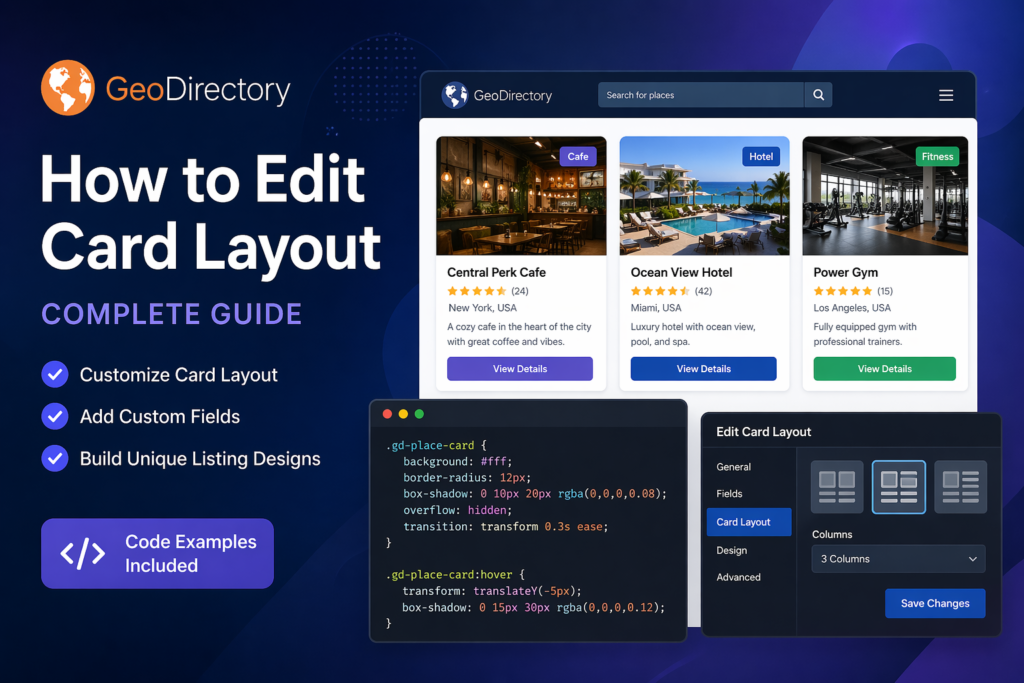
GeoDirectory Edit Card Layout: How to Customize Listing Cards Without Breaking Your Design
GeoDirectory gives you a lot of control over your directory website, but one of the first things most people want to change is the listing card layout.
The default layout works, but in most cases it is too generic. It often shows too much information, puts the wrong details first, and creates cards that are too tall or hard to scan.
If you run a local business directory, restaurant guide, service directory, or property website, the card layout is one of the most important parts of the page. Visitors usually decide in just a few seconds whether they want to click.
A good card layout should:
Show the most important information first
Keep all cards the same size
Look good on mobile
Make the call-to-action button easy to see
Help users compare listings quickly
In this guide, you will learn how to edit the GeoDirectory card layout, remove or move fields, add custom details, and improve the design with CSS and PHP.
What Is the GeoDirectory Card Layout?
The card layout is the small block used for each listing inside:
Search results pages
Category archives
Featured listings sections
Homepage listing blocks
Map results
A default GeoDirectory card usually contains:
Featured image
Listing title
Category
Address
Rating
Description
Button
The problem is that the default layout tries to work for every type of directory. A restaurant directory needs a different layout than a property site or local business directory.
For example:
A restaurant card should show rating, cuisine, and opening hours
A real estate card should show price, bedrooms, and location
A service directory should show the business name, phone number, and a button
That is why most GeoDirectory sites need custom card layouts.
Before You Start
Before changing anything, create a child theme or use the Code Snippets plugin. Do not edit your main theme files directly.
If you update the theme later, your changes may disappear.
You should also test changes on a staging site first.
Tools that help:
GeoDirectory block editor
Elementor or Gutenberg
Browser inspect tool
Code Snippets plugin
How to Edit the GeoDirectory Card Layout in the Builder
The easiest way to change the card layout is with the GeoDirectory builder.
Open the page that contains your listings
Edit the page with Elementor or Gutenberg
Find the GeoDirectory listing card block
Open the card settings
Drag and reorder the fields
A common mistake is leaving the title too low in the card.
Bad order:
Image
Category
Address
Title
Button
Better order:
Image
Title
Rating
Category
Address
Button
The listing title should almost always appear near the top. It is usually the first thing users want to read.
You can also remove fields that are not important.
For example, many people remove:
Full address
Fax number
Long description
Too many icons
Social links
The shorter the card, the easier it is to scan.
How to Add Custom Fields to the Card
Many directories need custom fields.
For example, you may want to show:
Opening hours
Starting price
Delivery available
Pet friendly
Free parking
Bedrooms
Bathrooms
You can add these fields in GeoDirectory, then display them on the card.
GeoDirectory card layouts often look simple at first, but it can become difficult once you need custom fields, mobile fixes, custom PHP hooks, equal card heights, or Elementor integration.
If you want a professional to build the layout for you, it is often faster to hire an experienced WordPress developer.
I recommend getting a free estimate from the experts at Codeable. They are known for working only with experienced WordPress developers, and you can explain your project and receive a few different estimates with no obligation.
There is no pressure to hire anyone, but it is a good way to see how much work your GeoDirectory changes may require and what the best approach would be.
We use cookies on our website to give you the most relevant experience by remembering your preferences and repeat visits. By clicking “Accept”, you consent to the use of ALL the cookies.
This website uses cookies to improve your experience while you navigate through the website. Out of these, the cookies that are categorized as necessary are stored on your browser as they are essential for the working of basic functionalities of the website. We also use third-party cookies that help us analyze and understand how you use this website. These cookies will be stored in your browser only with your consent. You also have the option to opt-out of these cookies. But opting out of some of these cookies may affect your browsing experience.
Necessary cookies are absolutely essential for the website to function properly. These cookies ensure basic functionalities and security features of the website, anonymously.
Cookie
Duration
Description
cookielawinfo-checkbox-analytics
11 months
This cookie is set by GDPR Cookie Consent plugin. The cookie is used to store the user consent for the cookies in the category "Analytics".
cookielawinfo-checkbox-functional
11 months
The cookie is set by GDPR cookie consent to record the user consent for the cookies in the category "Functional".
cookielawinfo-checkbox-necessary
11 months
This cookie is set by GDPR Cookie Consent plugin. The cookies is used to store the user consent for the cookies in the category "Necessary".
cookielawinfo-checkbox-others
11 months
This cookie is set by GDPR Cookie Consent plugin. The cookie is used to store the user consent for the cookies in the category "Other.
cookielawinfo-checkbox-performance
11 months
This cookie is set by GDPR Cookie Consent plugin. The cookie is used to store the user consent for the cookies in the category "Performance".
viewed_cookie_policy
11 months
The cookie is set by the GDPR Cookie Consent plugin and is used to store whether or not user has consented to the use of cookies. It does not store any personal data.
Functional cookies help to perform certain functionalities like sharing the content of the website on social media platforms, collect feedbacks, and other third-party features.
Performance cookies are used to understand and analyze the key performance indexes of the website which helps in delivering a better user experience for the visitors.
Analytical cookies are used to understand how visitors interact with the website. These cookies help provide information on metrics the number of visitors, bounce rate, traffic source, etc.
Advertisement cookies are used to provide visitors with relevant ads and marketing campaigns. These cookies track visitors across websites and collect information to provide customized ads.