Chromium WordPress Theme
by themesdotzone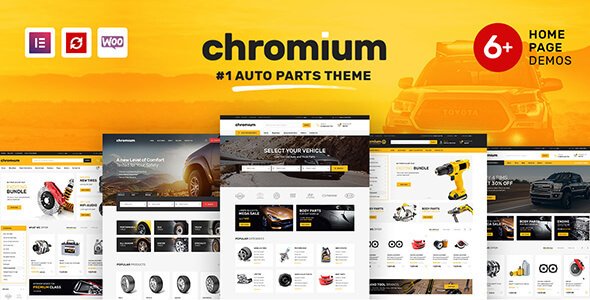
Stuck on your Chromium WordPress theme? Let's fix it.
No endless back-and-forth. Just send us the details and we'll get it done.
No obligation · Replies within 1 hour · Quote within 1 day
Setup · Customization · Bug fixes · WooCommerce integration
About Chromium WP Theme
Chromium is a multipurpose WordPress theme by themesdotzone. It ships with multiple pre-built demo layouts, a drag-and-drop page builder integration, and a header/footer builder that gives you direct control over site structure without touching code. The theme targets agencies, portfolios, and business sites that need a flexible foundation without starting from scratch.
Out of the box, Chromium includes WooCommerce compatibility, custom widget areas, and a range of typography and color controls. It uses a modular approach, so sections can be swapped or hidden per page. Performance depends heavily on how many bundled scripts you activate, which is worth keeping in mind when configuring a production site.
Get matched with a Chromium developer in under one day
Tell us about your Chromium project. Small fixes, Chromium theme customization, or a full website build, whatever you need, we've got it covered.
We'll connect you to the right Chromium developers, define the scope, and get everything 100% clear.
You'll get one estimate, hire your preferred developer, and start collaborating.
Most Chromium issues come down to one thing: the theme has a lot of options, and the wrong combination breaks layouts or slows the site. A developer who knows the theme’s structure can fix that quickly. Through Codeable, you get matched with vetted WordPress specialists who have hands-on experience with themes like Chromium. No generalist freelancers, no guesswork. Post a project, get a free estimate, and know exactly what the work involves before committing.
Pros
- Header and footer builder included, no extra plugin required for structural layout control
- Multiple demo imports available, useful for getting a working layout up quickly
- Built-in WooCommerce support with styled product and checkout pages
- Child theme compatible and well-structured for developer customization
- Responsive across device sizes with per-section visibility controls
Cons
- Default script load is heavy; needs manual optimization for good Core Web Vitals scores
- Some page builder options conflict with native Customizer settings, causing unpredictable results
- Demo content import can overwrite existing settings if not handled carefully
- Documentation from themesdotzone is basic; advanced use cases require hands-on testing
- Update cadence can be slow, leaving compatibility gaps with newer WordPress and plugin versions
Who is Chromium for?
Creative Agency Website
Chromium’s multi-column layouts and custom header builder suit agency sites that need distinct sections for services, case studies, and team profiles. A Chromium developer can extend these layouts with custom post types and ACF fields to make content management straightforward for non-technical staff.
Freelance Portfolio
The theme’s portfolio grid options and full-width page templates work well for showcasing work. A Chromium specialist can configure filterable portfolio sections, custom single-project templates, and a clean contact layout without needing a bloated portfolio plugin on top.
Small Business Services Site
Service-based businesses get a lot of mileage from Chromium’s pre-built sections: pricing tables, feature lists, testimonials, and contact forms all fit naturally. A Chromium expert can wire these up cleanly and ensure the page load stays fast even with multiple sections active.
WooCommerce Store
Chromium’s WooCommerce integration covers the core storefront experience. For more complex shops, a Chromium developer can customize product page templates, adjust cart and checkout layouts, and connect payment plugins without breaking the theme’s styling layer.
Corporate or Startup Landing Page
Single-page or landing-page setups work well with Chromium’s section-based layout system. A Chromium specialist can strip the theme down to a focused conversion layout, removing unused components and tightening performance for paid traffic campaigns.

Customizing Chromium
Chromium’s Customizer panel covers global colors, fonts, layout widths, header styles, and footer columns. For most standard changes, no coding is required. But deeper work, things like custom post type templates, conditional logic in headers, or non-standard WooCommerce layouts, typically needs a Chromium expert who knows the theme’s filter and hook structure.
The theme supports child themes, which is the right way to make code-level modifications without losing changes on updates. A Chromium specialist can set up a child theme, extend the theme’s PHP functions, and integrate third-party plugins cleanly. If you’re trying to push the theme beyond its default options, professional help saves significant time and avoids breaking core functionality.
Recommended plugins for Chromium
Chromium works with the usual stack of WordPress plugins. Elementor and WPBakery fit into its builder-ready structure. For contact forms, WPForms and Contact Form 7 both integrate without conflicts. WooCommerce support is built in, covering product pages, cart, and checkout styling.
Where extra attention is needed is performance. Chromium loads multiple scripts by default, so pairing it with a solid caching and optimization setup matters. See our WordPress performance service for that. On the SEO side, it’s schema-clean and works with Yoast and Rank Math, but proper configuration still needs care. Our WordPress SEO optimisation service covers that end-to-end.
Not sure which plugins to use? This WordPress plugins directory covers the most popular options with reviews and setup guides.
Chromium common issues
Chromium WordPress theme header not displaying correctly
Header display issues in Chromium usually trace back to conflicting header builder settings or a caching layer serving a stale version. Start by clearing all caches, then check the header builder in the Customizer for any overridden row or column visibility settings. If the issue persists after cache clearing, inspect the header template file in your child theme for outdated code. Our WordPress bug fixing service can diagnose and resolve this quickly.
Chromium theme mobile menu not working
A broken mobile menu in Chromium is often caused by a JavaScript conflict with another plugin. Open your browser’s console and look for JS errors on page load. Try deactivating plugins one at a time to isolate the conflict. Also check that your Customizer mobile breakpoint settings match your actual layout. If the menu toggle fires but the menu doesn’t open, the issue is typically a z-index or script initialization problem.
Chromium theme slow loading after update
Chromium loads several scripts and stylesheets by default. After an update, new assets may have been added or existing ones un-minified. Run a performance audit using PageSpeed Insights, then use a plugin like Asset CleanUp or WP Rocket to defer non-critical scripts. Check whether the update added new Google Fonts calls or icon font libraries that weren’t there before. Disabling unused Chromium modules in the theme settings also helps.
Chromium WordPress theme demo import failed
Failed demo imports in Chromium usually happen due to PHP memory limits, execution time limits, or file upload size restrictions on the server. Increase memory_limit, max_execution_time, and upload_max_filesize in your PHP configuration before retrying. If the import still stalls, try importing content and widgets separately rather than as a single package. Our WordPress bug fixing service handles stuck or partial imports.
Chromium theme WooCommerce product page layout broken
WooCommerce layout breaks in Chromium often occur after a WooCommerce update changes template file structures. Chromium’s bundled WooCommerce templates can become outdated. Go to WooCommerce > Status > System Status and look for outdated template warnings. Update those templates in your child theme by copying the latest versions from the WooCommerce plugin folder and re-applying any Chromium-specific modifications.
Chromium theme custom CSS not applying
If custom CSS added through the Customizer or a child theme stylesheet isn’t applying, first check specificity. Chromium’s own styles may have higher specificity than your rules. Use browser dev tools to inspect the element and see which stylesheet wins. You may need to increase specificity or use a more targeted selector. Also confirm the Additional CSS section is actually saving, as some caching setups can suppress changes from appearing.
Chromium theme white screen after plugin activation
A white screen after activating a plugin with Chromium active usually means a PHP fatal error. Enable WP_DEBUG in wp-config.php to see the actual error. Common causes are function name conflicts between the plugin and theme, or PHP version mismatches. Deactivate the offending plugin, check for an updated version, and if the conflict is in theme code, it needs a targeted fix. Our WordPress bug fixing service resolves these errors directly.
Chromium WordPress theme footer widgets not showing
Footer widgets not appearing in Chromium usually means the footer widget areas aren’t enabled in the Customizer, or the widgets haven’t been assigned to the correct sidebar. Go to Appearance > Customize > Footer and check how many widget columns are enabled. Then go to Appearance > Widgets and make sure content is assigned to those footer areas. Also confirm no caching layer is serving a footer without widget content.
Chromium theme Elementor conflict causing layout issues
Chromium and Elementor can conflict when both try to control page layout styles simultaneously. This shows up as double margins, broken section widths, or typography overrides. The fix is usually setting Elementor’s container width to match Chromium’s content width, and disabling Elementor’s default typography and color settings so Chromium controls those globally. In some cases, the Chromium page template needs to be set to a canvas or full-width option for Elementor pages.
Chromium theme update broke the homepage layout
Homepage layout breaking after a Chromium update usually means a page builder element relied on a shortcode or widget class that changed in the update. Compare the previous and current version changelog if available. Start by checking which section of the homepage broke, then inspect whether a specific Chromium module or shortcode is the culprit. If you’re not running a child theme, direct template edits would have been overwritten by the update.
Chromium FAQ
Chromium is still a usable theme for business and portfolio sites. It has solid layout flexibility and WooCommerce support. The main concerns are update frequency and default performance overhead. If you’re starting a new project, factor in whether you’ll need a developer to optimize and extend it, as out-of-the-box it’s functional but not optimized.
Yes, Chromium works with Elementor. Set the Chromium page template to full-width or canvas for Elementor-built pages to avoid layout conflicts. Disable Elementor’s global typography and color settings to let Chromium handle those globally. Some margin and padding conflicts may need manual CSS adjustments depending on your layout.
Go to Appearance > Import Demo Data after installing the required Chromium plugins. Select your preferred demo and run the import. Ensure your server’s PHP memory limit is at least 256MB and max execution time is 300 seconds before starting. A partial import usually means a server timeout, not a theme error.
Yes, Chromium includes built-in WooCommerce support. Shop, product, cart, and checkout pages are styled within the theme. For heavily customized store layouts, bundled WooCommerce templates may need updating after WooCommerce version upgrades to avoid display issues.
Yes, use a child theme if you plan to make any code-level changes. Without one, theme updates overwrite your modifications. The Chromium parent theme handles all core functionality while your child theme holds only your customizations, keeping them safe across updates.
Start by disabling unused Chromium modules in the theme settings. Then defer or remove unused JavaScript, limit Google Fonts to one or two variants, and enable caching. Chromium loads several assets by default, so a plugin like WP Rocket or Asset CleanUp makes a measurable difference on page load times.
Yes. Through Codeable, you can post your Chromium project and get matched with a vetted WordPress developer who has direct experience with the theme. The process starts with a free estimate and no obligation to hire. It’s a straightforward way to get qualified help without sorting through unreliable freelancers.
Chromium supports Google Fonts through the Customizer with a built-in font selector. For custom or self-hosted fonts not in the Google Fonts library, you’ll need to enqueue them manually via your child theme’s functions.php or use a plugin like Use Any Font to handle the upload and assignment.
Always use a child theme before updating. Back up the site first. After updating, check the WooCommerce template status if you use WooCommerce, and review any page builder layouts for broken shortcodes or missing modules. Keeping a staging site for update testing prevents live site disruptions.
Chromium is tested and commonly used with Elementor and WPBakery. Both work with appropriate template settings. Beaver Builder also functions without major issues. The key step with any builder is setting the correct Chromium page template to avoid layout container conflicts on full-width designs.
Hire a Chromium WordPress Developer
Need a Chromium expert for a build, a fix, or an ongoing project? Through Codeable, you’re matched with a vetted WordPress developer within 24 hours. Every project starts with a free estimate and zero obligation to proceed. Whether it’s a custom layout, a plugin conflict, or a full site build on Chromium, you get a specialist who knows what they’re doing. Get a free estimate and get started today.
You'll need a free Codeable account so developers can ask questions and send their quotes.