EOS WordPress Theme
by thematicwebs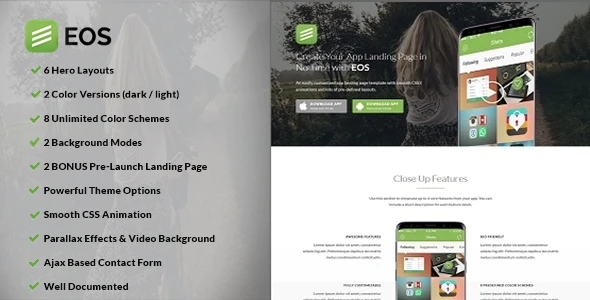
Stuck on your EOS WordPress theme? Let's fix it.
No endless back-and-forth. Just send us the details and we'll get it done.
No obligation · Replies within 1 hour · Quote within 1 day
Setup · Customization · Bug fixes · WooCommerce integration
About EOS WP Theme
EOS is a WordPress theme built by ThematicWebs. It targets creative agencies, freelancers, and portfolio-focused businesses that want a clean, minimal design without heavy page builder dependencies. The theme ships with pre-built demo content, a customizer-driven layout system, and solid typography options out of the box.
It works well for one-page and multi-page setups alike. Header styles, color schemes, and section layouts can all be adjusted without touching code. EOS supports Elementor and the block editor, giving you flexibility in how you build pages. It is translation-ready and includes WooCommerce compatibility for light shop use. If you want a polished site that does not feel overbuilt, EOS is a practical starting point.
Get matched with a EOS developer in under one day
Tell us about your EOS project. Small fixes, EOS theme customization, or a full website build, whatever you need, we've got it covered.
We'll connect you to the right EOS developers, define the scope, and get everything 100% clear.
You'll get one estimate, hire your preferred developer, and start collaborating.
EOS is not a complicated theme, but getting it to behave exactly the way you need it to takes time and WordPress knowledge most clients would rather spend elsewhere. FoxyConcept works through Codeable, a vetted network of senior WordPress developers. Every developer on the platform is screened and reviewed. You get a fixed estimate before any work starts, no hourly surprises, and someone who has worked inside themes like EOS before. The result is a site that looks right, loads fast, and does not break when you update it.
Pros
- Lightweight codebase keeps page load times low without aggressive optimization
- Customizer-based controls cover most visual changes without needing code
- Compatible with both Elementor and the native block editor
- Clean demo content imports quickly and closely matches the live preview
- WooCommerce support works out of the box with minimal styling gaps
Cons
- Limited layout variation options compared to multipurpose themes like Astra or OceanWP
- ThematicWebs has a smaller support community, so forum help is harder to find
- Advanced typography controls require a plugin or custom CSS to go beyond the defaults
- Some inner page templates feel sparse and need significant customization for non-portfolio use cases
- Update frequency from ThematicWebs is slower than top-tier theme shops
Who is EOS for?
Creative Agency Portfolio
EOS handles agency portfolio layouts well. Its project grid and case study page structure fit how agencies typically present work. The minimal design keeps the focus on visuals rather than competing with them. Pair it with a custom post type for case studies and a filterable portfolio grid, and the result feels professional without being overdesigned.
Freelance Designer or Photographer
Photographers and designers often need a site that shows work without getting in the way. EOS delivers that. Full-width image sections, clean gallery support, and straightforward contact page options make it a practical choice. An EOS developer can add lightbox functionality, lazy loading, and a custom client inquiry form without breaking the theme’s visual tone.
Small Business Brochure Site
For a small business that needs a clean, credible web presence, EOS covers the basics well. Services pages, a contact form, a brief about section, and a Google Map integration all fit naturally within its layout system. It is easier to maintain than a bloated multipurpose theme and loads faster on mobile, which matters for local search rankings.
Startup Landing Page
EOS works as a single-page landing layout with a clear hierarchy, a call-to-action section, and smooth scroll navigation. Startups that need to move fast and present a polished first impression can set up a working EOS landing page quickly. Adding a lead capture form, analytics tracking, and A/B testing tools is straightforward with the right developer involved.
Boutique eCommerce Store
EOS and WooCommerce work together without major friction. For stores with a focused product range, the clean layout keeps the shopping experience uncluttered. Custom product page layouts, collection grids, and checkout styling adjustments are all achievable. It is not a purpose-built shop theme, but for boutique use it holds up well with some targeted customization.

Customizing EOS
EOS gives you a reasonable level of control through the WordPress Customizer. You can adjust header layout, fonts, colors, button styles, and footer columns without writing a line of code. Demo content imports quickly, so you are not starting from a blank canvas.
That said, deeper changes require knowing where EOS stores its settings and how its template hierarchy is structured. Misplacing a child theme file or overriding the wrong hook can break your layout in unexpected ways. An EOS expert understands the theme’s structure from the ground up. They can add custom post types, modify section spacing, integrate third-party plugins cleanly, and ensure your changes survive theme updates without reverting.
Recommended plugins for EOS
EOS pairs well with several common WordPress tools. Elementor and Gutenberg both work within its layout system, and WooCommerce adds basic shop functionality without major styling conflicts.
For performance, the theme is lightweight by default, but adding page builders or large image galleries can slow things down. A proper caching setup and image optimization make a real difference. See our WordPress performance service for specifics. If you plan to rank organically, structured data, schema markup, and on-page SEO work should be addressed early. Our WordPress SEO service covers that in full.
Not sure which plugins to use? This WordPress plugins directory covers the most popular options with reviews and setup guides.
EOS common issues
EOS theme header not displaying correctly after update
Header display issues after an EOS update usually point to a caching problem or a conflict with a customizer setting that was reset during the update. Start by clearing your site cache and any CDN cache. If the issue persists, check whether your child theme is overriding the header template correctly. A missing or misnamed file in the child theme can cause the parent theme’s header to render without your customizations. If you are not using a child theme, your changes may have been wiped entirely. Our WordPress bug fixing service can isolate the exact cause quickly.
EOS WordPress theme mobile menu not opening
A mobile menu that fails to open in EOS is almost always a JavaScript conflict. Another plugin or a custom script is likely interfering with the menu toggle event. Open your browser console and look for JS errors on mobile. Deactivate plugins one by one to find the conflict. If the issue appeared after adding a caching or optimization plugin, check whether JavaScript files are being combined or deferred incorrectly. EOS’s menu script needs to load in the right order. Fixing the load order or excluding the file from optimization usually resolves it.
EOS theme demo content not importing properly
EOS demo imports can fail for several reasons: server timeout limits, max upload size restrictions, or missing required plugins. Before importing, make sure the EOS companion plugin and any required plugins listed in the theme documentation are installed and active. Increase your PHP max execution time and upload size if you have server access. Some hosts block the XML import process entirely. If the import completes but content looks wrong, it is often a missing attachment or a media file that did not transfer. Running the import again after adjusting server settings usually clears it up.
EOS theme WooCommerce product page layout broken
WooCommerce layout issues in EOS typically appear when the theme’s product page template conflicts with WooCommerce’s default hooks. This often happens after a WooCommerce major version update that changes where hooks fire. Check whether EOS has a woocommerce folder in its directory with custom templates. If those templates are outdated relative to your WooCommerce version, they need to be updated manually. Using a child theme to override only the affected template files is the cleanest fix. Our bug fixing service handles WooCommerce template conflicts regularly.
EOS FAQ
Yes, EOS is compatible with Elementor. You can build pages using Elementor’s drag-and-drop editor within EOS’s layout framework. Some full-width section settings may need adjusting to work correctly with Elementor’s canvas or full-width page templates. Most users get it working without issues, but page-specific layout overrides sometimes need a small CSS fix to align with the theme’s header and footer.
ThematicWebs releases updates for EOS, but the cadence is slower than premium theme shops like Elegant Themes or StudioPress. Security and compatibility patches do come through, particularly after major WordPress releases. If you rely on EOS for a client site, it is worth monitoring update notes and testing updates in a staging environment before pushing them live. Falling behind on updates for too long increases compatibility risk.
EOS supports WooCommerce and handles basic store setups without major issues. Product grids, single product pages, cart, and checkout all function. The styling is clean but minimal, so heavier WooCommerce features like product filtering, variation swatches, or custom checkout flows will need extra work. For a small boutique store with a focused product range, EOS is a practical choice. Larger shops would benefit from a purpose-built WooCommerce theme.
Creating a child theme for EOS follows the standard WordPress process. Create a new folder in your themes directory, add a style.css file with a Template header pointing to the EOS parent theme slug, and add a functions.php file that enqueues the parent stylesheet. Activate the child theme from the WordPress admin. All your customizations go into the child theme, which means updates to EOS will not overwrite your changes.
Yes, switching an existing WordPress site to the EOS theme is possible. The main work involves rebuilding your page layouts to match EOS’s template structure and adjusting styles to fit the new design. Content itself migrates without issues since it lives in the database. If you are also changing hosting at the same time, our WordPress migration service can handle the full move alongside the theme switch.
Hire an EOS WordPress Developer
Whether you need a full EOS setup, custom layout work, plugin integration, or a bug tracked down and fixed, FoxyConcept can help. Projects are delivered through Codeable, so you get a free estimate before committing to anything. No retainers, no vague scope, no risk. Get your free estimate and describe what you need. You will hear back within 24 hours with a clear plan and price.
You'll need a free Codeable account so developers can ask questions and send their quotes.