Kapee WordPress Theme
by PressLayouts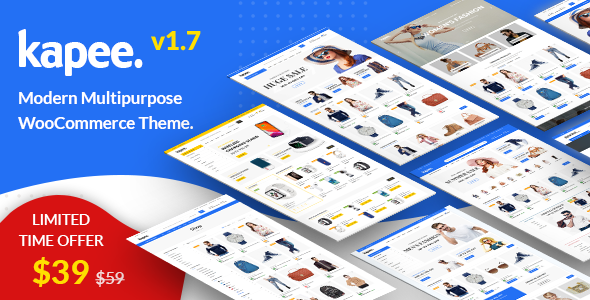
Stuck on your Kapee WordPress theme? Let's fix it.
No endless back-and-forth. Just send us the details and we'll get it done.
No obligation · Replies within 1 hour · Quote within 1 day
Setup · Customization · Bug fixes · WooCommerce integration
About Kapee WP Theme
Kapee is a WooCommerce theme built by PressLayouts, aimed at online stores that need speed, flexibility, and a clean shopping experience out of the box. It ships with multiple pre-built demo stores covering fashion, electronics, furniture, and more, so you can import a full layout and start selling quickly.
The theme is built on a custom framework with Elementor support, giving store owners control over headers, footers, product pages, and category layouts without touching code. It includes features like Ajax cart, product quick view, wishlist, product comparison, and sticky headers. Kapee targets mid-to-large WooCommerce stores that want a polished storefront without paying for a custom build from scratch.
Get matched with a Kapee developer in under one day
Tell us about your Kapee project. Small fixes, Kapee theme customization, or a full website build, whatever you need, we've got it covered.
We'll connect you to the right Kapee developers, define the scope, and get everything 100% clear.
You'll get one estimate, hire your preferred developer, and start collaborating.
Kapee has enough moving parts that setting it up poorly costs you sales. Slow product pages, broken mobile menus, misconfigured filters, and demo content that never gets fully replaced are common problems that hurt conversions. Working with a specialist through Codeable means your store is built correctly the first time. Every developer on Codeable is vetted, so you are not gambling on an unknown freelancer. You get a fixed estimate before any work starts.
Pros
- Multiple niche-specific demo stores that import in one click, covering fashion, electronics, furniture, and grocery
- Ajax cart, wishlist, quick view, and product comparison included without needing third-party plugins
- Dedicated Elementor widgets for WooCommerce mean you can build custom product pages visually
- Mega menu builder is built into the theme and works without a separate plugin
- Responsive product filter sidebar and shop page layout options give fine-grained control over category pages
Cons
- The theme options panel is large and poorly organised, making it easy to miss important settings during initial setup
- Demo import does not always replicate exactly what is shown on the preview, requiring manual adjustments
- Some bundled plugins, like the PressLayouts Core plugin, are required for full functionality and cannot be swapped
- Page load times can suffer on shared hosting if caching and image optimisation are not configured correctly
- Documentation is limited in places, particularly for the Elementor widget configuration and custom header builder
Who is Kapee for?
Fashion and Apparel Stores
Kapee ships with fashion-specific demos that include lookbook layouts, size guide modals, and collection-style category pages. The wishlist and quick view features work well for clothing stores where customers browse multiple products before buying. It handles variable products like size and colour cleanly on both desktop and mobile.
Electronics and Tech Retail
The electronics demo includes product comparison tables, specification tabs, and brand-filtered category pages. These are useful for stores where customers evaluate several products side by side. The mega menu handles large product catalogues across multiple categories without becoming unnavigable on desktop.
Home Furniture and Decor
Kapee’s furniture demos use full-width imagery, large product cards, and room-style category banners. Product pages support multiple gallery images and zoom, which matters for high-consideration purchases like furniture. The Elementor integration makes it easy to create custom landing pages for seasonal collections.
Grocery and Food Delivery
The grocery demo includes a sticky sidebar cart, product quantity controls, and category-heavy navigation suited to high-SKU food stores. Ajax filtering lets customers narrow by dietary type or brand without full page reloads. It is a reasonable starting point for local delivery stores built on WooCommerce.
Multi-Category Marketplace Style Stores
Stores that sell across several unrelated categories benefit from Kapee’s flexible header and mega menu system. You can create department-style navigation with category images and promotional banners inside the dropdown. Combined with a custom homepage built in Elementor, it works well for stores that need a department store feel.

Customizing Kapee
Kapee gives you a large number of customization options through the WordPress Customizer and Elementor page builder. You can adjust header styles, mega menus, product card layouts, and sidebar positions without writing any code. The theme also includes its own set of Elementor widgets tailored to WooCommerce, such as product grids, deal countdown timers, and category sliders.
That said, getting everything looking exactly right takes time. Matching the demo precisely, configuring WooCommerce shop pages, and setting up the mega menu correctly are areas where store owners often get stuck. A Kapee expert can handle the full setup, handle plugin conflicts, and make sure your store performs well from day one rather than weeks of trial and error.
Recommended plugins for Kapee
Kapee works well with the standard WooCommerce plugin stack. It has built-in compatibility with WooCommerce Subscriptions, WPML for multilingual stores, and popular filter plugins like YITH WooCommerce Ajax Product Filter. You can also pair it with WooCommerce Bookings or Memberships if your business model requires it.
For stores that want more, adding a caching layer and image optimization can make a significant difference. See our WordPress performance service for details. If organic traffic matters to your store, structured data and schema setup are worth attention. Our WordPress SEO service covers that.
Not sure which plugins to use? This WordPress plugins directory covers the most popular options with reviews and setup guides.
Kapee common issues
Kapee mega menu not showing on mobile
The Kapee mega menu uses a desktop-first approach. On mobile, it collapses into a standard accordion menu, but the transition sometimes breaks if a caching plugin is serving stale CSS or if a conflicting plugin is modifying the navigation output. Start by clearing all caches, then check for JavaScript errors in the browser console. If the issue persists, a plugin conflict test is the next step. Our WordPress bug fixing service can isolate and resolve this quickly.
Kapee demo import not working or incomplete
Kapee’s one-click demo import depends on the PressLayouts Core plugin being active and on adequate PHP memory limits. If the import stalls or finishes without images, check your server’s max execution time and memory limit, typically 256MB and 300 seconds minimum. XML imports can also fail silently if the Elementor plugin version does not match the demo data. Importing on a staging environment first is the safest approach before applying to a live store.
Kapee product page layout broken after update
Product page layout breaks in Kapee usually follow a theme or WooCommerce update that changes template hooks. If you have a child theme with custom templates, those files may be outdated. Compare your template files against the updated parent theme versions. If you are not using a child theme, check whether a customisation was made directly to theme files, which updates will overwrite. Always use a child theme for any modifications to avoid this recurring issue.
Kapee WooCommerce shop page showing wrong columns
Kapee’s shop page column count is controlled in two places: the Customizer under WooCommerce settings and within the theme’s own shop layout options. If these are set inconsistently, the display breaks. Also check whether a page builder or shortcode is overriding the standard shop template. If the shop page was built with Elementor instead of the native WooCommerce template, the column settings in the Customizer will not apply. Use one approach consistently.
Kapee FAQ
PressLayouts updates Kapee to maintain WooCommerce compatibility, but there is often a short lag after major WooCommerce releases. Before updating WooCommerce on a live Kapee store, check the theme changelog for a corresponding update. Testing on a staging site first prevents broken product pages or checkout issues from affecting real customers during the transition window.
Kapee’s core Elementor widgets work with Elementor Free. However, some advanced layout features and template library access require Elementor Pro. For most store builds, Elementor Free covers product pages, custom sections, and homepage layouts. If you need popups, theme builder templates for archive pages, or form integrations, Elementor Pro is worth the cost.
Yes. You can install Kapee and configure it from scratch using the Customizer and Elementor without importing any demo. The demo content is optional and mainly useful if you want a fast starting point. Building without it gives you a cleaner install with no placeholder content to remove, which many developers prefer for client projects.
Start with a caching plugin like WP Rocket or LiteSpeed Cache, compress and serve images in WebP format, and enable lazy loading. Kapee loads several scripts on the frontend, so deferring non-critical JavaScript helps. A CDN makes a noticeable difference for product image delivery. See our WordPress performance service for a full optimisation setup.
Switching themes on an existing WooCommerce store is usually straightforward for product data, but your current page layouts, homepage, and custom templates will not carry over automatically. You will need to rebuild those in Kapee. WooCommerce orders, products, and customer data are stored in the database and are unaffected by a theme change. Our WordPress migration service can manage the transition safely.
Hire a Kapee Expert Developer
Whether you need a full Kapee store setup, a specific feature built, or an existing store fixed and optimised, we can match you with a vetted WordPress developer who knows WooCommerce themes inside out. Work is scoped upfront with a clear estimate and no obligation to proceed. Get a free estimate and have a developer assigned to your project within 24 hours.
You'll need a free Codeable account so developers can ask questions and send their quotes.