Modernize WordPress Theme
by GoodLayers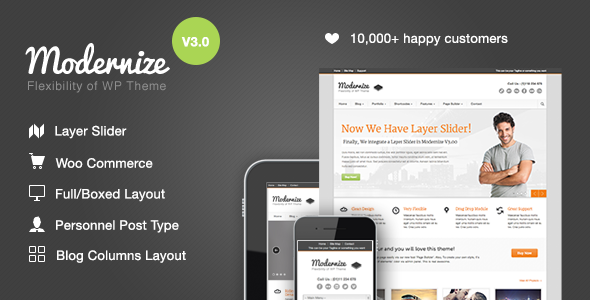
Stuck on your Modernize WordPress theme? Let's fix it.
No endless back-and-forth. Just send us the details and we'll get it done.
No obligation · Replies within 1 hour · Quote within 1 day
Setup · Customization · Bug fixes · WooCommerce integration
About Modernize WP Theme
Modernize is a multipurpose WordPress theme built by GoodLayers, the team behind the popular Goodlayers Page Builder. It ships with a large library of pre-built demos covering business, portfolio, agency, and blog layouts. The theme leans on GoodLayers’ own drag-and-drop page builder rather than a third-party tool, which keeps things self-contained but also means your site depends on that ecosystem.
Out of the box you get header and footer builders, WooCommerce support, a mega menu system, and a range of post formats. Performance depends heavily on how many demo assets you import and whether you clean up what you don’t need. The theme is regularly updated and has a solid track record on ThemeForest, making it a practical choice for agencies or freelancers who need to spin up client sites quickly.
Get matched with a Modernize developer in under one day
Tell us about your Modernize project. Small fixes, Modernize theme customization, or a full website build, whatever you need, we've got it covered.
We'll connect you to the right Modernize developers, define the scope, and get everything 100% clear.
You'll get one estimate, hire your preferred developer, and start collaborating.
Finding someone who knows Modernize and GoodLayers’ ecosystem specifically makes a difference. Generic WordPress developers often spend hours figuring out how the page builder handles layouts, custom headers, or template hierarchy. On Codeable, you get matched with vetted WordPress developers who have hands-on experience with themes like Modernize. Post your project, get a free estimate within 24 hours, and only move forward if it makes sense. No obligation.
Pros
- GoodLayers Page Builder is included and maintained by the same team as the theme, so updates are coordinated
- Large library of pre-built demos covering a wide range of industries and layouts
- Dedicated header and footer builders give layout control without needing a separate plugin
- WooCommerce integration is built-in with styled product pages and cart elements
- Active update history on ThemeForest with responsive developer support
Cons
- Heavy reliance on the GoodLayers Page Builder makes migrating to another builder or theme difficult
- Importing a full demo can add bloat — images, plugins, and settings that need cleanup before going live
- The page builder interface feels dated compared to Elementor or Bricks, especially for complex layouts
- Custom code injection requires working around the builder's inline style output, which adds friction
- Documentation is functional but thin on advanced use cases like custom post types or conditional headers
Who is Modernize for?
Creative Agency
Modernize suits agency sites well. The portfolio post type, filterable grids, and full-width section layouts let you showcase client work cleanly. A Modernize specialist can customise the case study layout, add animated counters or team sections, and build out a services page that doesn’t look like a default demo.
Corporate Business Site
For corporate sites needing a professional look without heavy custom development, Modernize delivers. The mega menu, icon boxes, and testimonial sections cover most requirements. A Modernize developer can add company-specific functionality — staff directories, downloadable resources, or form integrations — without touching core theme files.
WooCommerce Store
Modernize includes WooCommerce styling for product pages, archives, and the cart. It won’t replace a dedicated WooCommerce theme for complex stores, but for businesses selling alongside content, it handles the basics well. A Modernize expert can extend product layouts, add custom fields, and ensure checkout styling stays consistent.
Freelance Portfolio
The portfolio system in Modernize works well for freelancers who want a clean, filterable grid of projects with individual case study pages. You can control layout, category filters, and detail page structure through the page builder. A Modernize specialist can wire up custom project meta and build a contact section that converts.
News or Magazine Blog
Modernize supports multiple post formats and includes magazine-style grid and list layouts. Editorial sites can use it without much friction. A Modernize developer can set up category landing pages, custom author boxes, and ad placement zones without relying on extra plugins for every feature.

Customizing Modernize
Customizing Modernize goes beyond the WordPress Customizer. Most of the real work happens inside the GoodLayers Page Builder, where you build layouts section by section using rows, columns, and content blocks. Header and footer layouts have their own dedicated builders, which gives you more control than most themes but also adds complexity.
A Modernize expert will know how to extend the page builder output with custom CSS, register custom post types that slot into existing layouts, and override template files without breaking future updates. Child theme setup is straightforward but skipping it is a common mistake. If you need custom functionality — a booking flow, a filtered portfolio, or a non-standard WooCommerce setup — working with a Modernize specialist saves significant trial and error compared to working through it alone.
Recommended plugins for Modernize
Modernize pairs well with caching plugins like WP Rocket or LiteSpeed Cache, but the GoodLayers Page Builder outputs inline styles that need careful handling to avoid CSS bloat. Check the WordPress performance service if load times are a concern after setup.
For SEO, the theme has basic schema support, but pairing it with Rank Math or Yoast gives you proper control over meta, breadcrumbs, and structured data. If you need a full technical and on-page SEO audit alongside your build, the WordPress SEO optimisation service covers that end-to-end.
Not sure which plugins to use? This WordPress plugins directory covers the most popular options with reviews and setup guides.
Modernize common issues
Modernize page builder not loading in WordPress editor
This is usually a JavaScript conflict with another plugin. Deactivate all plugins except GoodLayers core plugins and reload the editor. Re-enable plugins one at a time to find the conflict. Also check your browser console for JS errors. If the builder consistently fails to load, a PHP memory limit below 256MB can also cause it. Raise the limit in wp-config.php and test again.
Modernize theme demo import failing or stuck
Demo imports fail most often due to server timeout limits or a low max execution time. Ask your host to raise max_execution_time to 300 seconds and memory_limit to 256MB before retrying. Import in parts if the theme allows it — content first, then widgets and settings. If the import hangs repeatedly, the WordPress bug fixing service can diagnose and complete the import manually.
Modernize header not showing on mobile
Modernize has a separate mobile header setting inside the Header Builder. Open the Header Builder, switch to the mobile view, and check that a mobile header layout is assigned. If it was never configured, the desktop header may render incorrectly or collapse entirely. Also check that the mobile breakpoint value matches your CSS media queries if you’ve added custom styles targeting mobile widths.
Modernize custom CSS not applying after update
Custom CSS added directly in the Customizer or the theme options panel can sometimes be overridden after a theme update if it was stored in a way that gets reset. Always use a child theme for custom CSS. If you updated without a child theme, your styles may need to be re-added. The WordPress bug fixing service can recover lost customisations and set up a child theme to prevent future loss.
Modernize WooCommerce product page layout broken
WooCommerce layout breaks in Modernize usually happen after a WooCommerce major update changes template file structure. Check the WooCommerce system status for outdated templates. Modernize may need a theme update to match the new template structure. In the meantime, use a WooCommerce-compatible plugin to override specific templates without touching theme files directly.
Modernize mega menu not working on mobile
The mega menu in Modernize relies on JavaScript that can conflict with caching plugins or minification settings. First, disable JS minification in your caching plugin and test. If the menu works after that, re-enable minification but exclude the GoodLayers menu script. On mobile specifically, check the theme’s mobile navigation settings — the mega menu may need to be replaced with a simplified accordion menu for smaller screens.
Modernize footer widgets not displaying correctly
If footer widgets aren’t displaying, check that the footer layout in the Footer Builder has widget area blocks placed correctly. Also verify that widgets are assigned to the correct sidebar in Appearance > Widgets. Conflicts with caching plugins that serve a cached footer without dynamic widget output are also common. Clear all caches and check again before digging deeper into the footer builder settings.
Modernize slider images not loading
Missing slider images in Modernize are usually caused by incorrect image attachment or a broken media library path. Check that the images are still in the Media Library and re-attach them to the slider through the page builder element settings. If you migrated the site, image URLs may still point to the old domain. A search-replace on the database using WP-CLI or Better Search Replace will fix that. The WordPress bug fixing service handles post-migration URL fixes efficiently.
Modernize blog page showing wrong layout
The blog page layout in Modernize is controlled through both the theme options and individual page settings. Make sure the page set as your Posts Page in Settings > Reading has the correct page template assigned. If the template shows a page builder layout instead of the blog loop, remove any page builder content from that page and rely on the theme’s blog settings to control the output.
Modernize theme update broke site layout
Layout breaks after a theme update almost always mean a child theme wasn’t in use, and custom template overrides were lost. Restore the previous theme version from a backup if available, then set up a child theme before updating again. If no backup exists, compare the current template files with the previous version using a diff tool and manually reapply your customisations to the updated files.
Modernize FAQ
Yes. GoodLayers continues to release updates for Modernize on ThemeForest. The update frequency is moderate rather than frequent, but major WordPress compatibility updates and security patches are released. Always check the changelog before updating on a live site and test on a staging environment first.
Modernize uses GoodLayers’ own page builder, not Elementor. The two don’t work together within the same page. You can technically install Elementor alongside it, but mixing builders causes conflicts and inconsistent styling. If you want Elementor, a different theme built around it is a better foundation.
Purchase Modernize from ThemeForest and download the installable WordPress file. In WordPress, go to Appearance > Themes > Add New > Upload Theme. Upload the zip file and activate. You’ll also need to install the required GoodLayers plugins when prompted after activation.
Yes. Demo content is optional. You can start from a blank canvas using the GoodLayers Page Builder and build your own layouts. The demo is useful for reference, but importing it and then removing unwanted content is often more work than building clean from the start.
Yes. Modernize includes WooCommerce support with styled templates for product pages, archives, cart, and checkout. It covers standard store requirements. For heavily customised or high-volume stores, a dedicated WooCommerce theme may perform better, but Modernize handles typical use cases without issues.
Create a folder in wp-content/themes/ named modernize-child. Add a style.css file with the correct header declaring the parent theme as Modernize, and a functions.php file that enqueues the parent stylesheet. Activate the child theme in Appearance > Themes. All custom code and template overrides go in the child theme.
Modernize has built-in support for portfolio and team custom post types through the GoodLayers plugin. For other custom post types, you can register them via a child theme’s functions.php or a custom plugin. The page builder works with custom post type single and archive templates when set up correctly.
Start by enabling a caching plugin, optimising images, and disabling unused GoodLayers features in the theme options. The page builder outputs inline CSS that benefits from combining and minifying. A CDN also helps significantly with asset delivery. See the WordPress performance service for a full audit and optimisation.
Yes. A Modernize site migrates like any WordPress site — export the database, move the files, update the site URL, and update any hardcoded paths. The GoodLayers Page Builder stores data in post meta, which transfers cleanly with a standard migration. WordPress migration service handles this with zero downtime.
Codeable is the most reliable option. It’s a vetted network of WordPress developers where you post your project and get matched with specialists who have real experience with themes like Modernize. You get a free estimate within 24 hours and only pay if you decide to proceed. No bidding wars, no unknowns.
Hire a Modernize Expert Developer
Whether you need a Modernize developer to build a site from scratch, customise an existing layout, or fix something that’s broken, the process is straightforward. Post your project through Codeable and get matched with a vetted specialist within 24 hours. Get a free estimate with no obligation to hire. Every project is backed by Codeable’s money-back guarantee.
You'll need a free Codeable account so developers can ask questions and send their quotes.