LearnDash Labels: How to Customize and Change Them
In the rapidly evolving world of e-learning, having a powerful Learning Management System (LMS) is essential. LearnDash is a popular choice for many educators, offering a platform to create and manage online courses. However, one of the key elements of a successful e-learning experience is customization. You want your courses to align perfectly with your brand and content, and that means having the flexibility to change labels.

LearnDash Labels
LearnDash Labels

Benefits of Label Customization

Before diving into the technical aspects, let’s explore why customizing labels in LearnDash is so essential.

  1. Improved User Experience
    One of the key reasons to customize labels in LearnDash is to enhance the user experience. When learners interact with your e-learning platform, they should find it easy to navigate and understand. Using terminology that aligns with your specific field or industry ensures that your courses are more approachable and user-friendly.For instance, if you’re offering a course in digital marketing, you might prefer to use terms like “modules” instead of “lessons” or “campaigns” instead of “courses.” Customizing labels allows you to speak directly to your audience, making their learning journey more intuitive.
  2. Better Branding and Consistency
    Consistency in terminology is crucial for branding. Your e-learning platform should reflect a professional and cohesive image. By customizing labels, you can ensure that all aspects of your courses, from navigation to certification, maintain a unified and branded look and feel.This consistency is especially important for institutions, businesses, or individuals looking to establish their e-learning presence. Custom labels help you stand out and showcase your unique identity in a competitive market.
  3. Tailored Terminology
    Not all courses are created equal, and sometimes the default labels in LearnDash may not fit your unique educational niche. Customization allows you to use terminology that speaks directly to your audience and the subject matter you’re teaching.For example, if you are offering a course in culinary arts, you may want to use labels like “recipes” instead of “lessons” or “culinary certificates” instead of “course certificates.” This not only makes the learning experience more engaging but also caters to the specific needs and interests of your learners.

Step-by-Step Guide to Change Labels on LearnDash

Now, let’s get into the practical steps to customize and change labels in LearnDash.

A. Install and Activate LearnDash Custom Labels Plugin

Start by installing the “LearnDash Custom Labels” plugin, which simplifies the label customization process. This plugin is a valuable tool that enables you to change labels without the need for coding or technical expertise.

Here’s how you can install and activate the plugin:

  1. Log in to your WordPress dashboard: Navigate to the WordPress dashboard by entering your credentials.
  2. Navigate to the “Plugins” section: In the left-hand menu, find and click on “Plugins.”
  3. Click “Add New” and search for “LearnDash Custom Labels”: In the “Add Plugins” page, you’ll see a search bar in the top right corner. Enter “LearnDash Custom Labels” in the search field, and the plugin should appear in the results.
  4. Install and activate the plugin: Click on the “Install Now” button, and after the installation is complete, click “Activate.”

B. Accessing the Label Customization Interface

Once you’ve installed the plugin, you can access the label customization settings:

  1. Log in to your WordPress admin panel: Ensure you are logged in to your WordPress dashboard.
  2. Look for the “LearnDash Custom Labels” tab in the WordPress sidebar: On the left-hand side of your dashboard, you’ll see a menu. Scroll down until you find “LearnDash Custom Labels” and click on it to access the customization interface.

C. Locating and Changing Specific Labels

Now that you’re in the customization interface, you can locate and customize the labels you want:

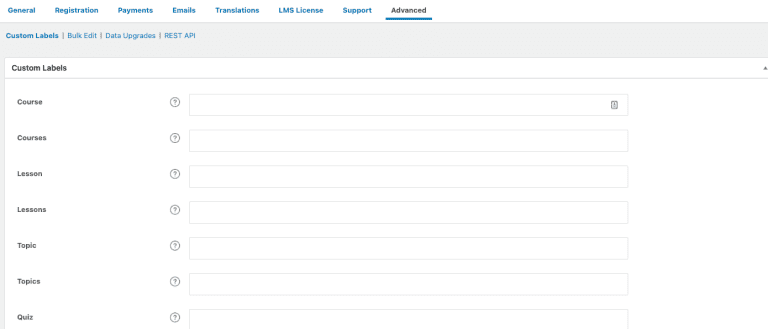
  1. In the interface, find the labels you wish to change: You will be presented with a list of various LearnDash labels such as “course,” “lesson,” “quiz,” and “certificate.”
  2. Use the customization options provided by the plugin to edit the labels according to your preferences: The plugin offers user-friendly fields that allow you to change the labels easily. For instance, you can replace “course” with “workshop” or “lesson” with “chapter.”

As you make these changes, the plugin will automatically update the labels throughout your LearnDash platform. It’s important to note that the plugin is designed to be user-friendly, making label customization accessible to individuals without advanced technical skills.

D. SEO Considerations

It’s crucial to consider the SEO impact of changing labels. While customization can significantly improve user experience, it’s equally important to maintain SEO-friendliness to avoid negatively affecting your website’s search engine ranking.

Here are some important considerations:

  1. Ensure that the new labels remain relevant to the course content: While customization is essential, the new labels should accurately represent the content and topics covered in your courses. This helps both learners and search engines understand the purpose of your courses.
  2. Maintain keyword consistency and relevancy: Carefully choose new labels that incorporate relevant keywords for your industry or field. This ensures that your courses are still easily discoverable through search engines.

For example, if you offer a course on “Digital Marketing Strategies,” ensure that your custom labels include terms related to digital marketing to maintain keyword consistency.

Customizing labels should not result in a disconnect between your course content and what users expect. Striking the right balance between user-friendliness and SEO is crucial.

E. Testing Your Label Changes

Before making your label changes live, test them to ensure they work seamlessly. Testing is essential to identify any potential issues and address them before your learners encounter them. Here’s how to go about it:

  1. Create a sample course with the new labels: Before implementing label changes across all your courses, create a test course. This allows you to experiment with your new labels and see how they work in practice.
  2. Go through the entire course creation process: From creating a course to adding lessons and quizzes, ensure that all labels are updated and consistent. Check for any anomalies or inconsistencies in the user experience, and make necessary adjustments.

Testing is a critical step to ensure that your learners will have a seamless experience when navigating your courses.

F. Save and Publish Your Changes

Once you’re satisfied with your label customizations and have addressed any issues identified during testing, it’s time to save and publish the changes to make them live on your website.

The process is straightforward:

  1. Save your customizations: In the plugin’s interface, there should be a button to save your label changes. Click on it to store your settings.
  2. Publish the changes: After saving your changes, you may need to click another button to publish them. Once you do this, the new labels will be applied throughout your LearnDash platform, offering a customized and consistent user experience.

By following these steps, you can successfully customize and change labels in LearnDash to create a more tailored e-learning experience for your students.

LearnDash customization

Best Practices for LearnDash Labels Customization

To make the most of your label customization journey, consider these best practices:

  1. Consistency and Coherence: Ensure that all label changes are consistent across your courses. This creates a unified and professional learning environment. When learners move from one course to another, they should encounter a consistent interface, making navigation intuitive and easy.
  2. Seek User Feedback: Your learners’ opinions are valuable. Encourage them to provide feedback on the new labels. Their input can help you fine-tune the customization for a better user experience. Use surveys or feedback forms to gather their thoughts and suggestions.
  3. Backup Your Site: As with any significant changes to your website, always back up your site before implementing label customizations. While the process is generally straightforward, unexpected issues can sometimes occur. Having a backup allows you to restore your site to its previous state in case of any problems.

In addition to these best practices, it’s important to keep track of the performance and user feedback regarding your customized labels. Regularly review and adjust your labels based on the evolving needs and preferences of your learners.

External Resources

To enhance the article, here are some external resources with DoFollow links that offer further insights into LearnDash and label customization:

  1. LearnDash Official Documentation: Explore the official documentation for LearnDash to gain a deeper understanding of its features and capabilities.
  2. WordPress.org – LearnDash Custom Labels Plugin: This plugin offers an effective way to customize labels in LearnDash. You can find it on the official WordPress plugin repository.

Conclusion

Customizing and changing labels on LearnDash is an effective way to make your e-learning platform unique, user-friendly, and aligned with your brand identity. By following this step-by-step guide and implementing best practices, you can create a more engaging and personalized experience for your students. This, in turn, can lead to more successful online courses and higher learner satisfaction.

As a final reminder, always remember to balance user-friendliness with SEO considerations when customizing labels. Striking this balance ensures that your courses remain discoverable and appealing to your target audience.

Additional Resources

For more complex label customizations and advanced LearnDash needs, consider seeking professional assistance. Codeable, a platform connecting you with experienced WordPress experts, can help you with customizing LearnDash labels and other aspects of your e-learning platform.

Codeable offers a network of skilled developers who can provide tailored solutions for your specific needs. Whether it’s advanced label customizations, integrations with other plugins, or any other WordPress-related tasks, Codeable’s experts can assist you.

Visit Codeable to find the right WordPress developer for your project.

Find Developer

Remember, the right labels can significantly impact your e-learning success, so take the time to make your LearnDash courses truly your own. Whether you’re a solo educator, a business, or an institution, customizing labels can set you apart in the competitive e-learning landscape, providing a unique and engaging experience for your learners.


asset

Customizing Your LearnDash Courses: Tips and Tricks for your LMS

Tips and Techniques, for Personalizing Your LearnDash Courses

WP LearnDash is an used plugin for WordPress that enables users to develop and market courses. However there may be instances when the default appearance of LearnDash courses doesn’t meet your requirements. The good news is that LearnDash offers customization options allowing you to create a course design tailored to your needs. In this article we will explore tips and techniques for personalizing your courses. We will cover topics such, as enhancing the design elements customizing your course page using Elementor and modifying lessons within the LearnDash platform.

LearnDash customization

How to Customize Your LearnDash Course Page

Here’s how you can personalize and tailor your LearnDash course page to create a one of a kind and captivating learning experience, for your students. The LearnDash plugin offers settings that allow you to customize the layout branding and course progress on your course page.

To access the LearnDash settings head over to your WordPress dashboard. Click on LearnDash LMS > Courses. From there choose the course you want to customize and click on the “Settings” tab. Within this section you’ll discover a range of options that enable you to personalize your course page;

  • Course Layout; Select from options such as classic, modern or social learner layout to determine how your course is visually presented.
  • Course Branding; Enhance your brand identity by adding a logo and custom header to your course page.
  • Course Progress; Decide whether or not you want to display a progress bar for the course and tweak its color and style as per your preference.

When personalizing your LearnDash course page it’s crucial to consider the needs of your students. Ensure that navigation is user friendly aesthetics are visually appealing. All necessary information is readily available for students success, in the course.


How to Customize Your LearnDash Course Page


9639

Using Design Upgrades on LearnDash

Enhancing the appeal of your courses and creating an engaging learning experience, for students can be achieved through design upgrades. These upgrades consist of built course templates that enable you to quickly customize the course design.

To incorporate design upgrades in LearnDash you’ll need to install the Design Upgrade Pro plugin. After installation go to LearnDash LMS > Design Upgrade Pro to access the plugins settings. Within these settings you’ll find built course templates for quizzes, certificates and course outlines. Additionally you can create your custom course templates by selecting the “New Design” option.

Design upgrades are a time saving solution that allows you to personalize your course design according to your brand identity.

Customizing Your LearnDash Course Page with Elementor

Customizing your LearnDash course page becomes effortless with Elementor – an used drag and drop page builder for WordPress. By leveraging Elementors capabilities you can easily craft LearnDash course pages that align with your brand identity and deliver a learning experience for learners.

To integrate Elementor with LearnDash seamlessly install both the Elementor plugin and the LearnDash Integration, for Elementor plugin.
After you have successfully installed it go to your WordPress dashboard. Click on “Add New Page.” In this section you can utilize the Elementor editor to personalize your LearnDash course page. You have the freedom to incorporate headers, footers and content blocks that align with your brands identity.

While customizing your LearnDash course page with Elementor it is crucial to maintain an straightforward design. Avoid overloading the page with design elements and ensure that your course content remains the point.

Modifying a Lesson, in LearnDash

Altering lessons in LearnDash is a process that enables you to swiftly modify your course content. To make changes to a lesson in LearnDash go to your WordPress dashboard. Select LearnDash LMS > Courses. From there choose the course you wish to modify and click on the “Lessons” tab. You will find a list of all the lessons within your course. To edit a lesson click on the “Edit” button to the title of the lesson.

While editing a lesson in LearnDash you have options for customizing your lesson content, which include:

  1. Lesson Content; Edit the text, images and media files within the lesson.
  2. Lesson Settings; Decide whether or not to display the progress bar for the lesson and personalize its color and style.
  3. Lesson Navigation; Select how students will navigate through the lesson, such as nonsequential options.

When modifying your lesson content it is crucial to consider your students requirements. Ensure that your content is captivating easy to comprehend and provides instructions, for completing each lesson.


asset

In conclusion personalizing your courses can contribute to the creation of an captivating learning experience, for your students. Whether you utilize the settings enhance the design leverage Elementor or modify lessons there are avenues to customize your courses in order to align with your brand identity and offer an exceptional learning journey to your students. By implementing these tips and strategies you can elevate your courses and differentiate yourself in a competitive online learning market.

If you lack confidence in customizing your courses there are several companies available that provide specialized LearnDash customization services

One such company is Codeable. They offer a range of customization services for LearnDash encompassing theme customization plugin development and course design. Codeable team of developers is well equipped to assist you in crafting a tailored LearnDash course that caters to your requirements while delivering an outstanding learning experience for your students.

In summary customizing your courses stands as a step towards creating an immersive and impactful online learning environment. Whether it involves utilizing the LearnDash settings enhancing the design elements or leveraging tools like Elementor or modifying lessons—there exists a multitude of approaches through which you can personalize your courses to reflect your brand identity and offer a learning experience, for students.

If you aren’t feeling confident, about personalizing your courses on your own there are companies like Codeable that can assist you in developing a tailor made LearnDash course that caters to your requirements and ensures an exceptional learning experience for your students.

By utilizing the customization options in LearnDash along with design enhancements, Elementor and lesson editing capabilities you have the ability to create courses that align with your brand identity and cater to the needs of your students.. If you require assistance with customizing your courses reputable companies such as Codeable can provide expert guidance and support to help you craft the perfect course.

With a executed customization strategy and a dedication, to creating impactful courses LearnDash empowers you to establish a successful online learning business that stands out amidst competition. So why wait? Get started on personalizing your courses today. Elevate your online learning business to new heights!


asset