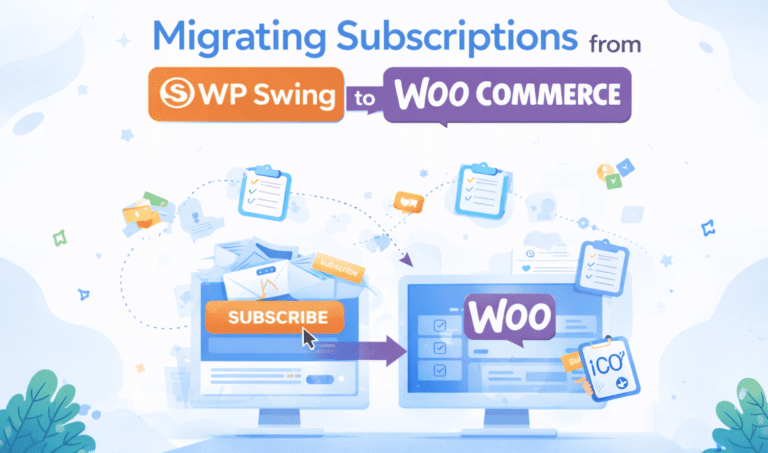
Migrating Subscriptions from WP Swing to WooCommerce

If your store is using WP Swing Subscriptions and you want to switch to WooCommerce Subscriptions, this guide explains everything in clear and simple English. You will learn how migration works, what steps to follow, what problems you should avoid, and what to check before you go live. This article is written for regular store owners, not developers, but it also includes sample code and advanced tips for those who need them.

The goal is to help you move your subscribers in a safe and clean way without losing revenue or breaking renewal payments.

Reason to move away from WP Swing

WP Swing Subscriptions is a cheaper solution, but it has several limits when a store starts to grow. WooCommerce Subscriptions is more stable, has better support, and works with more plugins and gateways.

Below are the most common reasons store owners decide to migrate.

Main reasons to switch

  • More stable renewals
  • Better support and updates
  • Works better with Stripe and PayPal
  • Easier to customize
  • Fewer errors with scheduled payments
  • Better integration with memberships and LMS plugins

Most of the problems store owners report with WP Swing Subscriptions are related to failed renewals, wrong next payment dates, and customer complaints. When money is involved, you want a stable and safe system.

How Migration Works

Migrating subscriptions is not the same as moving normal products. Subscriptions have start dates, renewal dates, unpaid orders, payment tokens, and links to customers. Because of this, the migration process needs to be very careful.

Here is the basic outline of how migration is done.

  1. Export all subscription data from WP Swing
  2. Clean and correct the data
  3. Map the fields to WooCommerce Subscriptions
  4. Import the data using a special importer or a custom script
  5. Test renewals
  6. Disable WP Swing and activate WooCommerce Subscriptions
  7. Watch renewals for a few days

Now we go deeper into each step.


Step 1: Export Data From WP Swing

WP Swing allows subscription export to CSV. You will need these fields:

Field nameWhy it is needed
user IDTo match the subscription with the customer
product IDTo know what product the customer is subscribed to
start dateNeeded for correct billing history
next payment dateNeeded so WooCommerce can create the next renewal
billing cycleMonth, week, year
subscription statusActive, canceled, paused
order IDsUseful for history but not always required
payment methodNeeded for renewals

Make sure to check that all exported rows have valid dates and correct user IDs.


Step 2: Clean the Exported File

Most stores need some cleanup before importing the data into WooCommerce Subscriptions. Common issues include:

  • Invalid dates
  • Missing user accounts
  • Old or deleted product IDs
  • Wrong status values
  • Incomplete payment method information

You can fix most of these issues using Google Sheets or Excel.
For example, if some start dates are empty, you can set a default date like the date of the first parent order.


Step 3: Map WP Swing Fields to WooCommerce Fields

WooCommerce Subscriptions stores data differently.
You need to match the WP Swing fields to WooCommerce meta fields.

Here is a useful mapping table:

WP Swing fieldWooCommerce Subscriptions field
subscription_idpost_id (created by importer)
start_date_schedule_start
next_payment_date_schedule_next_payment
billing_period_billing_period
billing_interval_billing_interval
statuspost_status
user_id_customer_user
product_idorder line item

If you do not map fields correctly, the subscription may import but renewals will break.


Step 4: Importing the Subscriptions

There are two ways to import:

1. Using a prepared CSV importer

Works only for basic cases. Good for small stores.

2. Using a custom script

This is the safest way for large stores or stores with many legacy subscriptions.

Here is a simple example code snippet that creates a subscription programmatically:

$subscription = wcs_create_subscription( array(
    'customer_id' => $customer_id,
    'start_date'  => $start_date,
    'next_payment' => $next_payment,
) );

$subscription->add_product( $product, 1, array(
    'total' => $price,
) );

$subscription->update_status( 'active' );

Below is an example of adding item meta:

$items = $subscription->get_items();

foreach ( $items as $item_id => $item ) {
    wc_add_order_item_meta( $item_id, '_billing_period', $period );
    wc_add_order_item_meta( $item_id, '_billing_interval', $interval );
}

This code needs to be customized for each store depending on the exported data.

Need Help Migrating Subscriptions from WP Swings to WooCommerce?

Hire a certified WordPress expert from Codeable to migrate your subscription data from WP Swings to WooCommerce smoothly while preserving billing and customer history.

Get a Free Estimate

Step 5: Testing Renewals

Testing renewals is the most important part. Here is what you should test before going live.

Test checklist

  • Does the subscription show the correct next payment date
  • Can Stripe or PayPal renew it
  • Is the customer charged correctly
  • Do renewal emails work
  • Does the subscription change status after renewal

To test Stripe renewals, you can use:

Test card: 4242 4242 4242 4242
Expiration: Any future date
CVC: Any 3 digits

Step 6: Switching From WP Swing to WooCommerce Subscriptions

Once you are sure all subscriptions have been imported correctly:

  1. Disable WP Swing Subscriptions
  2. Enable WooCommerce Subscriptions
  3. Check your cron events
  4. Refresh permalinks

You do not want both plugins active at the same time because they may conflict.


Step 7: Monitoring After Migration

For the first 7 days, watch renewal logs.
WooCommerce Subscriptions logs can be found in:

WooCommerce → Status → Logs → subscription logs

If you see errors like:

Renewal payment failed due to missing token

this means that some payment methods need manual update from the customer.

You can send them a simple message:

“Please log in and update your card details so your subscription continues without interruption.”

Common Problems During Migration

Here are the issues most stores run into.

Missing payment tokens

Stripe stores card data as tokens. These are usually not migrated and customers must update their cards.

Wrong timezones

If the timezone is wrong, the renewal date may shift by one day.

Old or deleted products

If a product no longer exists, you must create a new one and map it.

Duplicate subscriptions

If you import twice, you may have duplicates. You can write a script to detect duplicates by email address.

Example:

$subs = wcs_get_users_subscriptions( $user_id );

if ( count( $subs ) > 1 ) {
    // handle duplicates
}

Need Help Migrating Subscriptions from WP Swings to WooCommerce?

Hire a certified WooCommerce expert from Codeable to migrate your subscriptions safely, with all recurring billing, customer data, and payment gateways intact.

Get a Free Estimate

FAQ Section


1. What is the safest way to migrate subscriptions from WP Swing to WooCommerce Subscriptions?

The safest way to move subscriptions from WP Swing to WooCommerce Subscriptions is a slow and controlled process where you check every step before importing anything into your live store. Most problems happen when people rush and try to import everything at once without testing.

A safe process looks like this. First, export all subscription data from WP Swing into a clean CSV file. Second, open that file in Google Sheets or Excel and fix everything that looks wrong, such as missing dates, wrong periods, or user accounts that no longer exist. Third, map every field from the CSV to the fields used by WooCommerce Subscriptions. They do not use the same structure, so this step is very important.

Once the data is ready, try importing only a few subscriptions on a test site. Turn on WooCommerce Subscriptions and renew one or two orders to see if the dates and payments work. When you confirm that renewals run correctly, import the rest of the subscriptions. Finally, monitor renewal logs for several days to make sure nothing breaks.

This slower approach may take longer, but it keeps your revenue safe and prevents failed payments or angry customers.


2. Do customers lose their saved payment methods during migration?

In most cases, yes, customers will lose their saved card details because payment gateways store these details as secure tokens that belong to the original plugin. These payment tokens usually cannot be copied from WP Swing to WooCommerce Subscriptions because they were created with a different data structure and a different plugin key.

This means Stripe or PayPal will not recognize those tokens after the migration. As a result, when the next renewal date arrives, WooCommerce Subscriptions will try to charge the customer but will fail because the card token is missing.

The easiest way to handle this is to notify customers in advance. You can tell them that your store is upgrading to a safer subscription system and that they will need to update their payment method once. When they log in, they can enter their card again, and WooCommerce Subscriptions will save a fresh token that works for future renewals.

Usually, over 90 percent of customers update their card within two or three days if you send a polite reminder. It is a normal part of any subscription system migration.


3. Can I migrate subscriptions without losing any revenue?

Yes, you can migrate subscriptions without losing money, but only if you plan the process carefully and test everything before you switch systems. The most important part is making sure that your next payment dates and billing intervals are correct. If these dates are wrong, customers might be charged too early, too late, or not at all.

To protect your revenue, follow these steps. First, make sure every subscription in your CSV has the correct next payment date. This date tells WooCommerce when to generate the next renewal order. Second, run a test migration on a staging site and trigger a renewal manually. See if the order is created and paid correctly. Third, once you import everything into your live site, check the subscription logs for at least one week. If you see any errors, correct them right away.

If you do this, the migration will be smooth and no customers will miss a payment cycle. The only exception is if payment tokens cannot be transferred, in which case you should remind customers to update their card.


4. Can I migrate expired or canceled subscriptions, or should I skip them?

You can migrate expired, canceled, or even paused subscriptions. In fact, it is useful to migrate them because they create a full and correct history inside WooCommerce Subscriptions. This history helps you understand customer lifetime value, churn rate, and past billing patterns.

Expired subscriptions also help identify customers who might want to resubscribe later. If customers see their old subscription in their account, they can renew it with a single click.

If you skip these older subscriptions, your reports may look incomplete. Also, WooCommerce Subscriptions may treat returning customers as new subscribers, which can lead to confusion.

Therefore, it is best to migrate all subscription records, even the old ones, as long as the data is clean and correct.

5. Do I need to recreate parent orders or can WooCommerce generate new renewals automatically?

You do not need to recreate old parent orders for most migrations. WooCommerce Subscriptions can generate new renewal orders automatically as long as the next payment date, billing period, and customer data are correct.

Parent orders are mostly used for history and reports. They show what the customer originally bought and how the subscription was created. If these orders exist in your store, WooCommerce will link the subscription to them. If they do not exist, the subscription will still work fine, but the history will be shorter.

The important part is not the parent order. The important part is the next payment date. As long as this date is valid, WooCommerce Subscriptions will create a new renewal order at the correct time.

If you want a perfect record, you can recreate parent orders using a script, but this is optional and usually not needed for normal store operations.


6. How long does a full migration take?

The time needed depends on the size of your store and the quality of your data. Small stores with fewer than 50 subscriptions can finish the migration in one or two hours, including testing. Medium stores with 100 to 500 subscriptions may need one or two days. Stores with more than 1000 subscriptions may need one week of preparation, cleanup, mapping, importing, and testing.

The most time is spent on data cleanup. If your export file contains missing dates, duplicate user records, or invalid values, you will spend more time fixing it. If everything is clean, the migration is fast.

Testing also takes time. You should test on a staging site, run a renewal, and then test again on the live site before disabling WP Swing.

So the full timeline usually looks like this:

Day 1: Export, cleanup, mapping
Day 2: Test import on staging
Day 3: Live import and verification
Days 4 to 7: Renewal monitoring

With a careful plan, the process is stress-free and predictable.


7. Will email notifications from WooCommerce Subscriptions work correctly after migration?

Yes, email notifications will work, but only if the subscriptions are imported with correct dates and statuses. WooCommerce Subscriptions uses these values to decide when to send each email, such as renewal reminders or payment failure notices.

If the next payment date is missing or wrong, the emails may not send on schedule. If the status is wrong, such as setting a subscription to on-hold when it should be active, then the wrong email may be sent.

The best way to confirm that emails work is to test a renewal after the import. When WooCommerce generates a renewal order, it will also send the correct email. You can also use the Email Test tool inside WooCommerce settings to check whether your templates are correct.

Make sure your SMTP service (such as SendGrid, Mailgun, Brevo, or WP Mail SMTP) is working, since WooCommerce depends on it for sending emails reliably.


8. Can I migrate subscriptions that include coupon discounts or special prices?

Yes, you can migrate subscriptions that include discounts, trial periods, or custom pricing. You only need to make sure that the correct price is applied when you add the subscription item in the import process.

In a CSV import, you can set a custom price for the line item by using the price field. In a custom script, you can use something like this:

$subscription->add_product( $product, 1, array(
    'total' => $discounted_price
) );

WooCommerce Subscriptions will respect this price for future renewals.
If the discount is meant to apply only once, you may need an extra line item meta field to stop the discount after the first renewal.

Always test one discounted subscription after importing to make sure the logic behaves the way you expect.


9. Can I run WP Swing Subscriptions and WooCommerce Subscriptions at the same time?

No, you should not run both plugins at the same time. They both try to manage subscriptions, and they use different database structures. If both are active, they may create duplicate scheduled events, renewals may fail, and customer accounts may show incorrect subscription data.

The correct process is to finish the import, verify that everything works, then disable WP Swing before enabling WooCommerce Subscriptions. This ensures that there is no conflict and that only one plugin is in charge of renewals.

Running both at once can also cause confusion for customers because they may see two subscriptions for the same product. It can also lead to double charges if both plugins try to renew on the same date.

Always keep only one subscription system active.

Migrating Subscriptions from WP Swing to WooCommerce e1769030986522

Moving from WP Swing Subscriptions to WooCommerce Subscriptions is a smart step for any store that depends on recurring payments. With careful mapping, clean data, and good testing, you can move all of your subscribers without losing revenue.

Need Help Migrating Subscriptions from WP Swings to WooCommerce?

Hire a certified WooCommerce expert from Codeable to migrate your subscriptions safely, with all recurring billing, customer data, and payment gateways intact.

Get a Free Estimate

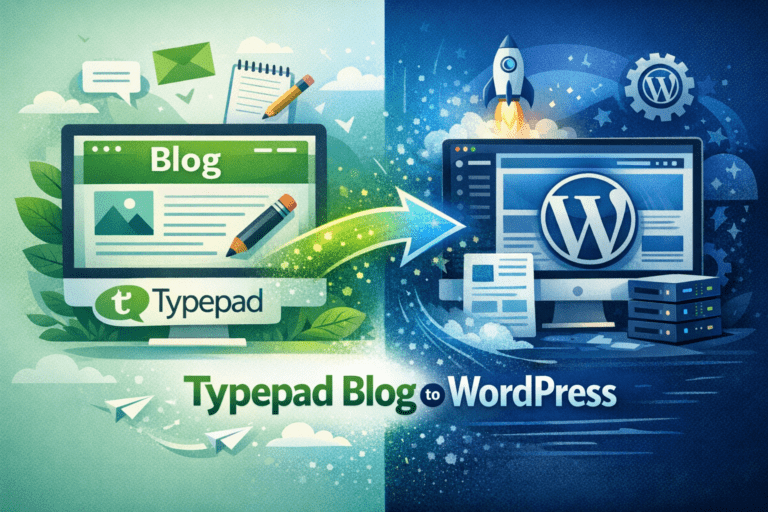
How to Migrate Your Typepad to WordPress Before the Shutdown

The Clock Is Ticking –  migrate your Typepad to WordPress

For almost twenty years, Typepad has been the home of countless bloggers, hobbyists, and small businesses. It was one of the earliest platforms to make blogging accessible, and many creators have built a legacy there.

But time is running out. With the official shutdown scheduled for September 30, 2025, Typepad blogs will soon vanish unless action is taken. This deadline is not just about technology; it’s about protecting your voice, your content, and years of effort.

The good news? You can save everything by migrating to **WordPress**, the world’s most popular website platform. WordPress is secure, flexible, SEO-friendly, and future-proof


Why WordPress Is the Best Destination

When a platform shuts down, you’re faced with choices: Ghost, Squarespace, Wix, Substack, or even just saving everything offline. But WordPress consistently stands out here’s why:

  1. Ownership – Your content is yours. No company shutdown can erase it.
  2. SEO power – Google loves WordPress’s clean structure and metadata options.
  3. Flexibility – Tens of thousands of themes and plugins let you build any type of site.
  4. Scalability – Works for a one-person blog or a full-scale digital magazine
  5. Community – Millions of users, developers, and resources at your fingertips.

If you want your blog to not only survive but grow, WordPress is the logical new home.


Migrate Typepad to WordPress e1768671338308


Step 1: Export Your Blog from Typepad

Before Typepad closes its doors, export your data.

1. Log in to your Typepad dashboard.
2. Navigate to Settings → Import/Export.
3. Click Export to download your `.txt` archive. This file contains your posts, categories, and comments.
4. Download your images and attachments. Depending on how your blog was set up, they may be bundled or require manual download.
5. Save everything in multiple places (computer, external drive, and cloud storage).

Pro Tip: Even if you’re not ready to migrate right now, export today. After September 30, 2025, you may lose access to your content forever.


 Step 2: Prepare Your New WordPress Site

With your Typepad export ready, it’s time to set up WordPress.

Choose a Hosting Provider

Good hosting ensures speed, security, and reliability. Popular options include:

  • Hostinger – Affordable and beginner-friendly.
  • Kinsta – Premium managed hosting for top performance, but really expensive

Install WordPress

Most hosting providers offer one-click WordPress installs. In minutes, your new site will be live.

Pick a Theme

Choose a lightweight, SEO-friendly theme:

  • Astra – Fast and flexible.
  • GeneratePress – Minimalist and reliable.
  • Kadence – Excellent for bloggers.

Install Key Plugins

  • Rank Math SEO** (or Yoast SEO) – Optimize search presence.
  • Redirection – Manage 301 redirects from old URLs.
  • Classic Editor – Helpful for fixing formatting.
  • Auto Upload Images** – Relinks image paths automatically.

Step 3: Import Your Typepad Content

Now transfer your exported content.

1. In WordPress, go to Tools → Import.
2. Select  Movable Type and Typepad Importer.
3. Upload your `.txt` file.
4. Assign authors where needed.
5. Verify categories, tags, and comments.

This step usually works smoothly, but larger blogs may take longer.

Need Expert Help with Migrating Typepad to WordPress?

Hire a certified WordPress expert from Codeable to help you move your Typepad blog safely to WordPress with all posts, images, and SEO intact.

Get a Free Estimate

 Step 4: Fix Images and Media

One of the most common migration issues is broken images.

How to solve broken images during Typepad migration

  • Upload your images into the WordPress `/wp-content/uploads/` folder.
  • Use the Auto Upload Images plugin to automatically relink them.
  • Manually check featured images and older posts.

Restoring visuals is crucial because images carry both emotional, content and SEO weight.

Step 5: Preserve Your SEO

SEO preservation is non-negotiable if you want to maintain traffic.

Steps:

1. Map old URLs to new ones.

* Example:

* Old: `http://yourblog.typepad.com/2020/05/my-post.html`
* New: `https://yourblog.com/my-post/`
2. Use the **Redirection plugin** to set up permanent (301) redirects.
3. Update your sitemap and resubmit it in **Google Search Console**.
4. Monitor traffic and errors in Search Console.

Done correctly, you won’t lose rankings — you may even gain them.

 Step 6: Redesign & Customize

Migration is also an opportunity for a **fresh design**.

* Customize fonts, colors, and layouts through your theme.
* Add must-have pages: **About, Contact, Privacy Policy**.
* Use widgets to display **Recent Posts**, **Categories**, or an **Email Signup Form**.
* Consider tools like **Google Analytics** or **Microsoft Clarity** to track engagement.

Step 7: Test & Launch

Before announcing your migration, test thoroughly.

  • Check your site on **desktop, tablet, and mobile**.
  • Test forms, menus, and links.
  • Verify redirects work.
  • Optimize speed with caching (WP Rocket, LiteSpeed Cache).

Only after testing should you publicly announce the new site.

 Common Issues and Fixes

  • Formatting problems – Use the Classic Editor to tidy up.
  • Missing comments – Double-check export and re-import.
  • Duplicate posts – Delete extras manually.
  • Slow load speed – Optimize images and use a CDN.

Future-Proofing Your WordPress Blog

Once you’ve migrated, protect your investment:

  1.  Keep **WordPress, plugins, and themes updated**.
  2. Set up **automatic backups** (UpdraftPlus, AllInOneMigration).
  3. Continue publishing valuable content for SEO growth.
  4. Engage readers with **newsletters and social sharing tools**.

Why You Should Act Now

The shutdown date may feel far away, but migration projects often take longer than expected. By acting early, you avoid:

  • Last-minute panic if servers slow down near the deadline.
  • SEO loss due to rushed redirects.
  • Data gaps if you miss files during export.

Early movers also benefit from the chance to redesign and optimize without pressure.

The September 30, 2025 shutdown is a hard deadline. Waiting puts your content at risk.

Migrating to WordPress ensures your posts, images, comments, and SEO survive — and thrive in a modern, flexible platform.

Whether you do it yourself with this guide or hire an expert, the key is to act now.

Need Expert Help with Migrating Typepad to WordPress?

Hire a certified WordPress expert from Codeable to help you move your Typepad blog safely to WordPress with all posts, images, and SEO intact.

Get a Free Estimate

Frequently Asked Questions About Migrating from Typepad to WordPress

1. When exactly is Typepad shutting down, and what happens after that date?
Typepad will officially shut down on September 30, 2025. After this date, the platform will no longer be accessible, meaning you won’t be able to log in, view, or manage your blog. If you don’t export your content before the shutdown, there’s a high chance it will be lost permanently. That’s why it’s critical to create backups and start your migration process well before the deadline. Migrating early also gives you time to test your new WordPress site without pressure.

2. Can I migrate my comments, images, and categories along with my posts?
Yes, WordPress supports importing not just blog posts but also comments, categories, and tags from your Typepad export file. Images are trickier — while many transfer automatically, some may break because of different storage paths. Fortunately, plugins like Auto Upload Images can repair those links, and manual uploads can fix any missing files. Spending time on this ensures your new site feels complete and consistent, preserving both the look and the community feel of your blog.

3. Will migrating to WordPress hurt my SEO rankings?
Not if you take the right steps. SEO is often tied to your URL structure, so the key is setting up proper 301 redirects from your old Typepad URLs to your new WordPress URLs. This tells Google and other search engines that your content has moved but still exists, protecting your authority and rankings. In some cases, a well-optimized WordPress setup can even improve your SEO performance thanks to faster load times, better mobile support, and enhanced metadata control.

4. How long does it usually take to migrate a blog from Typepad to WordPress?
The timeline depends on the size of your blog and your comfort with WordPress. A smaller blog with a few hundred posts can often be migrated in a single afternoon. Larger sites with thousands of entries, images, and comments may take a couple of days, especially if you’re fixing formatting or image issues. If you’re doing the migration yourself for the first time, give yourself extra time for testing and troubleshooting. Hiring an expert can shorten the process dramatically since they already know how to handle common pitfalls.

5. Should I consider hiring a WordPress expert, or is DIY good enough?
If you’re comfortable with technical setups, backups, and troubleshooting, you can absolutely migrate your blog on your own using this guide. However, if your blog is large, has complex formatting, or generates income, hiring a WordPress migration expert is often worth it. Experts ensure no posts or images are lost, all SEO redirects are properly configured, and your new site looks polished from day one. For many bloggers, the peace of mind and saved time outweigh the cost of professional help.

6. What if my Typepad export file is corrupted or incomplete?
Occasionally, export files may fail or skip certain content, especially if your blog is very large. The first step is to try the export process again and check if the file size changes. If problems persist, you may need to split your blog into smaller exports or use a manual copy-paste approach for certain posts. In the worst case, a migration expert can often use advanced tools to recover most of your data. That’s why it’s best to export as soon as possible, giving you time to check the files well before the shutdown.

7. Will all my old blog links shared on social media still work?
Not automatically. If someone clicks an old Typepad link after the shutdown, it will lead to an error unless you’ve set up redirects. By mapping old URLs to your new WordPress site, you ensure that readers following old links land on the correct post. This is especially important if your blog has backlinks from other websites, since losing those could harm your SEO. With proper redirects, your blog’s traffic remains intact, and your readers won’t notice a disruption.

8. Can I redesign my site during the migration process, or should I wait?
One of the best parts of moving to WordPress is the opportunity to modernize your design. You can absolutely launch with a new theme, better navigation, and an updated layout. In fact, many bloggers use migration as a chance to refresh their brand and improve user experience. That said, if you’re pressed for time, focus first on getting all your content migrated and SEO preserved — design updates can always follow later once your content is secure.

9. What if I already have a custom domain pointing to my Typepad blog?
If you’ve been using a custom domain (like yourblog.com) with Typepad, migration becomes easier. Once your WordPress site is set up, you can point that domain to your new hosting provider. This way, your readers will continue visiting the same URL, but it will now load your WordPress site instead of Typepad. If you don’t have a custom domain yet, consider registering one — it gives you independence from any blogging platform in the future.

10. Is WordPress difficult to manage after migration?
Not at all. While WordPress offers a huge amount of flexibility, the basics — writing posts, uploading images, and managing comments — are very straightforward. If you could use Typepad, you can learn WordPress quickly. There’s also a massive library of tutorials, forums, and documentation available. Plus, unlike Typepad, WordPress will continue evolving and improving, so you won’t face another sudden shutdown.

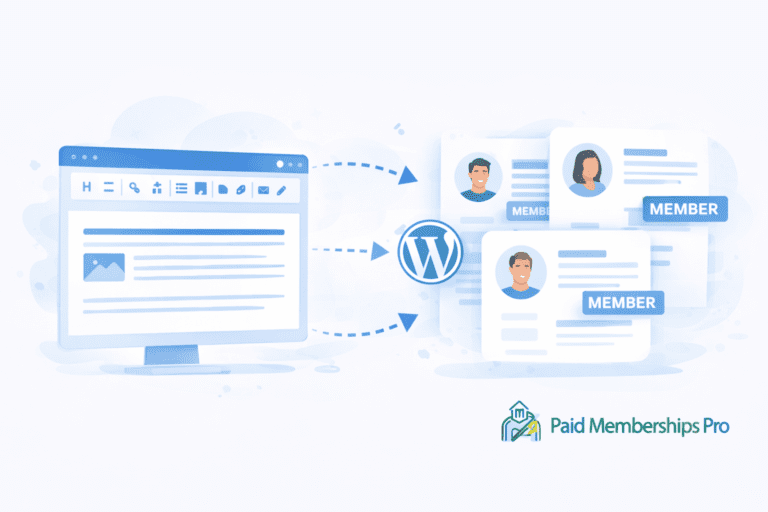
How to Add a WYSIWYG Editor to Member Profiles in WordPress (PMPro Paid Memberships Pro Example)

If you’re managing a WordPress membership site, especially one powered by Paid Memberships Pro (PMPro), you probably collect profile data from your members — such as their biography, credentials, or personal statement.

By default, these profile fields are just plain text boxes. This limits what your members can do. Wouldn’t it be better if they could format their bios like a blog post? Add bold text, bullet points, or even a link to their clinic website?

The good news is: you can add a WYSIWYG editor (TinyMCE — the same one WordPress uses for posts) to any member profile field. This tutorial will show you how — safely, cleanly, and with no loss of existing data.


Why Use a WYSIWYG Editor for Member Profiles in Paid Memberships Pro?

Let’s start with why this matters.

Most WordPress user profile fields are either:

  • Simple input boxes (for short values like city or phone number)
  • Textareas (for longer fields like a biography)

But neither of these support formatting. That means if your users want to:

  • Emphasize credentials (e.g., Board-Certified Naturopathic Doctor)
  • Add links to their clinic websites
  • Format their bio with bullet points or lists

…they simply can’t.

By adding TinyMCE (What You See Is What You Get) support, you allow users to format their content using bold, italics, lists, links, and more. This helps users present themselves professionally and improves your site’s appearance and SEO.

WYSIWYG Editor to Member Profiles in WordPress PMPro Paid Memberships Pro

Requirements

Before you begin, you should have:

  • WordPress installed and working
  • Paid Memberships Pro plugin installed
  • A child theme (such as Memberlite Child) with access to functions.php
  • Admin access to your WordPress site

No third-party WYSIWYG plugins are needed — we’ll use WordPress’s built-in TinyMCE.


Step 1: Create the Biography Field Using PMPro User Fields API

Paid Memberships Pro provides a powerful User Fields API which lets you add custom user fields to the profile or checkout forms.

Here’s how to register a custom bio field using this API:

function custom_register_pmpro_bio_field() {
	if (!function_exists('pmpro_add_user_field')) return;

	$field = new PMPro_Field(
		'bio',
		'textarea',
		array(
			'label' => 'Biography',
			'size' => 80,
			'profile' => true,
			'required' => false,
			'memberslistcsv' => true,
			'sanitize' => 'wp_kses_post', // allow safe HTML tags
			'admin' => true,
		)
	);

	pmpro_add_user_field('custom_bio_group', $field);
	pmpro_add_field_group('custom_bio_group', 'Biography Group');
}
add_action('init', 'custom_register_pmpro_bio_field');

This adds a plain textarea called “Biography” to the member profile edit screen (frontend and admin). It is saved in the usermeta table under the meta key bio.


Step 2: Enable TinyMCE on Admin Member Edit Page

Next, we replace the plain textarea with WordPress’s built-in TinyMCE editor — but only in the admin area.

add_action('admin_footer', function () {
	if (
		is_admin() &&
		isset($_GET['page'], $_GET['pmpro_member_edit_panel']) &&
		$_GET['page'] === 'pmpro-member'
	) {
		?>
		<img src="data:image/gif;base64,R0lGODlhAQABAIAAAAAAAP///yH5BAEAAAAALAAAAAABAAEAAAIBRAA7" data-wp-preserve="%3Cscript%20src%3D%22%3C%3Fphp%20echo%20includes_url('js%2Ftinymce%2Ftinymce.min.js')%3B%20%3F%3E%22%3E%3C%2Fscript%3E" data-mce-resize="false" data-mce-placeholder="1" class="mce-object mce-object-script" width="20" height="20" alt="&lt;script&gt;" />
		<img src="data:image/gif;base64,R0lGODlhAQABAIAAAAAAAP///yH5BAEAAAAALAAAAAABAAEAAAIBRAA7" data-wp-preserve="%3Cscript%3E%0A%09%09%09document.addEventListener('DOMContentLoaded'%2C%20function%20()%20%7B%0A%09%09%09%09const%20textarea%20%3D%20document.querySelector('%23bio')%3B%0A%09%09%09%09if%20(!textarea)%20return%3B%0A%09%09%09%09setTimeout(()%20%3D%3E%20%7B%0A%09%09%09%09%09if%20(typeof%20tinymce%20%3D%3D%3D%20'undefined')%20return%3B%0A%09%09%09%09%09tinymce.init(%7B%0A%09%09%09%09%09%09selector%3A%20'%23bio'%2C%0A%09%09%09%09%09%09height%3A%20300%2C%0A%09%09%09%09%09%09menubar%3A%20false%2C%0A%09%09%09%09%09%09plugins%3A%20'link%20lists%20paste'%2C%0A%09%09%09%09%09%09toolbar%3A%20'undo%20redo%20%7C%20bold%20italic%20underline%20%7C%20bullist%20numlist%20%7C%20link'%2C%0A%09%09%09%09%09%09branding%3A%20false%0A%09%09%09%09%09%7D)%3B%0A%09%09%09%09%7D%2C%20300)%3B%0A%09%09%09%7D)%3B%0A%09%09%3C%2Fscript%3E" data-mce-resize="false" data-mce-placeholder="1" class="mce-object mce-object-script" width="20" height="20" alt="&lt;script&gt;" />
		<?php
	}
});

Now, when an admin edits a member’s profile in WP Admin (Users > Edit Member), they’ll see a rich text editor instead of a plain box.


Step 3: Display the Bio with Formatting

Now let’s display the saved bio on the frontend — fully formatted with paragraphs and links intact.

add_action('pmpro_member_profile_after', function ($user) {
	if (empty($user) || !isset($user->ID)) return;

	$bio = get_user_meta($user->ID, 'bio', true);
	if (empty($bio)) return;

	echo '<div class="pmpro_member_profile_field pmpro_member_profile_field-bio custom-bio">';
	echo '<div class="pmpro_member_profile_field_label">Biography</div>';
	echo '<div class="pmpro_member_profile_field_data">';
	echo wpautop($bio); 
	echo '</div></div>';
});

The wpautop() function automatically adds paragraph tags and line breaks, just like WordPress does in posts.

To prevent duplicate output from PMPro’s default bio logic, you can disable it:

add_action('init', function () {
	remove_action('pmpro_member_profile_after', 'pmpro_member_profile_show_bio');
});

Need Help Customizing Paid Memberships Pro?

From WYSIWYG fields to advanced membership logic, Codeable connects you with vetted WordPress developers who can build exactly what you need.

Get a free estimate from a WP expert →

Database Behavior: Will I Lose Existing Data?

No — this method is safe for existing data.

Here’s how it works behind the scenes:

  • The field data is stored in the WordPress usermeta table under the key bio
  • Switching from a plain textarea to a WYSIWYG editor doesn’t change the storage format
  • Even if some users have existing plain-text bios, their content remains intact

Bonus: The sanitize parameter is set to 'wp_kses_post', which allows safe HTML (bold, italics, links). This prevents malicious code but still lets users format their content.

If you ever remove the TinyMCE editor later, the raw HTML will still remain stored — but it won’t break anything. The content just won’t render as rich text.


Final Code: Copy and Paste into functions.php

Here’s the complete working solution to register the WYSIWYG bio field, load TinyMCE in the admin, and display the content properly:

// 1. Register the 'bio' field
function custom_register_pmpro_bio_field() {
	if (!function_exists('pmpro_add_user_field')) return;

	$field = new PMPro_Field(
		'bio',
		'textarea',
		array(
			'label' => 'Biography',
			'size' => 80,
			'profile' => true,
			'required' => false,
			'memberslistcsv' => true,
			'sanitize' => 'wp_kses_post',
			'admin' => true,
		)
	);

	pmpro_add_user_field('custom_bio_group', $field);
	pmpro_add_field_group('custom_bio_group', 'Biography Group');
}
add_action('init', 'custom_register_pmpro_bio_field');

// 2. Load TinyMCE in admin
add_action('admin_footer', function () {
	if (
		is_admin() &&
		isset($_GET['page'], $_GET['pmpro_member_edit_panel']) &&
		$_GET['page'] === 'pmpro-member'
	) {
		?>
		<img src="data:image/gif;base64,R0lGODlhAQABAIAAAAAAAP///yH5BAEAAAAALAAAAAABAAEAAAIBRAA7" data-wp-preserve="%3Cscript%20src%3D%22%3C%3Fphp%20echo%20includes_url('js%2Ftinymce%2Ftinymce.min.js')%3B%20%3F%3E%22%3E%3C%2Fscript%3E" data-mce-resize="false" data-mce-placeholder="1" class="mce-object mce-object-script" width="20" height="20" alt="&lt;script&gt;" />
		<img src="data:image/gif;base64,R0lGODlhAQABAIAAAAAAAP///yH5BAEAAAAALAAAAAABAAEAAAIBRAA7" data-wp-preserve="%3Cscript%3E%0A%09%09%09document.addEventListener('DOMContentLoaded'%2C%20function%20()%20%7B%0A%09%09%09%09const%20textarea%20%3D%20document.querySelector('%23bio')%3B%0A%09%09%09%09if%20(!textarea)%20return%3B%0A%09%09%09%09setTimeout(()%20%3D%3E%20%7B%0A%09%09%09%09%09if%20(typeof%20tinymce%20%3D%3D%3D%20'undefined')%20return%3B%0A%09%09%09%09%09tinymce.init(%7B%0A%09%09%09%09%09%09selector%3A%20'%23bio'%2C%0A%09%09%09%09%09%09height%3A%20300%2C%0A%09%09%09%09%09%09menubar%3A%20false%2C%0A%09%09%09%09%09%09plugins%3A%20'link%20lists%20paste'%2C%0A%09%09%09%09%09%09toolbar%3A%20'undo%20redo%20%7C%20bold%20italic%20underline%20%7C%20bullist%20numlist%20%7C%20link'%2C%0A%09%09%09%09%09%09branding%3A%20false%0A%09%09%09%09%09%7D)%3B%0A%09%09%09%09%7D%2C%20300)%3B%0A%09%09%09%7D)%3B%0A%09%09%3C%2Fscript%3E" data-mce-resize="false" data-mce-placeholder="1" class="mce-object mce-object-script" width="20" height="20" alt="&lt;script&gt;" />
		<?php
	}
});

// 3. Output bio with formatting
add_action('pmpro_member_profile_after', function ($user) {
	if (empty($user) || !isset($user->ID)) return;

	$bio = get_user_meta($user->ID, 'bio', true);
	if (empty($bio)) return;

	echo '<div class="pmpro_member_profile_field pmpro_member_profile_field-bio custom-bio">';
	echo '<div class="pmpro_member_profile_field_label">Biography</div>';
	echo '<div class="pmpro_member_profile_field_data">';
	echo wpautop($bio); 
	echo '</div></div>';
});

// 4. Remove default PMPro bio
add_action('init', function () {
	remove_action('pmpro_member_profile_after', 'pmpro_member_profile_show_bio');
});

Final Thoughts

Upgrading your member profiles with WYSIWYG editing gives your users more freedom and improves the presentation of your site. Whether you’re listing naturopathic doctors, coaches, students, or professionals — rich formatting adds credibility and clarity.

It’s easy to implement, safe for your database, and leverages WordPress’s native editor without installing extra plugins.

Customizing Paid Memberships Pro?

Need help extending PMPro with custom fields, shortcodes, or frontend logic? Codeable’s vetted developers are ready to jump in.

Hire a WordPress developer now →

Fixing Japanese Hack

Japanese keyword hack is a sophisticated tactic used by cybercriminals to exploit websites by inserting spam keywords. These spam keywords can harm a site’s SEO ranking and mislead traffic. This guide provides a step-by-step troubleshooting process and prevention measures, including code examples for securing your website through robots.txt and htaccess files. Before making any changes, back up your website and server files to prevent any data loss.

What is Japanese Keyword Hack?

Japanese keyword hack occurs when unauthorized users access a website’s backend (via outdated WordPress or other CMS versions or insecure WordPress plugins) and inject Japanese long-tail keywords into various website areas. These spam keywords can mislead search engine algorithms and even trigger penalties, potentially leading to blacklisting.

Signs of Keyword Injection:

  • Hidden keyword blocks within page source codes, invisible to regular visitors.
  • Excessive keywords in meta tags, image names, or content.
  • Low-quality content affected by irrelevant language.

If your website shows any of these signs, it may be compromised. Japanese keyword injection can also cause unauthorized SEO redirections or manipulated content designed to deceive search engine bots. Quick intervention using robots.txt and htaccess files is essential to prevent further damage.

Examples for Removing Suspicious URLs with Unusual Filenames (Japanese Hack)

If you’re seeing URLs like:

These types of URLs typically signal a Japanese hack or other similar cyberattacks where malicious scripts are inserted into your site. The filenames (like hiroshi.php) and query parameters (e.g., 7887244617.htm) are commonly used by attackers to avoid detection. The presence of Japanese keyword injection and these unusual filenames can harm your site’s SEO and cause security issues.

Japanese Hack
Japanese Hack

What to Do in Google Search Console (GSC) for Japanese Hack Recovery

Once you’ve blocked malicious URLs and secured your website from Japanese keyword injection, it’s important to ensure that any affected URLs are removed from Google’s index. This process will protect your SEO ranking from further damage caused by these compromised pages.

1. Use the URL Removal Tool in Google Search Console

Follow these steps to remove suspicious URLs caused by Japanese hacks or similar attacks from Google’s index:

  1. Log in to Google Search Console: Go to Google Search Console and sign in with your Google account.
  2. Navigate to the URL Removal Tool:
    • In the left sidebar, click on “Removals” under the “Index” section.
    • Click on “New Request” and select “Temporarily Remove URL”.
  3. Enter the Malicious URL:
    • Enter any malicious URL you want to remove (e.g., https://yourwebsite.com/hiroshi.php?).
    • You can use this to remove all URL with same prefix
    • Click Submit to remove it from Google’s search results temporarily.
  4. Confirm Removal: Check the “Removals” section to monitor the status of your request.

 Is Your WordPress Site Hacked?

Seeing unknown characters like ィバッグ – ゴルフバッグ・キャディバッグ or suspicious URLs indexed in Google? Your website might be compromised! Get expert help to remove malware, secure your site, and restore rankings.

Hire a WordPress Security Expert

Get Free Estimate

2. Check for Crawl Errors in GSC

After blocking the suspicious URLs, it’s important to check crawl errors in Google Search Console to ensure there are no lingering issues related to Japanese hacks or injected content.

  1. Go to Coverage: In Google Search Console, navigate to “Coverage” under the “Index” section.
    • Here, you’ll see if Googlebot encountered issues with URLs like hiroshi.php.
  2. Fix Crawl Errors:
    • If there are still crawl errors for the compromised URLs, make sure they are properly blocked via the htaccess file.
    • You can also use URL Inspection to verify if Google is still indexing those harmful pages.

3. Monitor the Impact on SEO

Once the suspicious URLs are removed from Google’s index and blocked on your site, it’s crucial to monitor the impact:

  1. Google Search Console: Use the “Performance” report in GSC to track search impressions, clicks, and rankings. Monitor for improvements after removing the malicious URLs.
  2. Google Analytics: Review traffic sources and referral data to ensure that no harmful or suspicious traffic is entering through the compromised URLs.

Step-by-Step Troubleshooting Process

  1. Immediate Analysis and Assessment
    • Backup Your Website: Create a full backup, including databases and code files, before making any changes.
    • Check for Compromise: Examine the website’s code for injected keywords and hidden content. Use “view source” and online tools to detect anomalies.
    • Verify Server Files: Review robots.txt and htaccess files for unauthorized changes.
  2. Isolate Malware and Viruses
    • Use security plugins and malware scanners to locate the injected spam content. If you find unfamiliar code blocks or suspicious directories, quarantine them immediately.
  3. Analyze Server Logs
    • Look for unusual IP addresses or bot patterns in your server logs to understand how the keywords are affecting Google’s crawling and indexing. This information will help you configure your robots.txt file correctly.

Prevention Steps & Immediate Solutions

Once you’ve identified the problem, it’s important to implement a multi-layer security approach. Here are key steps to prevent further keyword injection:

A. Protecting Server File

Improved robots.txt (Temporary Measure)

Your current robots.txt file may not effectively block malicious URLs or stop them from appearing in Google. To strengthen your defenses, follow these updated rules:

 User-agent: * Disallow: /wp-admin/ Allow: /wp-admin/admin-ajax.php # Block specific PHP files (If your site has different suspicious files, replace them here) Disallow: /hiroshi.php Disallow: /godsend.php # If other suspicious PHP files exist, add them here # Example: Disallow: /malware.php # Block all .html files if not needed (WordPress does not generate .html pages by default) Disallow: /*.html$ Sitemap: https://yourwebsite.com/sitemap_index.xml Sitemap: https://yourwebsite.com/page-sitemap.xml 

Explanation of Key Entries:

  • Disallow: /wp-admin/: Blocks crawlers from accessing your WordPress admin panel, which may be a target for spam attacks.
  • Allow: /wp-admin/admin-ajax.php: Allows essential AJAX functionality to be accessible to bots while keeping your admin panel secure.
  • Disallow: /*.php?: This prevents the indexing of any PHP files with query parameters, which are typically used in Japanese hack or other malicious attacks.
  • Disallow: /hiroshi.php & Disallow: /godsend.php: Blocks specific files commonly targeted or created by hackers.
  • Disallow: /*.html$: Blocks the indexing of HTML files if they are not necessary for your website. This is useful if you want to prevent outdated or hacked HTML files from being indexed.
  • Sitemap Links: Provides Google with updated sitemaps to guide legitimate crawling.

Important Note:

The line Disallow: /*.php? will help prevent PHP files with query parameters from being indexed by Google. While this won’t fix the issue entirely, it will help stop Google from indexing these spam pages until further actions are taken.

Tip: Test changes using Google Search Console’s robots.txt Tester tool.

2. Editing the .htaccess File

The htaccess file can control access and manipulate URLs. By adding rewrite rules, you can prevent malicious bots from exploiting your website.

Steps:

  1. Access your website’s root directory via FTP.
  2. Open the htaccess file (backup before editing).
  3. Add the following code to block harmful bots:
# BEGIN SecureBotAccess
RewriteEngine On
RewriteCond %{HTTP_USER_AGENT} (binlar|heyoka|zmeu) [NC,OR]
RewriteCond %{REMOTE_ADDR} ^123\.456\.789\. [OR]
RewriteRule .* - [F,L]
# END SecureBotAccess

This rule blocks specific user agents and IP addresses known to cause harm. Adjust the user-agent and IP addresses according to your findings.

B. CMS and Plugin Hardening

Outdated CMS versions and plugins are common entry points for attackers. Keep your software up-to-date and perform the following actions:

  • Change all default passwords and enable two-factor authentication for admin panels.
  • Install trusted security plugins like Wordfence or Sucuri to monitor suspicious activity.
  • Remove inactive plugins and themes that may still pose a risk.
  • Regularly audit user activity logs and update file permissions.

C. Database and Theme Security

Ensure your database and theme are secure by:

  • Regularly updating your CMS database schema and running security plugins to check for injections.
  • Reviewing your WordPress theme for suspicious code or injections, and removing any tampered files.
  • Enabling database backups for recovery in case of data loss.

Verifying and Monitoring the Solutions

Once you’ve implemented these changes, verify that the solutions are working by using the following tools:

  • Robots.txt Testing: Use Google Search Console’s robots.txt Tester tool to confirm that the spam pages are blocked.
  • Server Logs: Monitor server logs for blocked requests showing “403 Forbidden” responses triggered by your htaccess rules.
  • SEO Monitoring Tools: Use tools like SEMrush or Ahrefs to ensure injected keywords no longer appear in indexed pages.


FAQ: Japanese Keyword Hack and Website Protection

1. Why is my website showing Japanese in Google search?

If your website is showing Japanese content in Google search results unexpectedly, it’s likely that your site has been compromised by a keyword injection attack. This is a form of spam where hackers inject irrelevant keywords, often in different languages, such as Japanese, into your website’s content, meta tags, or hidden code. This can trick search engines into indexing the spam content, which can lead to misleading search results for users.

Typically, hackers exploit vulnerabilities in outdated CMS versions, plugins, or themes to gain access to your website. Once they have access, they inject the Japanese keywords into various sections of your website, making them visible to search engine crawlers but not regular visitors. This causes your site to display Japanese keywords in search results, potentially damaging your SEO rankings and confusing your visitors.

To resolve this issue, it’s essential to perform a thorough security scan of your website, remove any malicious content, and update your server’s protection mechanisms, such as the robots.txt and htaccess files. Regular monitoring and implementing security practices can prevent such attacks in the future.

2. What is the Japanese keyword hack?

The “Japanese keyword hack” is a specific type of website attack where hackers inject irrelevant Japanese keywords into your website’s content or metadata. This type of SEO manipulation is often used by malicious actors to boost non-relevant pages in search engine rankings, targeting automated crawlers rather than human users.

Hackers typically exploit vulnerabilities in outdated software or plugins to gain access to your website’s backend. Once inside, they insert these Japanese long-tail keywords into your site’s code, making it appear in search results. These injected keywords may be hidden in your page’s source code, meta tags, or image file names, invisible to regular users but detectable by search engines.

The goal of the attack is to manipulate search engine rankings by using irrelevant keywords to generate traffic. This manipulation can lead to penalties from search engines and even cause your website to be blacklisted. Promptly removing these injected keywords and securing your site is crucial to protect its integrity.

3. Why are my search results in another language?

If you’ve noticed that your search results are suddenly appearing in a different language, such as Japanese, it could be a sign of a compromised website. This happens when hackers inject keywords in a foreign language into your website’s code, which search engines then index and display.

In some cases, malicious actors may use language-specific SEO strategies to target certain demographics or search engine algorithms, manipulating them for unwanted traffic. These foreign language keywords are often placed in hidden areas of your website, such as the meta tags or behind images, so they are invisible to normal visitors but still accessible to search engines.

To fix this, you should first check your website for any unauthorized changes. You can do this by inspecting the source code of your website or using security tools to perform a full scan. Once you’ve located the compromised areas, remove the injected content and implement better security measures to prevent future occurrences.

4. Why is my Google search suddenly in a different language?

A sudden switch in the language of your Google search results can be related to your website being infected with a Japanese keyword injection attack. If your site has been compromised, malicious code might be embedded into your website’s pages, resulting in search engines displaying irrelevant language in their indexed pages.

Hackers often inject these foreign keywords to manipulate search results and mislead search engine bots. The language seen in Google search results may not reflect the actual content of your website but instead be a result of the spammed keywords inserted into your site. This can negatively impact your website’s SEO and confuse your target audience.

To resolve this issue, you should start by backing up your site and conducting a security audit to identify and remove any foreign language keywords. Then, tighten your site’s security to prevent future attacks, including updating your CMS and plugins, and configuring your robots.txt and htaccess files to block unwanted crawling.

5. What is a Japanese SEO hack?

A “Japanese SEO hack” refers to the use of Japanese long-tail keywords in a malicious SEO attack where hackers inject irrelevant keywords into a website’s content, aiming to manipulate search engine rankings. This manipulation often involves inserting Japanese terms that are not related to the site’s actual content, yet search engines may still index them.

These types of attacks are usually executed when hackers exploit vulnerabilities in outdated CMS platforms, plugins, or themes. Once they have access, the attackers embed Japanese keywords in hidden areas of your website, such as the HTML code, meta tags, and image names, which may not be visible to regular visitors but can affect search engine rankings.

This SEO manipulation can harm your site’s reputation, reduce its visibility, and even result in penalties or being blacklisted by search engines. Preventing Japanese SEO hacks requires constant vigilance in website security, keeping software up to date, and regularly scanning for vulnerabilities. Implementing measures like restricting access to certain areas of your website through robots.txt and htaccess configurations can help prevent such attacks.

6. How can I prevent Japanese keyword hack from affecting my site?

Preventing Japanese keyword hack  starts with maintaining strong website security and promptly addressing any suspicious activity. Some key steps to protect your site include:

  • Regularly Update Your CMS and Plugins: Ensure all software is up-to-date, as outdated plugins and CMS platforms are common entry points for attackers.
  • Use Security Plugins: Install trusted security plugins like Wordfence or Sucuri to monitor your website for potential vulnerabilities.
  • Modify Your robots.txt and htaccess Files: Update these files to block unwanted bots and control which areas of your site can be crawled by search engines.
  • Regular Backups: Keep regular backups of your website and database so you can quickly restore your site if it gets compromised.

Final Recommendations for Ongoing Protection

Security is an ongoing process. To prevent future attacks, follow these best practices:

  1. Regular Software Updates: Ensure your CMS, themes, and plugins are up-to-date.
  2. Continuous Monitoring: Use web application firewalls (WAF) and security plugins to monitor your site regularly.
  3. User Permissions Management: Restrict administrative privileges and only grant access to trusted contributors.
  4. Secure FTP and Admin Access: Always use secure protocols (SFTP/SSH) for server file access, and consider IP whitelisting for admin panels.

By following these steps, you can reduce the risk of Japanese keyword injection and other types of website attacks.


Worried Your Website Might Be Hacked? Let’s Fix It! 🔧

Seeing strange URLs like hiroshi.php in Google? Noticing unexpected redirects or security warnings? Hackers can harm your site’s SEO and reputation. Get expert help to remove malware, clean up your site, and protect it from future attacks.

Talk to a WordPress Security Expert

Share your problem an receive a free estimate!

How to Add Contact Form 7 to WordPress

Contact Form 7 is one of the most popular plugins for adding contact forms to your WordPress website. Whether you’re a business owner looking to engage with customers or a blogger wanting to receive messages from your readers, Contact Form 7 offers a simple and efficient way to collect form submissions.

Why Use Contact Form 7?

Contact Form 7 is a versatile and easy-to-use plugin for WordPress. Here’s why you might choose it for your website:

  • User-Friendly Interface: No coding skills are required to create and manage forms.
  • Highly Customizable: You can create simple contact forms or more complex forms with multiple fields, validation, and custom styling.
  • Free: Contact Form 7 is completely free to use, making it an excellent option for website owners on a budget.
  • Spam Protection: Built-in CAPTCHA support helps protect your forms from spam.
  • Multi-Language Support: It supports multiple languages, making it accessible for international websites.

contact form 7


Step 1: Install Contact Form 7

Step 1.1: Install the Plugin

  1. Go to Your WordPress Dashboard:
    • Navigate to Plugins > Add New.
  2. Search for Contact Form 7:
    • Type “Contact Form 7” in the search bar.
    • Click Install Now for the plugin by Takayuki Miyoshi.
  3. Activate the Plugin:
    • After installation, click Activate.

Step 2: Create a Contact Form

Step 2.1: Access the Form Settings

  1. Navigate to Contact Form 7:
    • Go to Contact > Contact Forms in your WordPress dashboard.
    • You’ll see a default form titled “Contact Form 1.”
  2. Edit the Default Form:
    • Click Edit to modify the form, or Add New to create a new one.

Step 2.2: Customize the Form Fields

The default form includes fields for Name, Email, and Message. You can add or remove fields as needed. Here’s an example layout:

[text* your-name id:your-name]
<label for="your-email">Your Email</label>
[email* your-email id:your-email]
<label for="your-message">Your Message</label>
[textarea* your-message id:your-message]
[submit "Send"]

Explanation:

  • : Creates a required text field for the user’s name.

  • [email* your-email]: Creates a required email field.
  • [textarea* your-message]: Creates a required textarea for the message.
  • [submit "Send"]: Adds a submit button.

Step 2.3: Save Your Form

Click Save to store your changes.


Step 3: Configure Email Settings

Step 3.1: Go to the Mail Tab

In the Form Settings, click the Mail tab to define the recipient email address, sender name, subject, and email body. Example:

To: your-email@example.com
From: [your-name] <wordpress@yourdomain.com>
Subject: [your-subject]

Message Body:
From: [your-name]
Email: [your-email]
Message: [your-message]

Step 3.2: Save the Email Settings

Click Save to apply your changes.


Step 4: Embed the Form on Your Website

Step 4.1: Copy the Form Shortcode

Navigate to Contact > Contact Forms, locate your form, and copy its shortcode. Example:

[contact-form-7 id="123" title="Contact form 1"]

Step 4.2: Add the Form to a Page or Post

  1. Go to Pages > Add New or Posts > Add New.
  2. Paste the shortcode where you want the form to appear.
  3. Publish or update the page/post.

Step 5: Customize the Appearance

Step 5.1: Use Custom CSS

Here’s an example of CSS to style your form:

.wpcf7-form label {
    font-size: 16px;
    margin-bottom: 8px;
}
.wpcf7-form input, .wpcf7-form textarea {
    width: 100%;
    padding: 10px;
    margin-bottom: 15px;
    border: 1px solid #ccc;
    border-radius: 5px;
}
.wpcf7-form input[type="submit"] {
    background-color: #0073e6;
    color: white;
    font-size: 16px;
    padding: 12px 20px;
    border: none;
    cursor: pointer;
    border-radius: 5px;
}
.wpcf7-form input[type="submit"]:hover {
    background-color: #005bb5;
}

Add this CSS to Appearance > Customize > Additional CSS.


Step 6: Test the Form

  1. Visit the page where the form is embedded.
  2. Fill out the form and click Submit.
  3. Check your email inbox for the form submission.
  4. If there are issues, verify your email settings or use an SMTP plugin.

FAQ

1. How do I make a form field required?

Add the * symbol to the field’s shortcode. Example:

[text* your-name]

2. Can I add a CAPTCHA to my form?

Yes! Integrate reCAPTCHA via Contact > Integration and add the [recaptcha] tag to your form.

3. How do I track form submissions?

Flamingo plugin is an ideal companion for Contact Form 7. Here’s how you can use it:

  1. Install and Activate Flamingo:
    • Navigate to your WordPress dashboard.
    • Go to Plugins > Add New.
    • Search for “Flamingo” and click Install Now.
    • After installation, click Activate.
  2. View Form Submissions:
    • After activating Flamingo, a new menu item called Flamingo will appear in your WordPress dashboard.
    • Go to Flamingo > Inbound Messages to view all the form submissions captured from your website.
  3. Detailed Submission Data:
    • Flamingo stores all submitted data, including form fields like name, email, and message.
    • You can filter submissions by contact form or search for specific details using the built-in search feature.
  4. Export Data:
    • If you need a backup or wish to analyze the submissions offline, Flamingo allows you to export form submissions as a CSV file. This is particularly useful for data analysis or maintaining records.
  5. Benefits of Flamingo:
    • Keeps a copy of all submissions in your database, ensuring you don’t lose messages even if there are email delivery issues.
    • Provides an organized and centralized location to review, search, and manage all your form submissions.


Conclusion

Contact Form 7 is a powerful and flexible plugin for creating contact forms in WordPress. With features like customization, spam protection, and email notifications, it’s an excellent choice for any website.

Need Expert Help with Contact Form 7?

Hire a certified WordPress expert from Codeable to create, configure, and customize your forms.

Get a Free Estimate

How to Disable the Elementor Pro Templates Library Feature

How to Disable the Elementor Pro Templates Library

Elementor Pro includes a Elementor Pro Templates Library that allows users to insert pre-designed layouts directly into the editor. These templates can speed up page building, especially on simple websites or early project stages.

However, there are many situations where the templates library becomes unnecessary or even disruptive. On custom-built websites, long-term client projects, or tightly controlled design systems, allowing access to ready-made templates can cause confusion, inconsistency, and unwanted layout changes.

What the Templates Library Actually Includes

The first thing to clarify is that Elementor uses the word “templates” for different features.

When people talk about disabling the templates library, they usually mean Elementor’s cloud templates, not everything related to Elementor Pro Templates Library.

Elementor has three different template types:

  • Cloud templates – layouts downloaded from Elementor’s servers
  • Saved templates (“My Templates”) – templates you create and save inside your own site
  • Theme Builder templates – headers, footers, single posts, archives, and other structural layouts

Disabling the templates library only affects cloud templates.
Your existing pages, saved templates, and Theme Builder layouts remain untouched.

Elementor Pro Templates

Why Some Websites Don’t Need the Elementor Templates Library

On many websites, especially client sites, the templates library causes more problems than it solves.

A common situation looks like this:

An editor opens Elementor, clicks “Insert Template,” chooses a full-page layout, and overwrites an existing design. Fonts change, spacing breaks, and sections appear that were never planned.

Even when no damage is done, imported templates often bring:

  • different spacing rules,
  • extra widgets,
  • inconsistent structure,
  • layouts that don’t match the rest of the site.

For websites built with a clear design system, reusable sections, and predefined layouts, the templates library simply does not fit.

In these cases, disabling it creates a cleaner and safer editing environment.

Need Help Configuring Elementor the Right Way?

If you want Elementor set up cleanly without breaking existing layouts, working with an experienced Elementor developer can save time and avoid mistakes.

Get a Free Estimate

Will Disabling the Templates Library Break Anything?

No.

Disabling the templates library does not:

  • remove content from existing pages,
  • affect layouts already built with Elementor,
  • delete saved templates,
  • break Theme Builder headers or footers.

It only prevents users from importing new cloud templates.

This makes it a low-risk change, especially on established websites.

How Elementor Loads Templates in the Editor

When the Elementor editor opens, it checks whether the templates panel should be shown.
If enabled, Elementor then sends requests to its servers to fetch available templates.

This means there are two places where the feature can be controlled:

  1. the editor interface (what the user sees),
  2. the remote source (where templates come from).

Most reliable setups block both.


Hiding the Templates Library in the Elementor Editor

The simplest way to remove the templates library from the editor is to hide the templates panel entirely.

Add the following code to your site:

add_filter( 'elementor/editor/show_templates', '__return_false' );

Once applied, the Templates Library button no longer appears inside Elementor.

This alone is enough for many websites.


Completely Blocking Elementor Cloud Templates

If you want to make sure Elementor does not fetch any remote templates at all, you can disable the remote source.

add_filter( 'elementor/template_library/sources/remote', '__return_empty_array' );

With this in place, Elementor behaves as if no cloud templates exist.

This approach is useful when you want full control and no dependency on external template sources.


Disabling the Templates Library Only for Non-Admins

A common setup on client sites is to allow full access for administrators while restricting editors and authors.

This prevents accidental layout changes while keeping flexibility for developers.

add_filter( 'elementor/editor/show_templates', function( $show ) {
	if ( current_user_can( 'manage_options' ) ) {
		return $show;
	}
	return false;
});

Admins continue to see the templates library.
Other roles do not.

Blocking Template Data Without Changing the Interface

In some cases, developers prefer to block template data instead of hiding the interface.

The following filters prevent Elementor from returning template data from its API:

add_filter( 'elementor/api/get_templates', '__return_empty_array' );
add_filter( 'elementor/api/get_template', '__return_empty_array' );

Depending on the Elementor version, these filters may or may not be used internally, but when they are, they provide an additional layer of protection.


Keeping “My Templates” Available

Disabling the templates library does not remove access to saved templates.

Your locally created templates remain available under “My Templates” as long as you only disable the remote source.

This allows you to:

  • create your own reusable sections,
  • save page layouts,
  • reuse design elements safely.

Many developers prefer this approach over importing external layouts.


Where to Add the Code Safely

There are several safe places to add these snippets:

  • a custom plugin,
  • a code snippets plugin,
  • a child theme’s functions.php file.

For long-term projects, a small custom plugin is often the cleanest option, especially if themes may change in the future.


How to Verify That the Templates Library Is Disabled

After applying the changes:

  • open a page in Elementor,
  • check that the Templates Library button is gone or empty,
  • test with different user roles,
  • clear cache if needed.

Elementor can cache editor data, so refreshing alone is not always enough.


Working Without the Templates Library

Disabling the templates library does not mean slower development.

Instead of cloud templates, many websites rely on:

  • reusable sections,
  • global widgets,
  • predefined page layouts,
  • consistent spacing and typography rules.

This approach keeps the site clean and predictable over time.

Not Sure Which Elementor Features to Disable?

If you want a clean setup without trial and error, an experienced Elementor developer can handle it quickly and safely.

Get a Free Estimate

You can read more about Codeable here

Re-Enabling the Templates Library

If you ever need to restore the templates library, simply remove the code snippets and clear cache.

Nothing else needs to be rebuilt or restored.

The Elementor Pro templates library is a useful feature, but it is not necessary for every website.

On custom builds and client projects, disabling it often leads to fewer mistakes, cleaner layouts, and a more controlled editing experience.

With the right setup, you can keep Elementor flexible while removing features that don’t serve your project.

Frequently Asked Questions

1. Does disabling the Elementor Pro templates library affect existing pages?

No, existing pages will not be affected in any way. Pages that were already built using Elementor will keep their layout, content, and styling exactly as they are. Disabling the templates library only prevents importing new templates from Elementor’s cloud.


2. Will my saved templates still be available after disabling the library?

Yes, your saved templates under “My Templates” will remain fully available. These templates are stored locally in your WordPress database and do not depend on Elementor’s cloud library. You can continue reusing them normally.


3. Can I disable the templates library only for editors or clients?

Yes, the templates library can be disabled for specific user roles. This is commonly done on client websites to prevent accidental layout changes while keeping full access for administrators. It creates a safer editing environment without limiting development flexibility.


4. Is it safe to disable the Elementor Pro templates library on a live website?

Disabling the templates library is generally safe on live websites. The change does not modify existing content or layouts and does not remove any data. It only affects the ability to import new cloud templates going forward.


5. Can I re-enable the Elementor Pro templates library later?

Yes, the templates library can be re-enabled at any time. You simply remove the code snippet or restriction that was added and clear the site cache if needed. No content needs to be rebuilt or restored.


6. Will disabling the templates library slow down or speed up my site?

Disabling the templates library does not cause noticeable changes to page loading speed for visitors. It mainly affects the Elementor editor environment and how templates are loaded in the background. Any performance impact is usually small but helps keep things simpler and cleaner.


7. Does disabling templates remove Elementor kits or blocks?

Disabling the templates library only affects cloud-based templates. It does not remove widgets, blocks, or features already included in Elementor Pro. Kits that were previously imported will also remain on the site.


8. Where is the safest place to add the code snippets?

The safest options are a small custom plugin, a code snippets plugin, or a child theme’s functions.php file. Using a custom plugin is often preferred for long-term projects because it works independently of the active theme. This approach makes future theme changes easier.


9. What happens if Elementor updates in the future?

In most cases, the templates library remains disabled after Elementor updates. However, it is always a good idea to quickly test the editor after major updates. If anything changes, the code snippets can usually be adjusted easily.


10. Is disabling the templates library recommended for every Elementor website?

No, it is not recommended for every website. Some projects benefit from fast layout building using ready-made templates. Disabling the library makes the most sense on custom builds, client websites, and projects with a controlled design system.


Need Help With Elementor Configuration?

If you’re managing a client site or a custom Elementor build, working with a certified Elementor expert can help you avoid layout issues and keep everything clean and controlled.

Get a Free Estimate